Configure Booking Hours and Non-Training Time
Use these settings when you want the calendar to reflect how your gym actually operates. Booking hours define the daily window members and staff can use for training sessions. Non-training session types let you track paid trainer time that is not attached to a member.
1. Open Gym Settings
Go to Manage Gym -> Settings.
The same page contains profile details, payment settings, public class calendar settings, document requirements, booking hours, and non-training session types.
2. Set Gym Booking Hours
Find Gym Booking Hours and click Edit Hours.
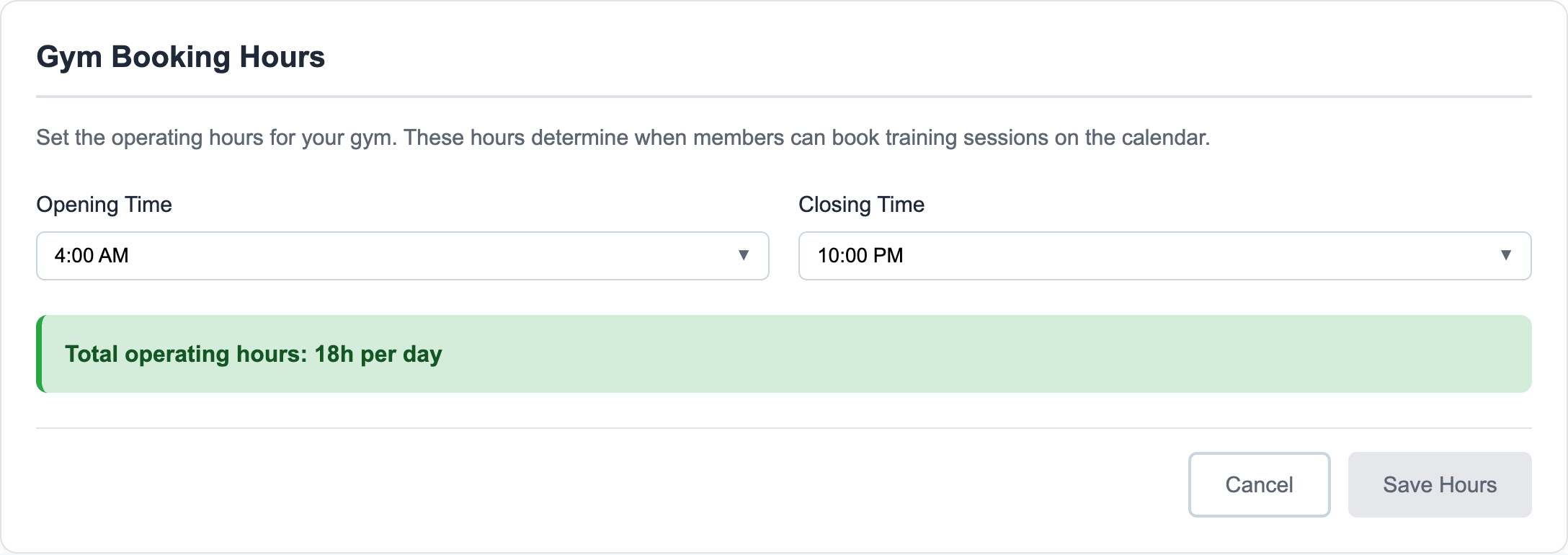
Choose the opening and closing times that should be available for member booking. These hours are gym-wide guardrails for the booking calendar.
Save when the total operating hours look right.
3. Use Timezone as the Source of Truth
The timezone shown under booking hours comes from your gym profile settings. Calendars, invoices, membership dates, class sessions, and member-facing booking screens should all line up to that timezone.
If the displayed timezone is wrong, update the gym profile before relying on the calendar.
4. Add Non-Training Session Types
Find Non-Training Session Types and click Add New Session Type. If the gym has not configured any yet, use Create Custom Type.
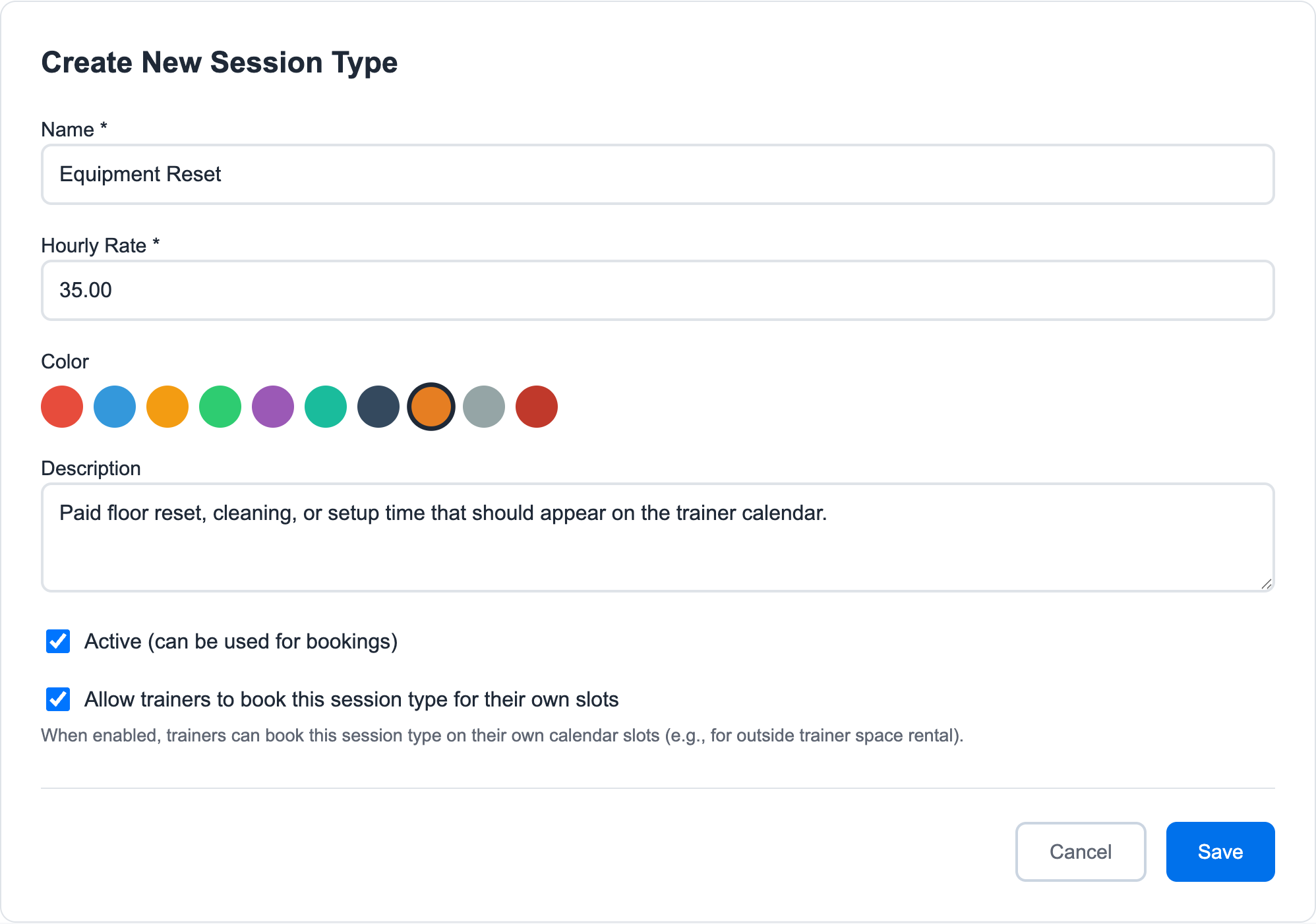
Add the details staff need to recognize the work:
- Name - For example, Equipment Reset, Admin Time, Staff Meeting, or Rental Floor Time.
- Hourly Rate - Used when the time should be paid or reviewed for payroll.
- Color - Makes the calendar easier to scan.
- Description - Explains when the type should be used.
- Active - Makes the type available for bookings.
- Allow trainers to book this session type - Lets trainers add this type to their own calendar when it should not require an owner/admin.
5. Decide Between Blocked Time and Non-Training Time
Use Blocked when the trainer should simply be unavailable.
Use Non-Training Session when the trainer is working and the time should be visible as a tracked work item. Examples include admin work, facility setup, education, equipment maintenance, or outside trainer rental.
6. Book It on the Calendar
After the session type exists, go to Calendar -> Personal Training.
Click the calendar where the time belongs, choose Non-Training Session, select the configured type, and save the slot. Admins can use any active type. Trainers only see the types that allow trainer booking.
Related guides:
Ready to streamline your gym?
Start managing bookings, personal training, and memberships in minutes.
Start Your Free Trial →No credit card required