Create a Custom Invoice
Use custom invoices for one-off charges that are not generated by a membership.
Examples:
- Merchandise
- Drop-in fees
- Private event charges
- Manual adjustments
- Equipment rentals
1. Open Invoice History
Go to Finance -> Invoices.
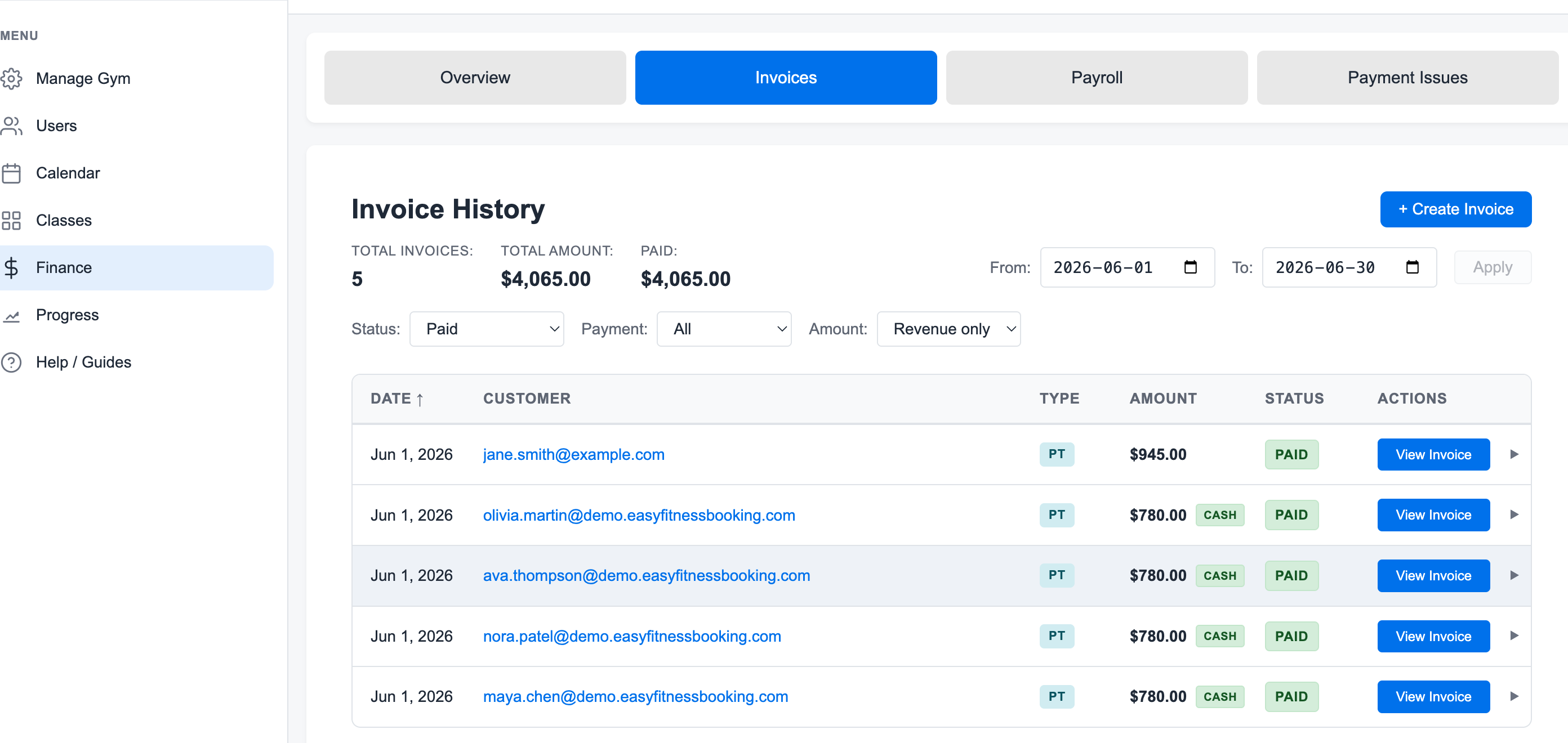
2. Click Create Invoice
Click + Create Invoice.
The modal keeps the member, payment method, line items, billing date, notes, tax, and final total in one place.
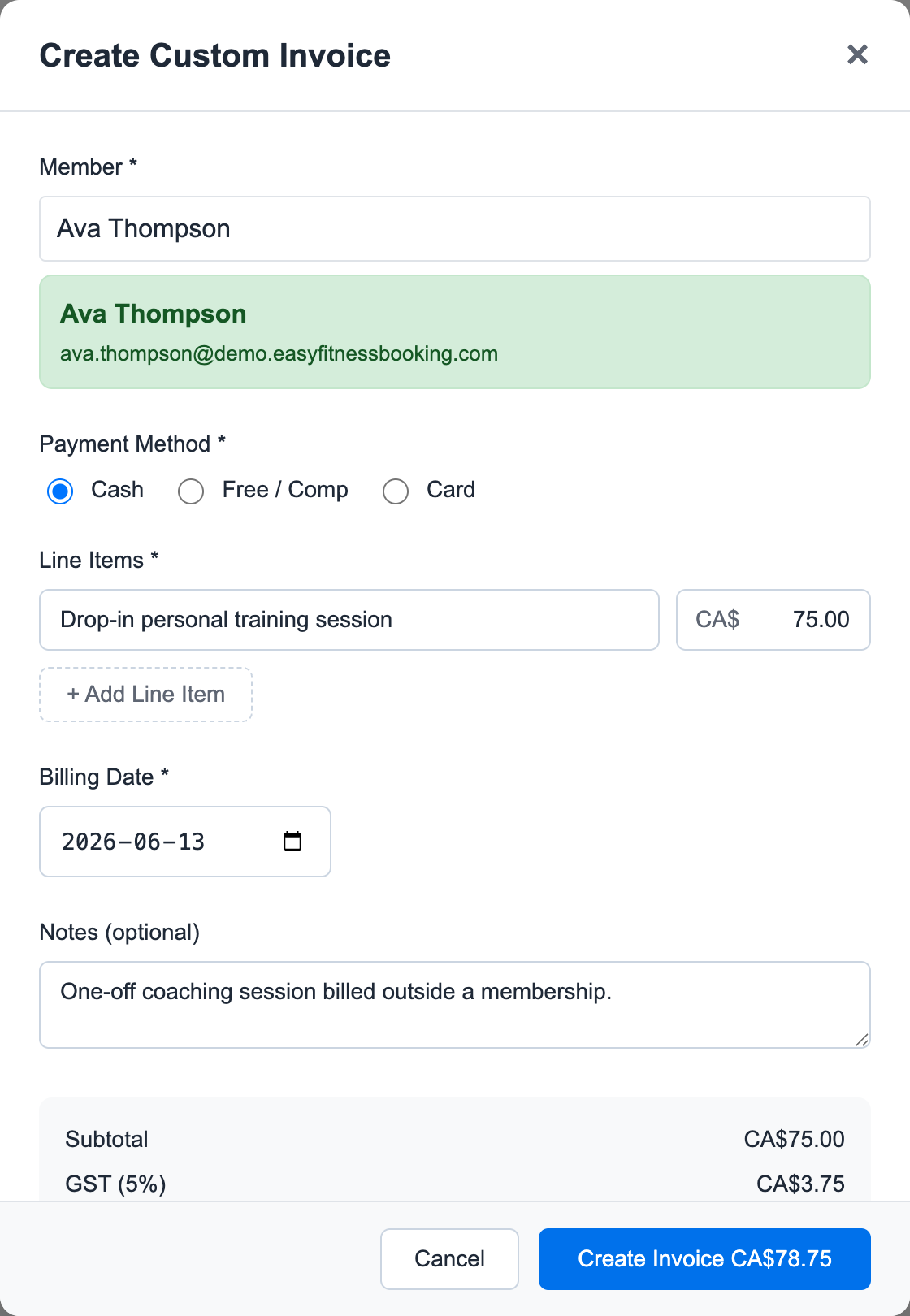
3. Choose the Member
Select the member who should receive the invoice.
4. Add Line Items
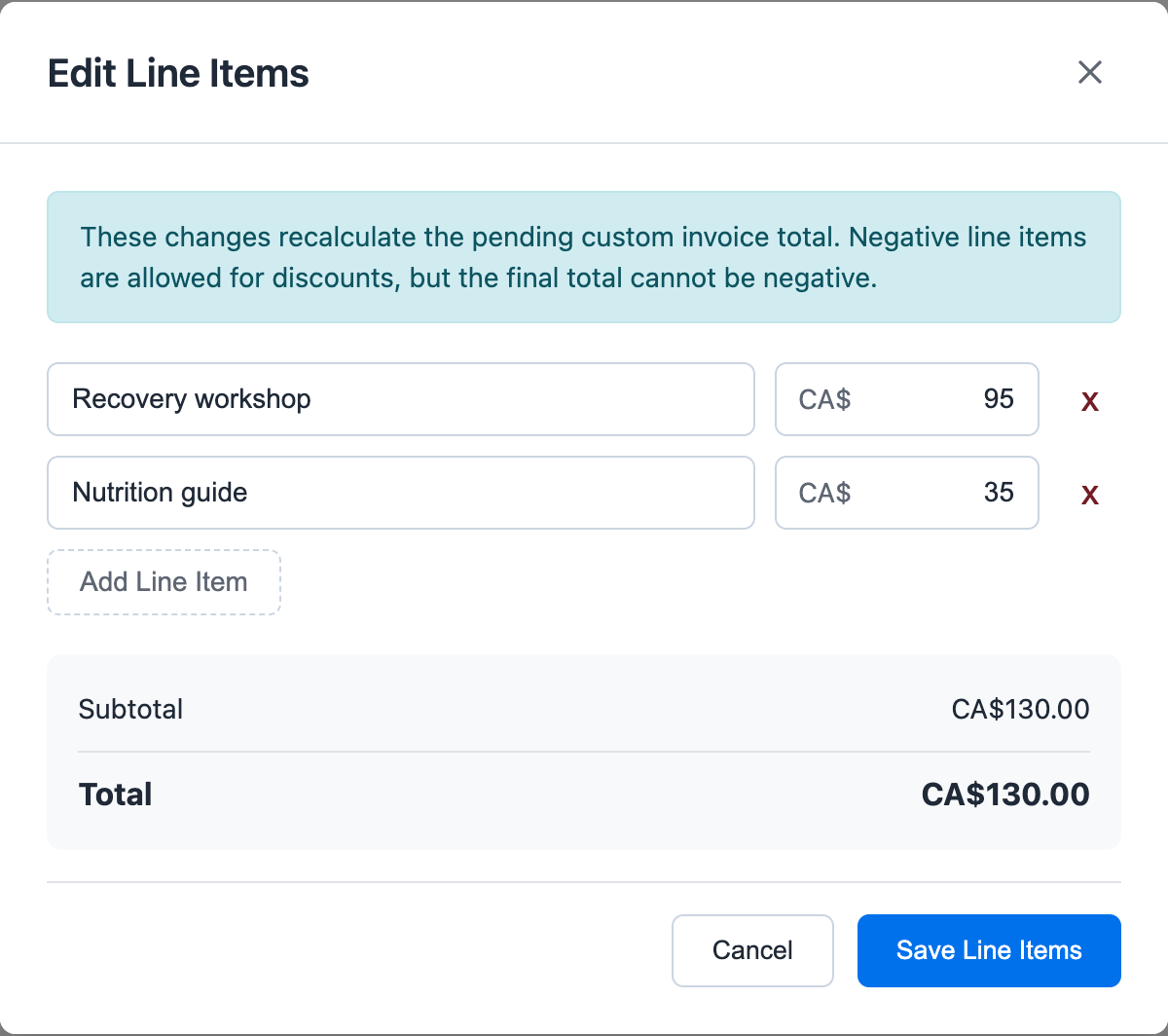
Add clear line item names and amounts. Keep the wording recognizable because staff and members will use it later when reviewing payment history.
Pending custom invoices can also be edited after creation. Open the invoice detail page and use Edit in the Line Items section.
5. Choose Payment Handling
Choose whether to charge now, create a pending invoice, or record an offline payment depending on the member's payment method and your workflow.
6. Review the Invoice Detail
Open the invoice after creating it and confirm the status, amount, payment method, line items, and activity notes. For custom invoices, the line items and payment status are the important checks; PT credit and linked-session sections only appear when the invoice came from a membership package.
Related guides:
Ready to streamline your gym?
Start managing bookings, personal training, and memberships in minutes.
Start Your Free Trial →No credit card required