Book a Personal Training Session
Use the training calendar to create availability, book a member into an existing slot, or schedule a session directly.
1. Open the Training Calendar
Go to Calendar and select Personal Training.
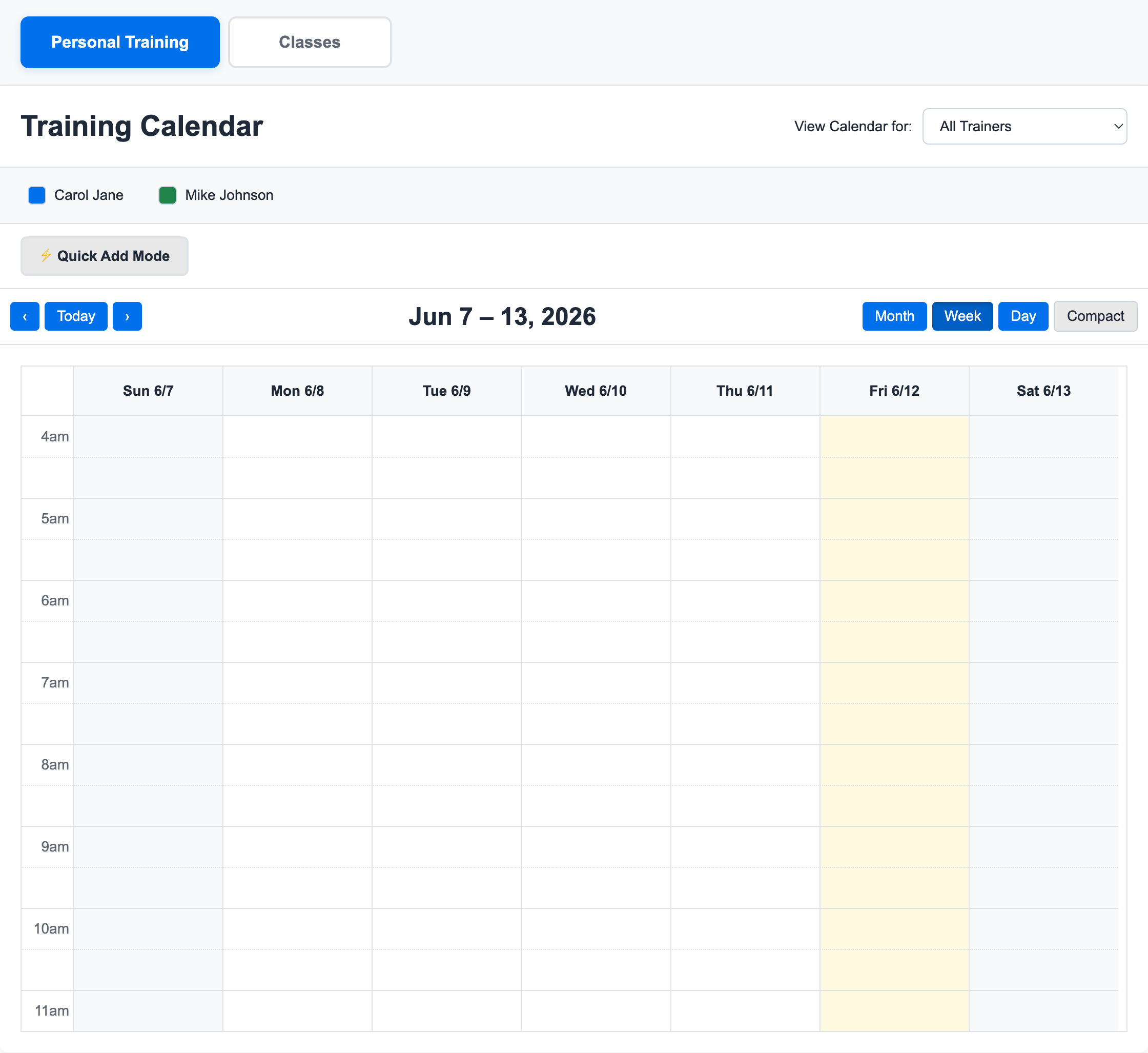
2. Choose the Calendar View
Use Month, Week, or Day depending on how much detail you need.
For staff booking, Week or Day is usually best because time slots are easier to target.
3. Book from an Available Slot
If the trainer already has an available slot:
- Turn on Quick Add Mode if you want fast booking.
- Select the member.
- Click the trainer's available slot.
The booking uses the trainer from the slot when no trainer is selected in Quick Add.
When you are viewing one trainer's calendar, the member search may be focused to that trainer's Client List. This keeps regular PT clients easy to find.
That is not a hard restriction. If you need to book someone who is not on that trainer's client list, use the All Trainers calendar and choose the trainer in the modal.
4. Create a New Slot or Session
If the time is empty:
- Click the open time on the calendar.
- Select the trainer in the modal if you are viewing All Trainers.
- Select the member if you are booking immediately.
- Leave the member blank if you are creating availability.
- Confirm the start time and duration.
- Click Create Slot.
When you click an empty time while viewing all trainers, the booking modal asks which trainer owns the slot. The same modal can create an available slot or book the member immediately.
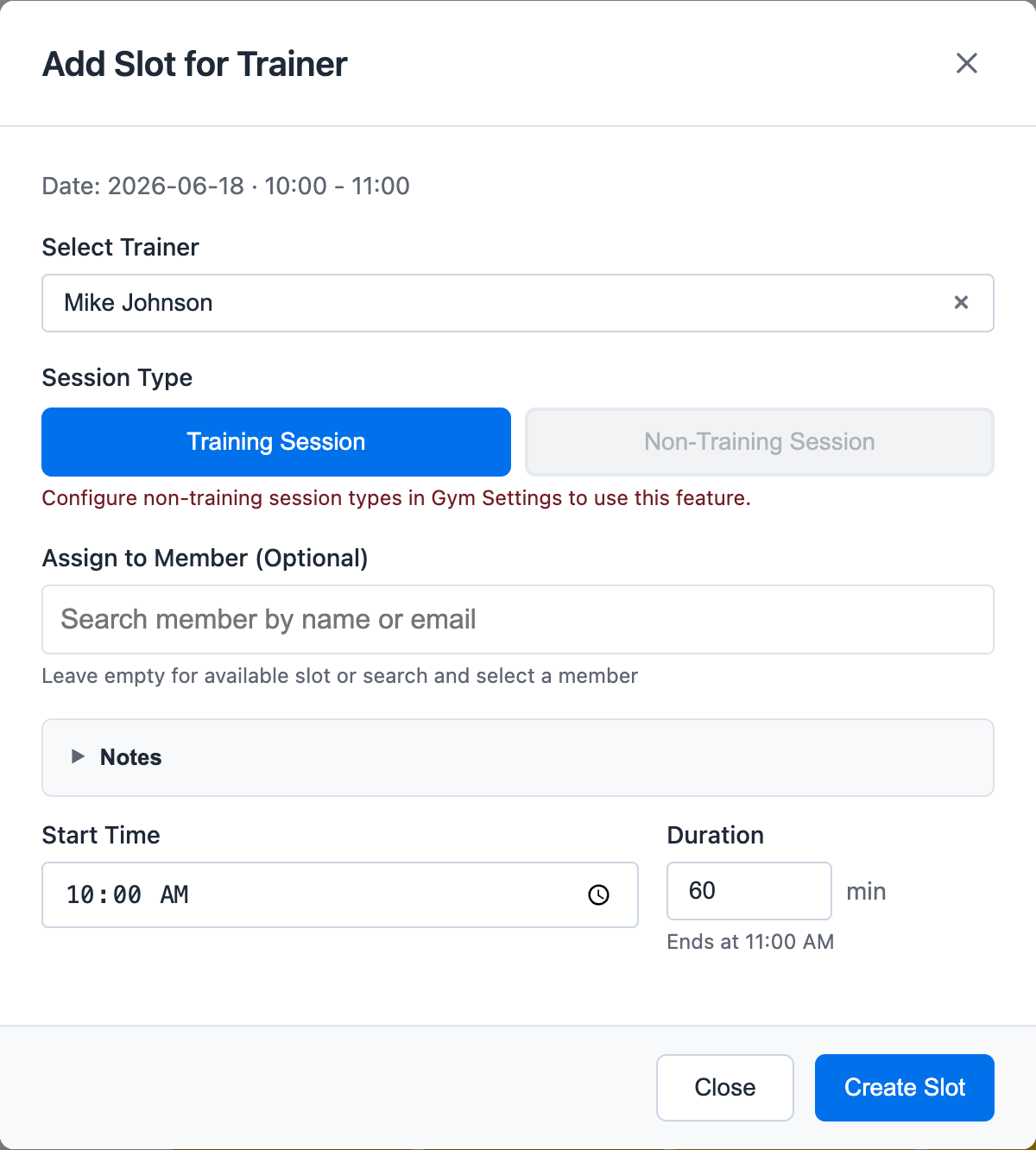
Leaving Assign to Member blank creates an available slot that can be booked later.
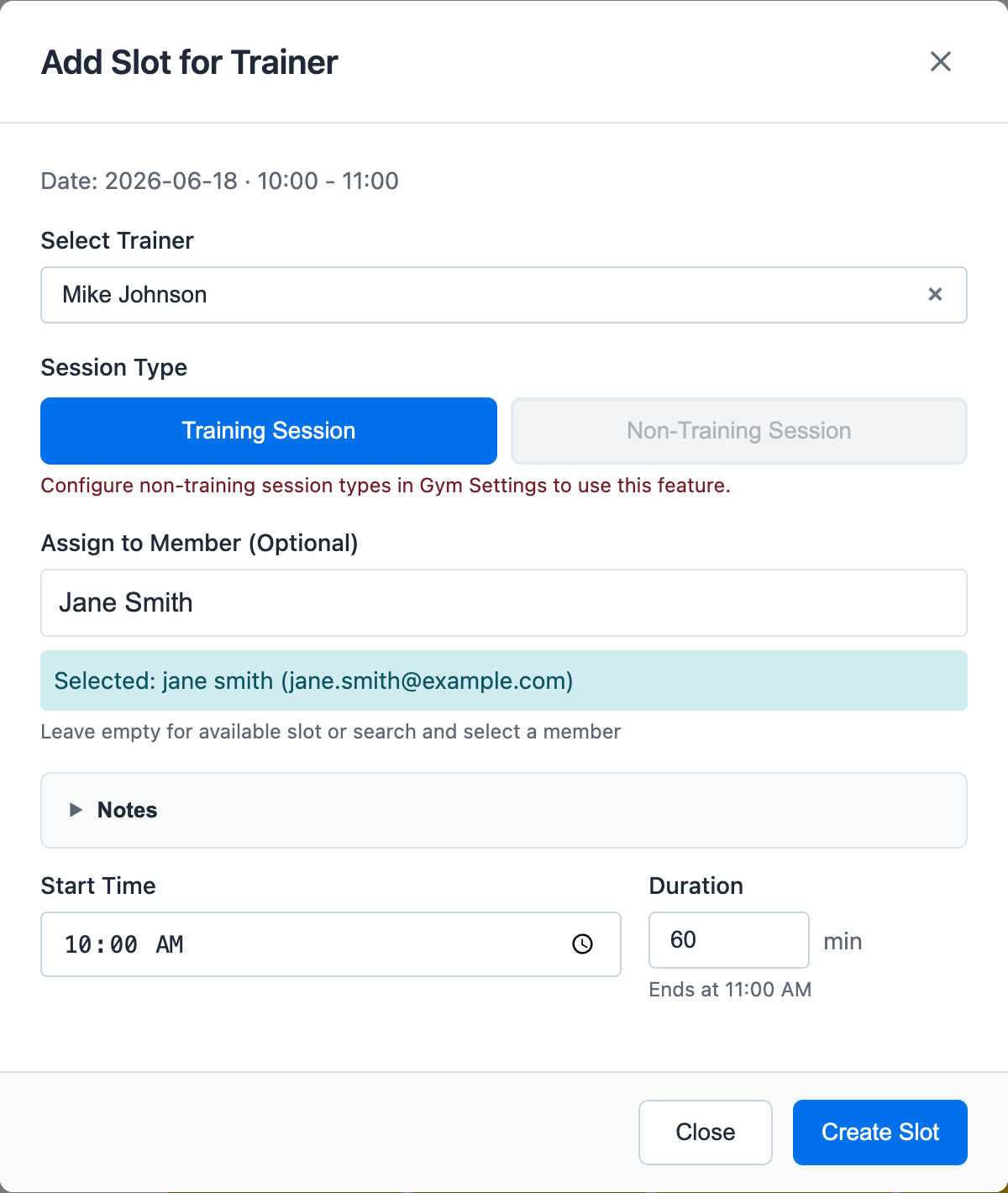
Selecting a member before clicking Create Slot books that session for the member immediately. The modal keeps the time and duration visible so you can confirm the booking before saving it.
5. Confirm from Member Activity
After saving, confirm the session appears on the trainer calendar. You can also open the member account and select Activity to confirm the session appears in the member's history.
For private trainer notes, see Review Activity and Session Notes.
For client-list setup, see Assign Members to a Trainer Client List.
Ready to streamline your gym?
Start managing bookings, personal training, and memberships in minutes.
Start Your Free Trial →No credit card required