Manage Staff Admin Settings
Use staff Admin settings when a trainer, admin, or class manager needs their access changed. Staff accounts are still users, so they have account status and role controls, but trainer-style profiles also include trainer-specific tools like the Client List.
1. Open the Staff Profile
Go to Users, find the staff member, then open their profile.
Trainer and class-manager profiles use the staff trainer layout with Profile, Schedule, Activity, and Admin tabs. Admin-only staff use a simpler staff profile with Profile and Admin.
2. Review the Trainer Admin Tab
For trainers, the Admin tab starts with the Client List, then shows account status and role controls.
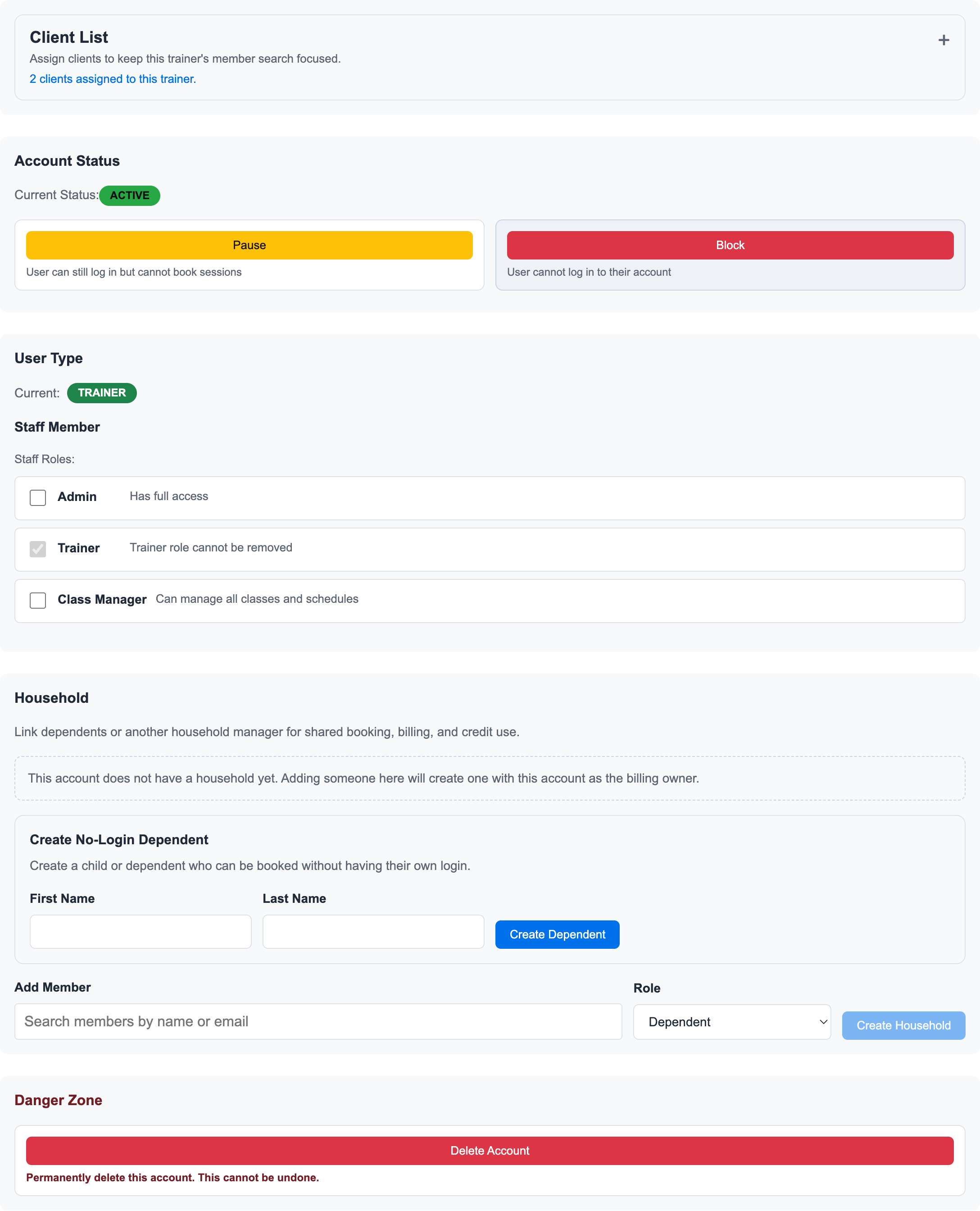
Use the Client List to keep that trainer's member search focused. It is not a hard booking restriction. Owners and admins can still use the All Trainers calendar to book any member with that trainer.
3. Change Staff Account Status
Use Account Status when the staff account should be active, paused, or blocked.
| Status | What it means |
|---|---|
| Active | The staff member has normal access for their role. |
| Paused | The staff member can log in, but cannot book sessions. |
| Blocked | The staff member cannot log in until the account is reactivated. |
This is access control. It does not replace schedule changes, payroll review, or membership actions on member accounts.
4. Manage Staff Roles
Use User Type to review or change staff roles.
Common role combinations:
- Trainer: manages trainer schedule, client list, trainer activity, and eligible PT workflows.
- Admin: manages users, memberships, scheduling, and finance workflows.
- Class Manager: manages class setup and class schedules.
The trainer role is treated carefully because trainer records can be tied to schedules, sessions, payroll, and Google Calendar sync. Do not use role changes as a shortcut for payroll or schedule cleanup.
5. Understand Admin-Only Staff
Admin-only staff profiles have the same account status and role controls, but they do not need trainer schedule or client-list tools unless you also give them a trainer or class-manager role.
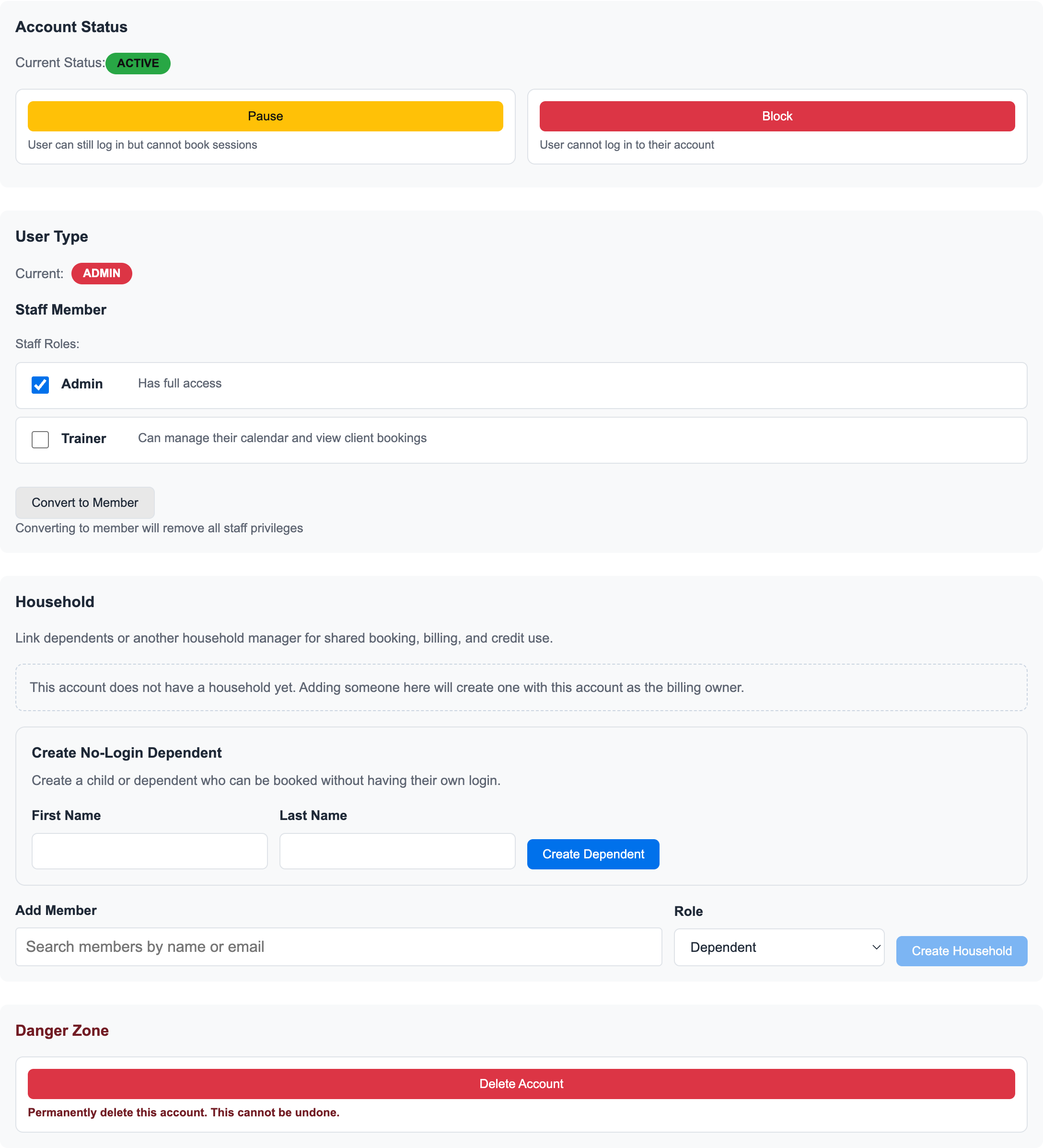
If an admin should also coach, add the trainer role deliberately so they appear in trainer calendars and trainer-specific workflows.
6. Use Trainer Client Lists for Convenience
A trainer Client List helps staff remember who usually works with that trainer and keeps single-trainer searches focused.
It does not control credit eligibility. If a membership should only work with certain trainers, configure trainer restrictions on the membership type or membership.
Related guides:
Ready to streamline your gym?
Start managing bookings, personal training, and memberships in minutes.
Start Your Free Trial →No credit card required