Set Up Doubles PT
Use the class system for doubles PT. A doubles session behaves like a private class with capacity 2, while each member keeps their own credits and history.
1. Create a Doubles Class Type
Go to Classes -> Class Types and click + Add Class Type.
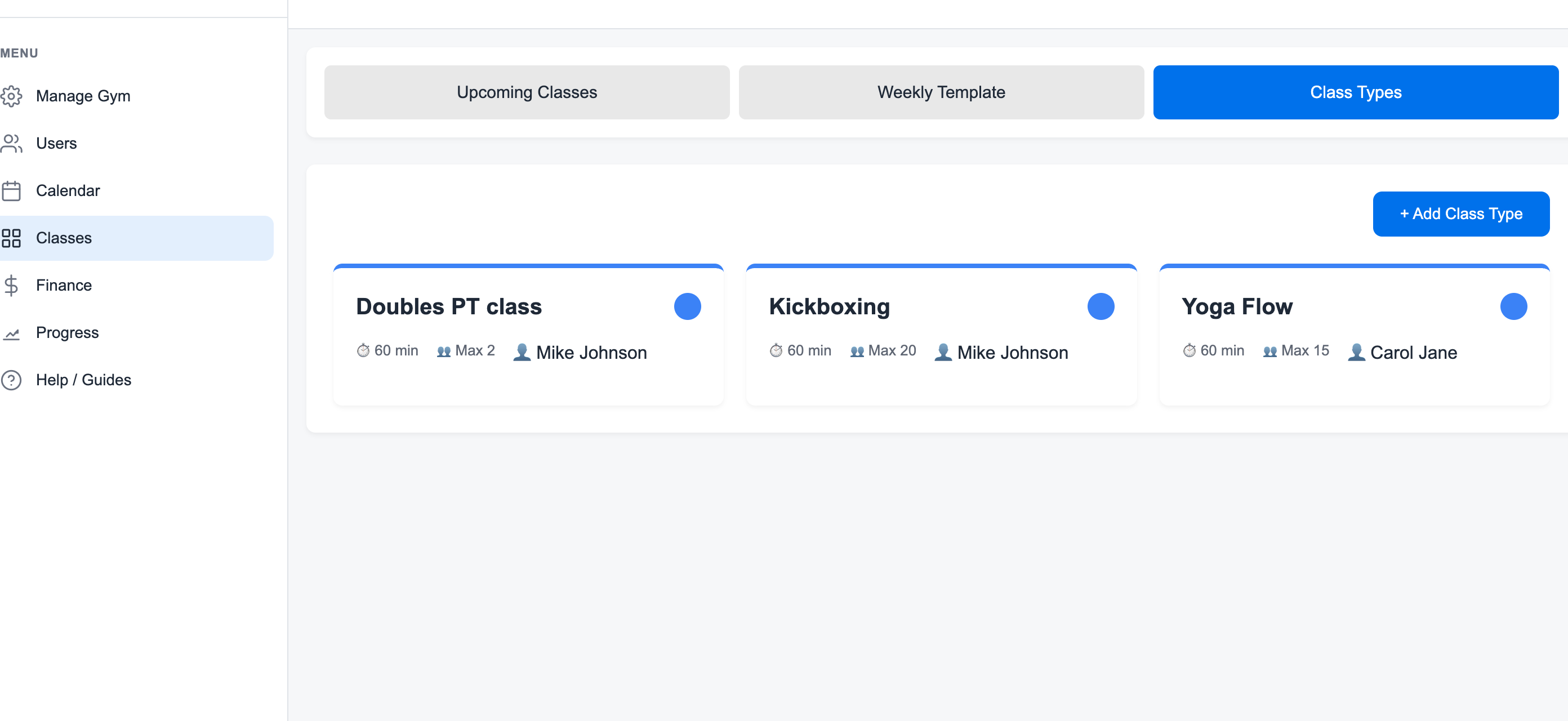
Use a clear name such as Doubles PT Session, set capacity to 2, and keep the duration aligned with your PT offer.
2. Create a Doubles Membership Type
Go to Manage Gym -> Memberships and create a class membership restricted to the doubles class type.
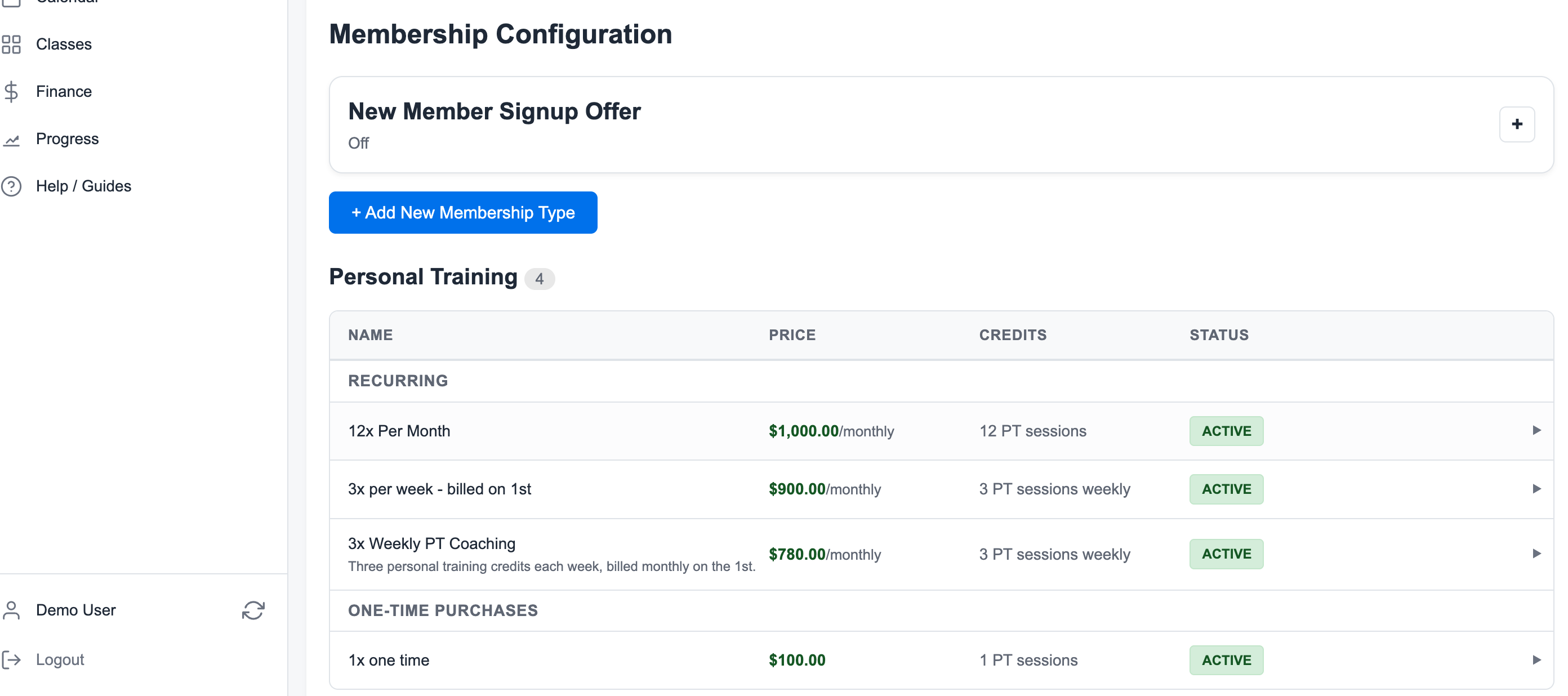
Restricting the membership keeps doubles credits from being used for regular group classes.
3. Assign the Membership to Both Members
Open each member profile and add the doubles membership.
Each person should have their own membership and their own credits.
4. Create a Private Class Session
Go to Calendar -> Classes and create the doubles session.
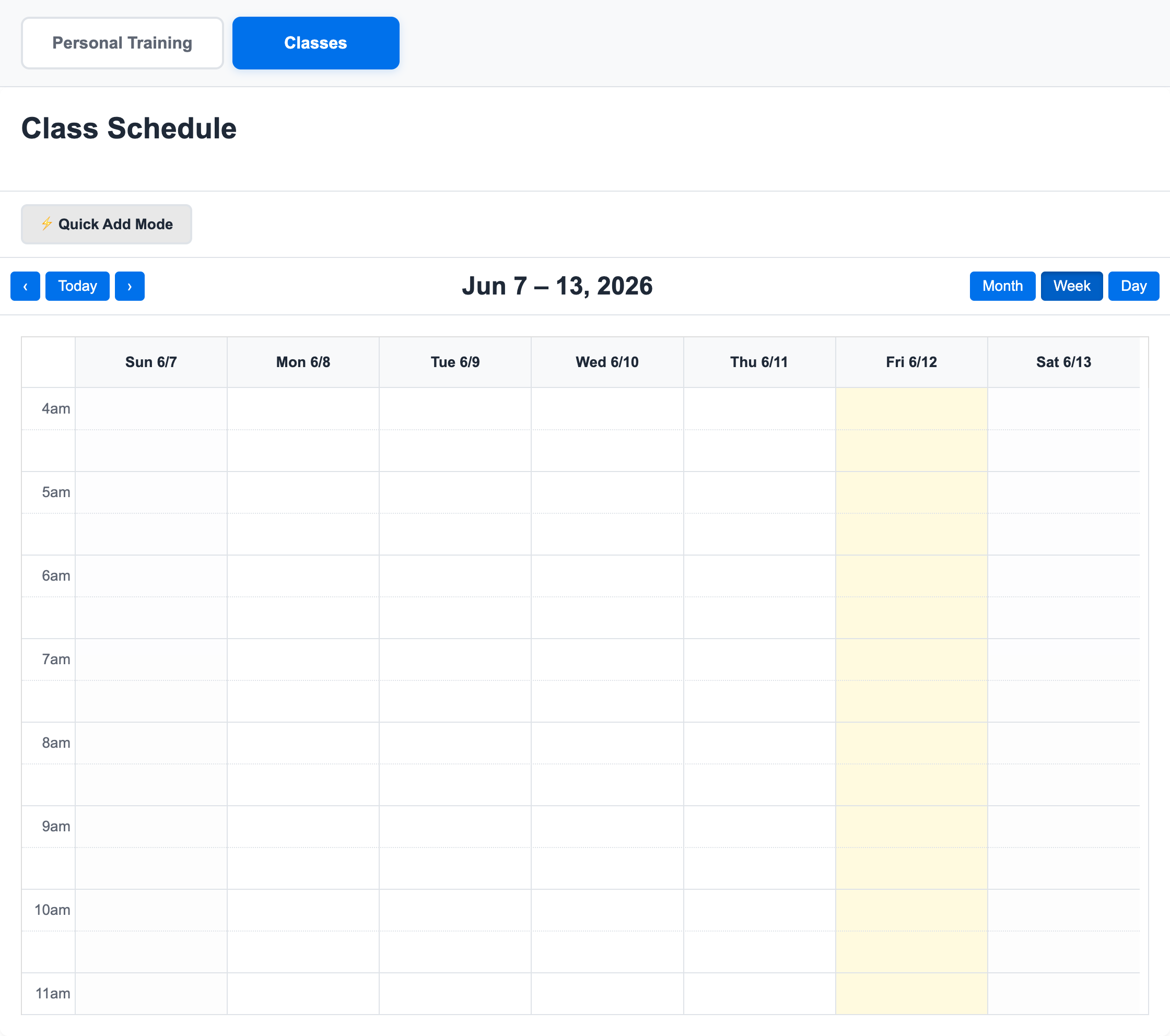
Leave public enrollment off if the session should stay private.
5. Add Both Members to the Roster
Open the class session and add both partners to attendance. Each member uses one eligible doubles credit.
Related guides:
Ready to streamline your gym?
Start managing bookings, personal training, and memberships in minutes.
Start Your Free Trial →No credit card required