Pause a Membership
Use a pause when a member is taking a temporary break but expects to return. This keeps the account intact while stopping the parts of the membership that should not continue during the break.
1. Open the Member's Membership Tab
Open the member account, then select Membership. Find the recurring membership you want to pause.
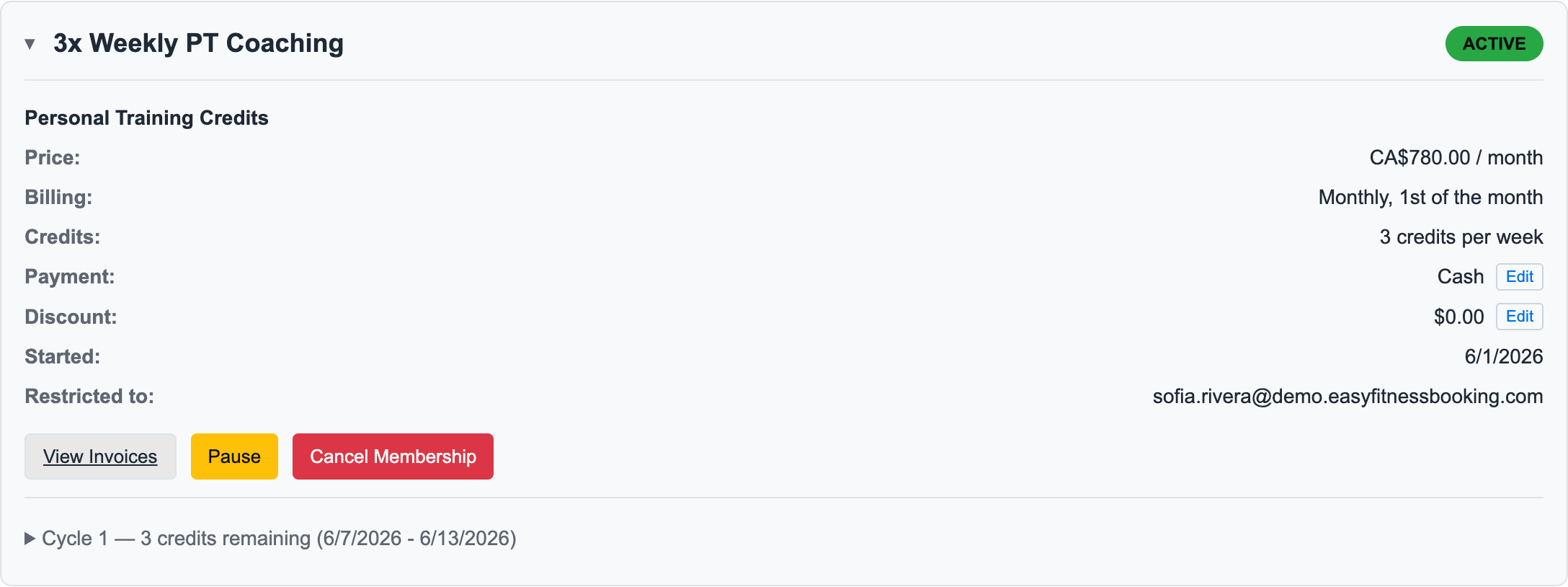
In this example, Maya has a 3x Weekly PT Coaching membership. It bills monthly, gives 3 PT credits per week, and is restricted to trainer Sofia Rivera.
2. Click Pause
Click Pause on the membership card.
You can choose:
- Fixed Duration when the return date is known.
- Indefinite when the member will resume manually later.
3. Review the Dry Run
Choose the pause start date, resume date if fixed, and enter a reason. The dry run updates before you confirm.
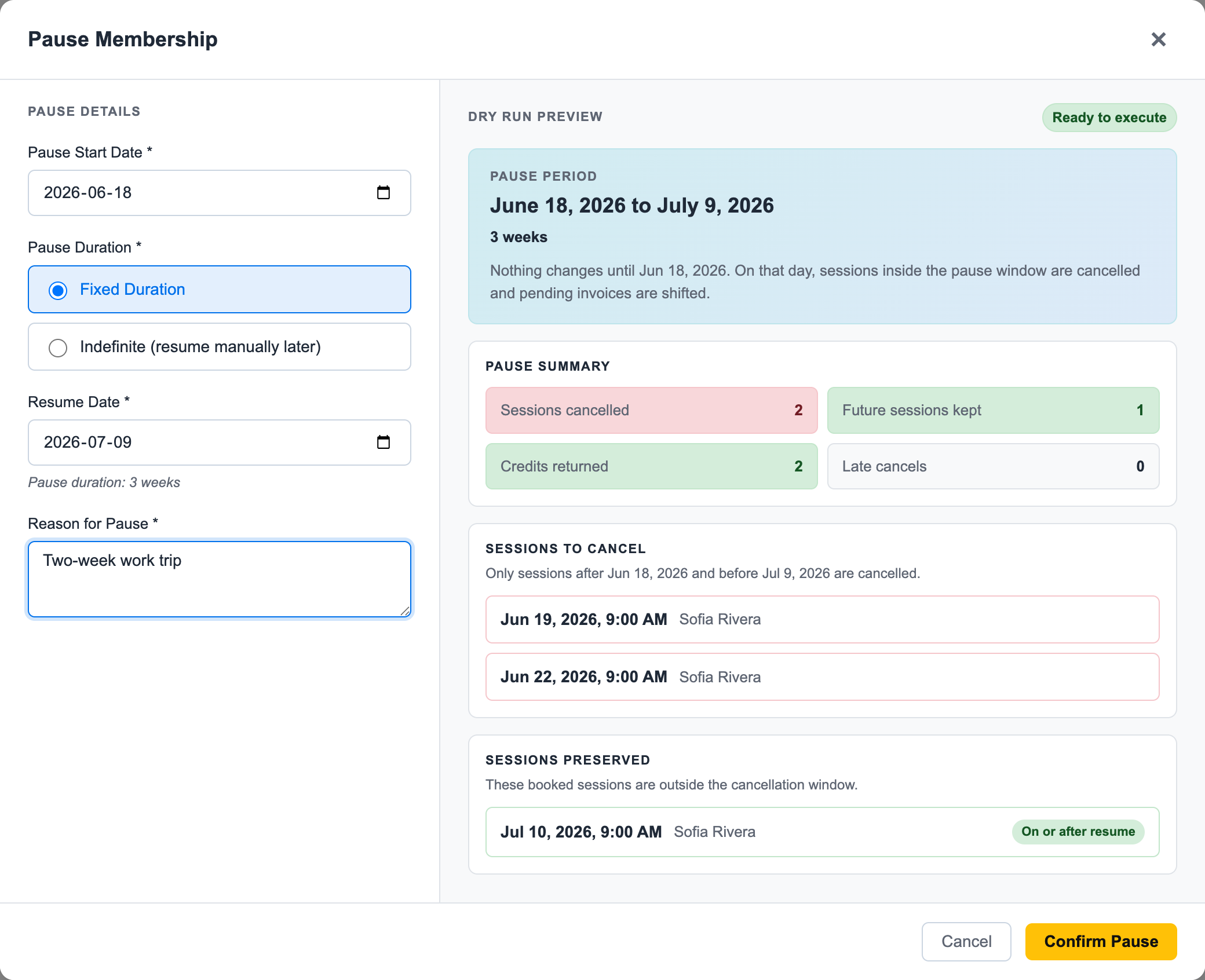
Before confirming, check:
- Sessions cancelled: appointments inside the pause window.
- Future sessions kept: appointments outside the pause window.
- Credits returned: credits restored from cancelled sessions.
- Late cancels: sessions too close to start time where the credit is not returned.
- Invoice changes: pending invoices that will be deleted or shifted.
4. Confirm the Pause
Click Confirm Pause only after the dry run matches what you expect.
After confirmation, the system updates the membership, cancels affected sessions, preserves the right credits, and records the pause reason for the account history.
When to Use Fixed vs Indefinite
Use Fixed Duration for vacations, scheduled travel, or planned surgery recovery.
Use Indefinite for injuries, uncertain return dates, or clients who need to restart when they are ready.
For the underlying rules, see Pausing and Resuming Memberships.
Ready to streamline your gym?
Start managing bookings, personal training, and memberships in minutes.
Start Your Free Trial →No credit card required