Resume a Paused Membership
Use resume when the member is ready to start using the membership again. The system calculates how much time was paused, restores the membership to active, and extends paused credits where needed.
1. Open the Paused Membership
Open the member account and select Membership. A paused recurring membership shows a PAUSED status and a Resume action.
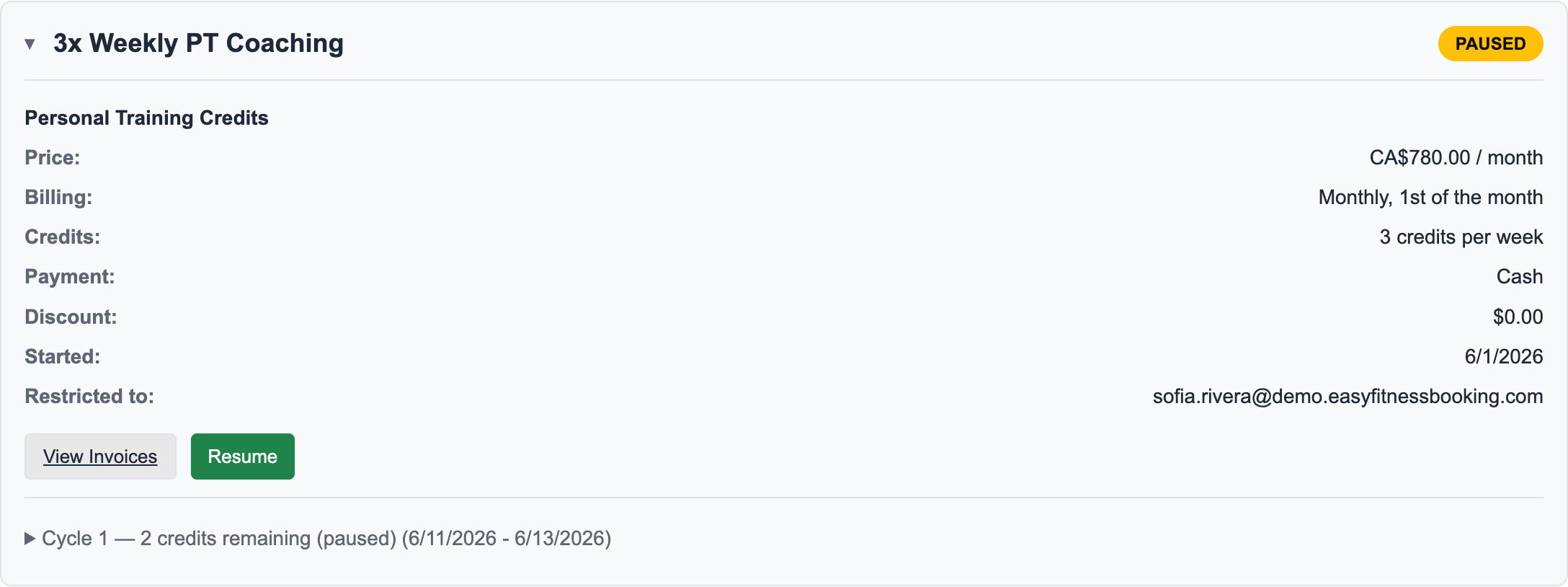
2. Click Resume
Click Resume. The system previews what will happen before it changes the account.
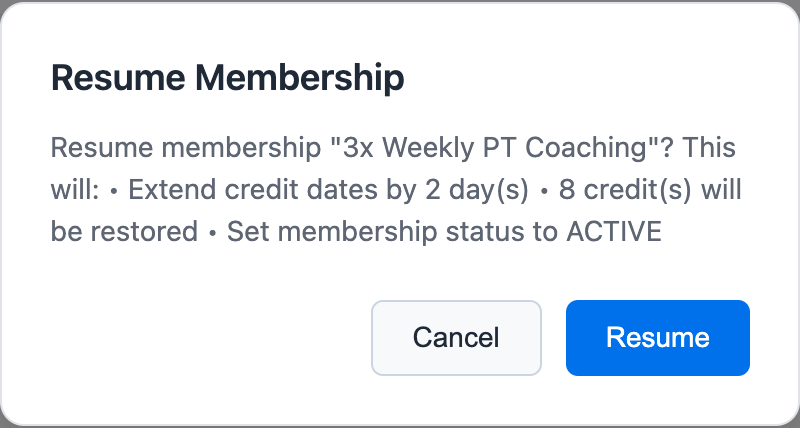
In this example, the system will:
- Extend credit dates by the actual pause duration.
- Restore paused credits.
- Set the membership status back to ACTIVE.
3. Confirm the Resume
Click Resume in the confirmation dialog.
After confirmation, the member can book again using the restored credits, and staff can review the updated membership and billing history from the same account.
Important Notes
For an indefinite pause, the extension is based on the actual time away.
For a fixed-duration pause, the system may have already shifted credits and invoice coverage at pause time. In that case, resume can be a lighter status change because the fixed-end plan was already applied.
For billing examples, see Check Pause and Resume Billing.
Ready to streamline your gym?
Start managing bookings, personal training, and memberships in minutes.
Start Your Free Trial →No credit card required