Review Member Invoices
Use invoices when a member asks what they paid, why a credit exists, or what will bill next.
1. Open the Member's Membership Tab
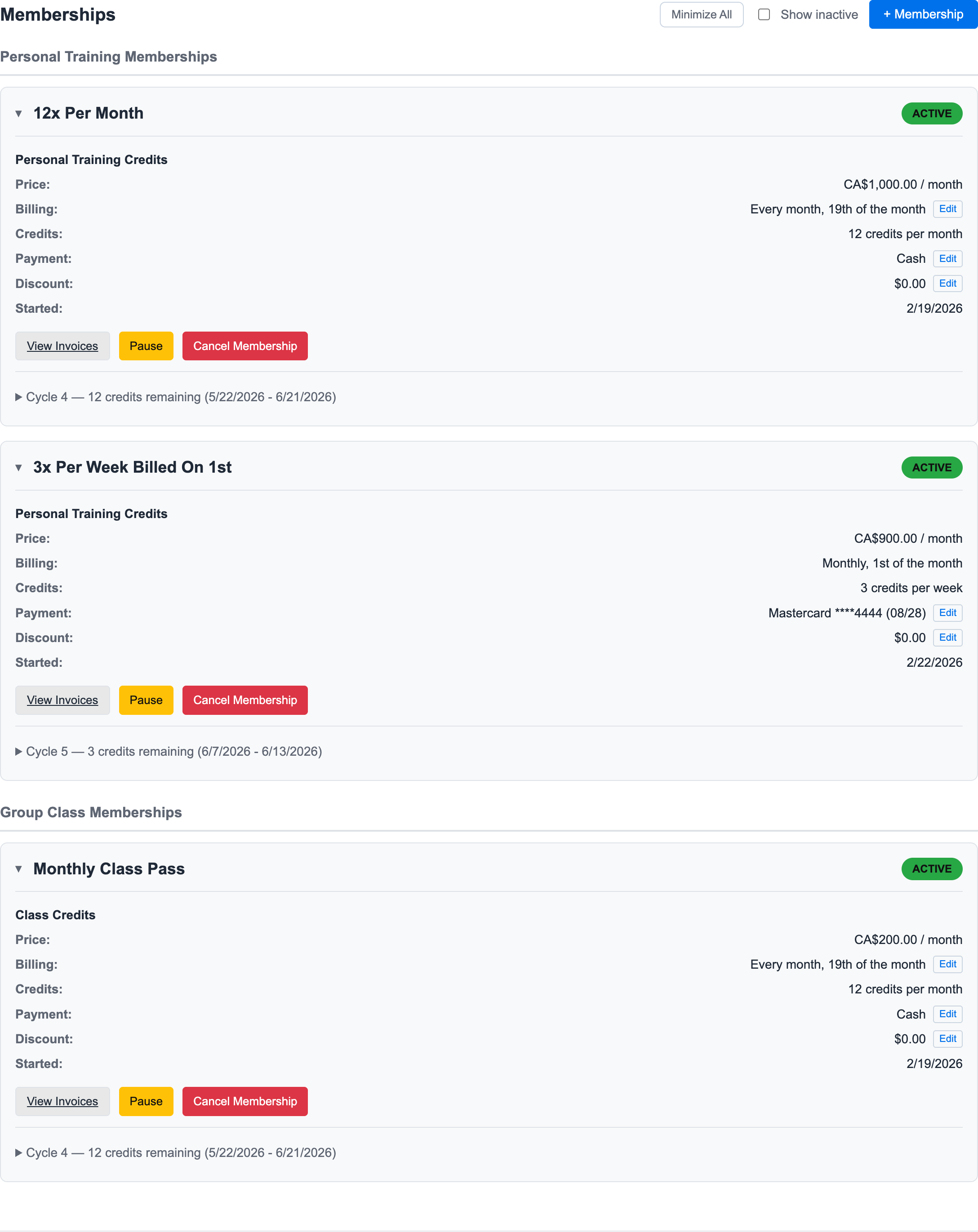
Open the member account and select Membership.
The membership card includes a View Invoices link.
2. Click View Invoices
Click View Invoices on the membership you want to inspect.
3. Expand Activity Notes
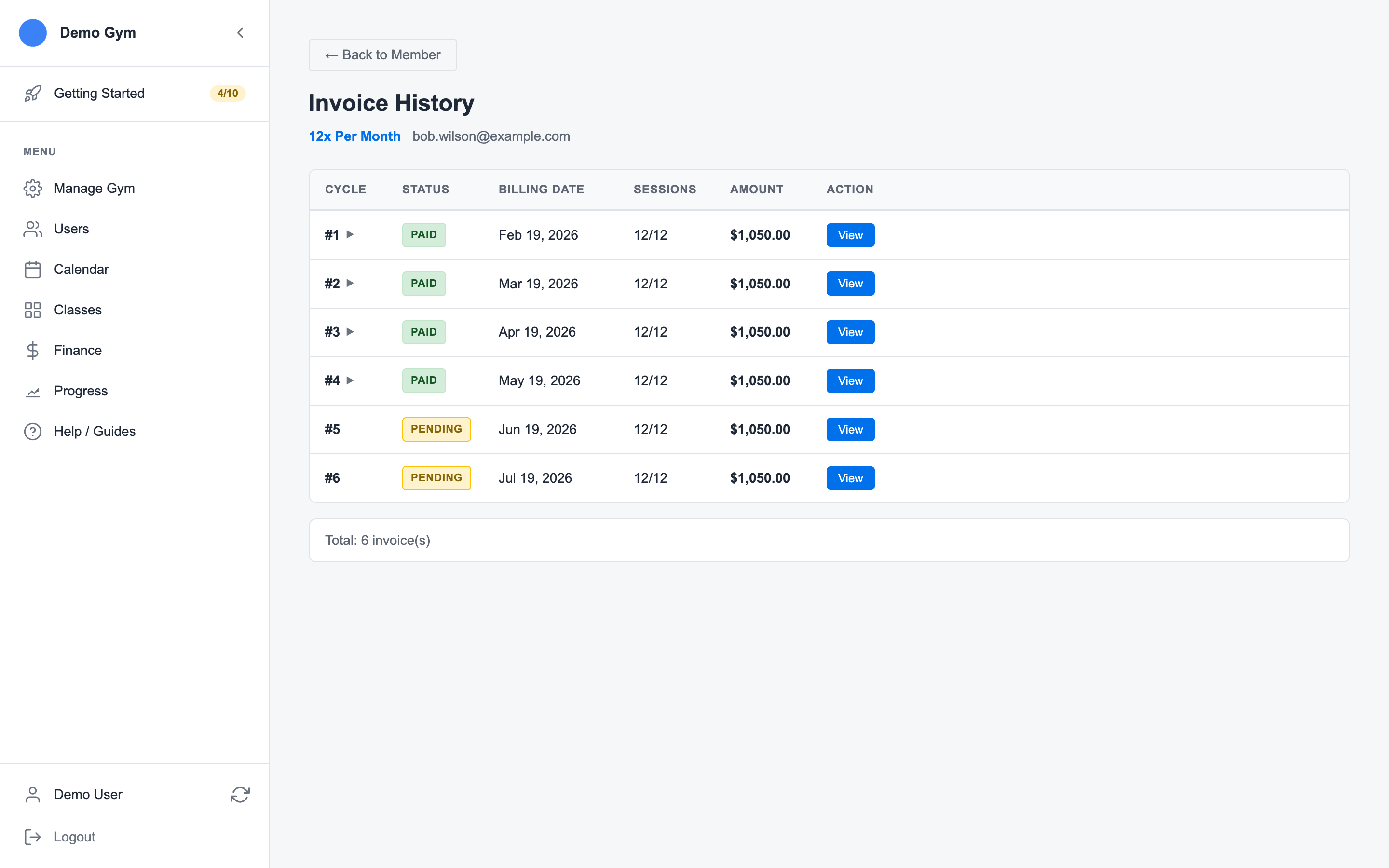
Rows with activity notes can be expanded from the invoice history. This gives staff a quick answer without opening the full invoice detail page.
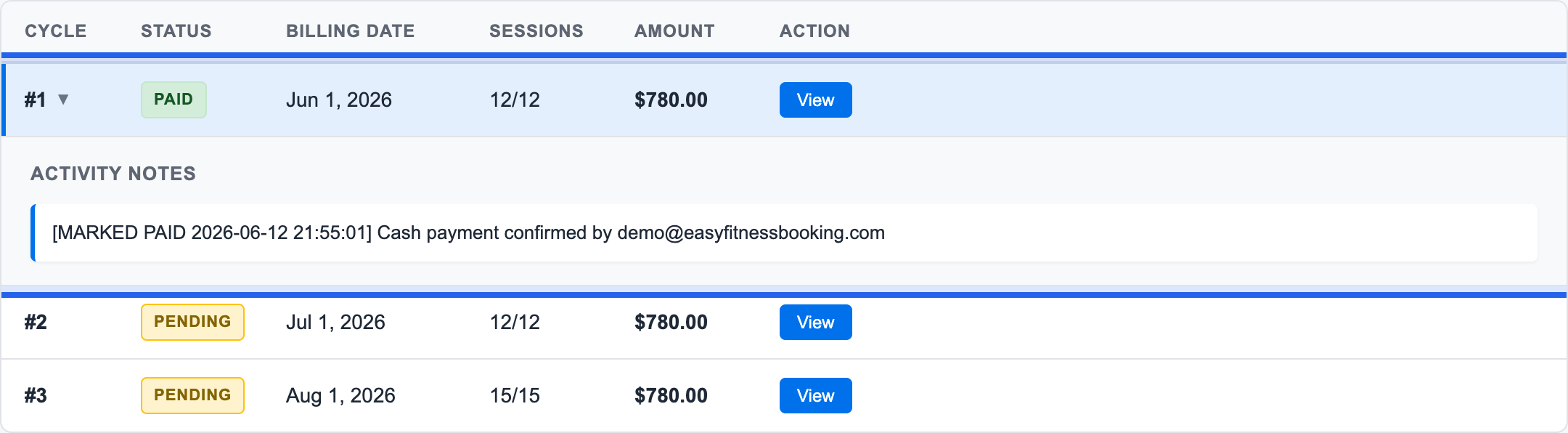
In this example, the 3x Weekly PT Coaching membership bills monthly on the 1st, grants weekly PT credits, and keeps the cash-payment confirmation attached to the paid invoice.
4. Read the Invoice Rows
Each row shows:
- Cycle number
- Status
- Billing date
- Sessions or credits
- Amount
- View action
Use Paid invoices for completed billing and Pending invoices for future or not-yet-collected billing.
5. Use Billing History for the Account-Level View
The member account can also show billing history across memberships.
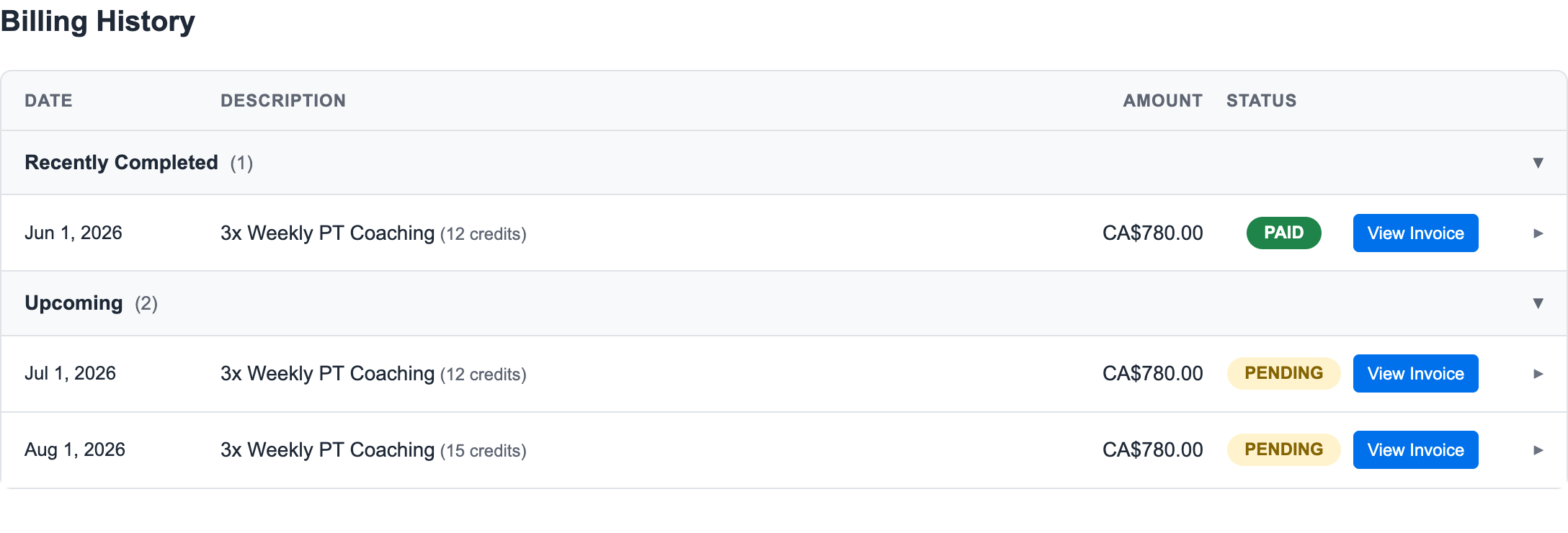
This is useful when the member has multiple memberships or class passes.
6. Open the Invoice Detail When Needed
Click View Invoice when you need the full detail: line items, payment method, sessions, credit source, refunds, or status actions.
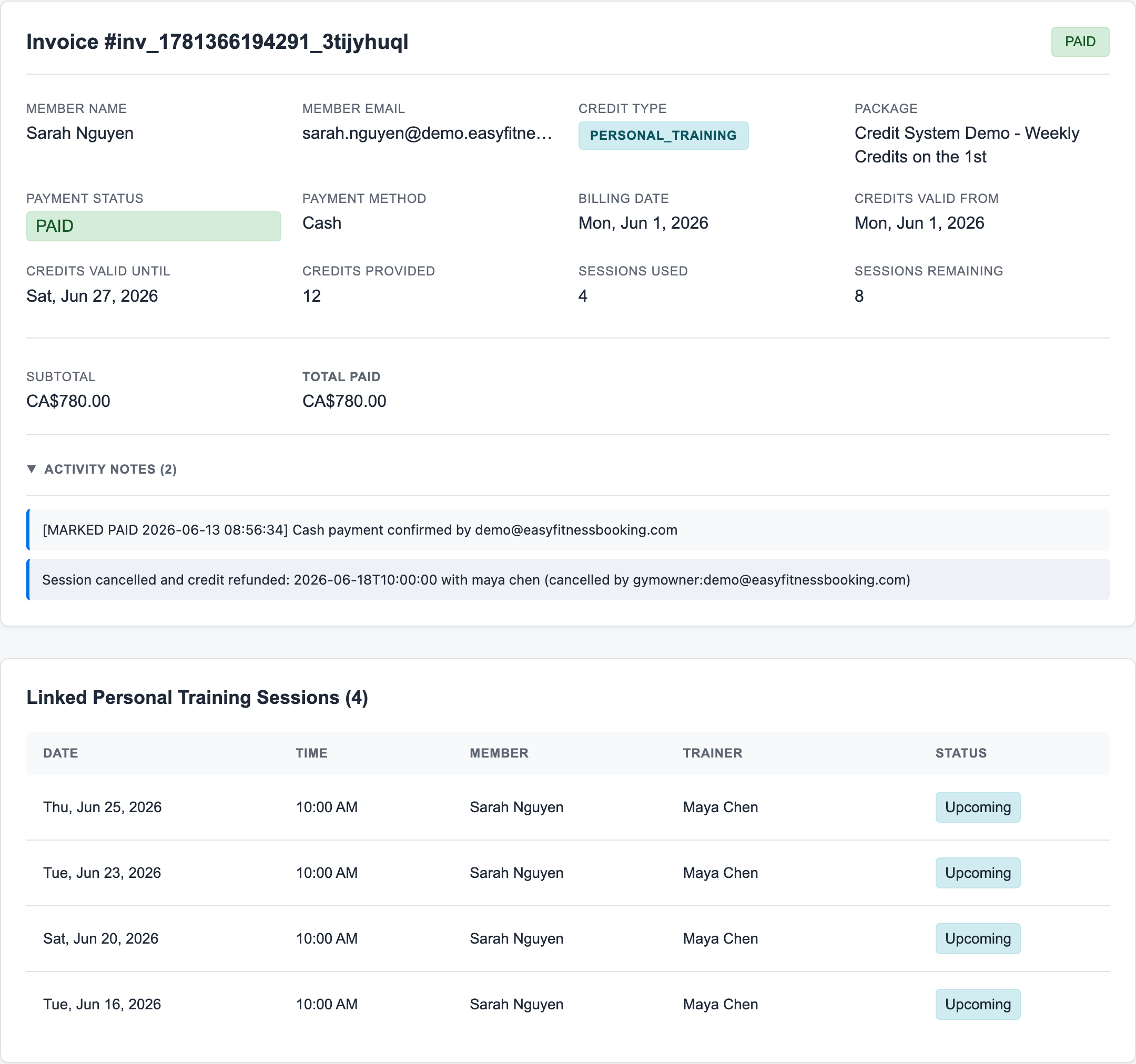
This is the view to use when a member asks which appointments used the credits from a specific payment. The full invoice detail also shows activity notes and linked PT sessions together, so staff do not have to compare separate screens.
For the finance dashboard version of this workflow, see Invoice Management.
Ready to streamline your gym?
Start managing bookings, personal training, and memberships in minutes.
Start Your Free Trial →No credit card required