Manage Member Admin Settings
Use the member Admin tab for account-level controls. This is different from the Membership tab: pausing an account controls access, while pausing a membership changes billing, credits, and sessions.
1. Open the Admin Tab
Go to Users, open the member, then select Admin.
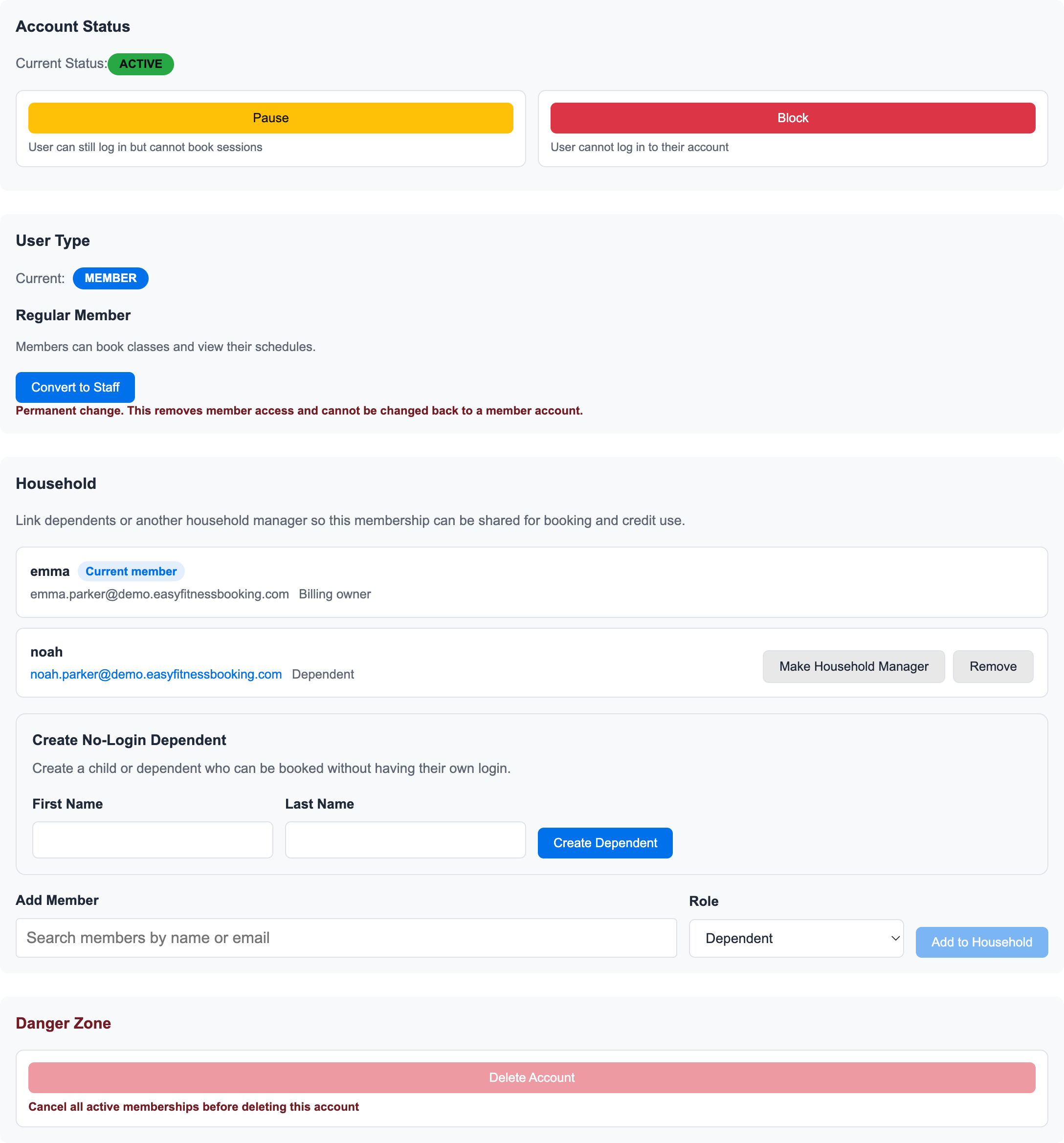
The Admin tab is where staff can review and change:
- Account status
- User type and roles
- Household relationships
- Account-level danger actions
For trainer, admin, and class-manager staff accounts, see Manage Staff Admin Settings.
2. Change Account Status
Use Account Status when you need to control whether the person can use the app.
| Status | What it means |
|---|---|
| Active | The user has normal access for their role. |
| Paused | The user can still log in, but cannot book personal training or classes. |
| Blocked | The user cannot log in until the account is reactivated. |
Use account pause for access control. Use Pause a Membership when the member is taking a billing or credit break.
3. Change User Type
Use User Type when someone's role changes.
Common examples:
- A member becomes a trainer.
- A trainer needs admin access.
- A temporary staff role should be removed.
- A staff account should become a regular member again.
Role changes affect what the user can see and manage. Adding a trainer role registers the person in trainer-facing workflows such as schedules, payroll, and client lists. Adding admin access gives broader management access, so use it deliberately.
4. Link Household Members
Use the Household section when one person manages billing or booking for another person.
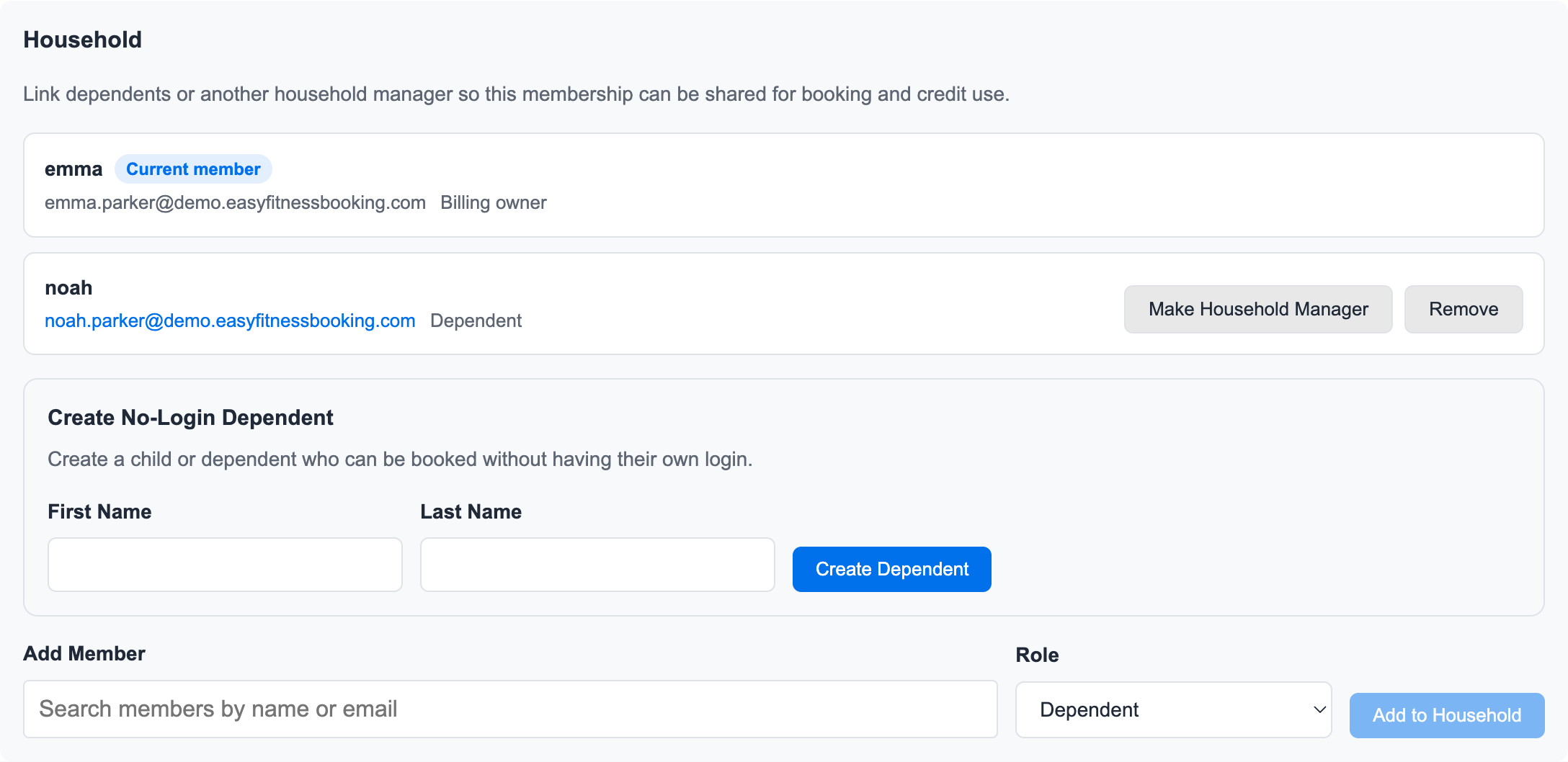
From here staff can:
- Create a household from the current member
- Add an existing member to the household
- Create a no-login dependent
- Mark someone as a dependent or household manager
- Remove non-billing-owner household members
For the full household billing and shared-credit workflow, see Manage Household Membership Sharing.
5. Use Danger Actions Carefully
Account-level destructive actions affect access and account history. Confirm the member, role, and household relationships before using them.
If the question is about billing, credits, pauses, cancellations, or invoices, start from the Membership tab instead of deleting or blocking the account.
Related guides:
Ready to streamline your gym?
Start managing bookings, personal training, and memberships in minutes.
Start Your Free Trial →No credit card required