Invoice Management
It's Monday morning. You grab coffee, open your laptop, and check how the weekend billing went.
Did all the automatic charges go through? Did anyone's card decline? How much revenue actually landed?
Your invoice dashboard answers all of this in about 30 seconds.
What You're Looking At
Every financial transaction creates an invoice:
- Membership invoices — Automatic billing for PT packages, recurring memberships
- Custom invoices — T-shirt sales, guest passes, equipment rentals, one-off charges
- Refunds — When money goes back to members
Each invoice shows up in your dashboard with its status, amount, and member info. You can see at a glance what's paid, what's pending, and what needs attention.
The Statuses That Matter
Paid
Money's in. Credit card went through. Nothing to do.
Pending
Invoice exists but hasn't been charged yet. This happens for:
- Future billing dates (next month's invoice created but not due yet)
- Manual invoices waiting for payment
- First-time members who need to add a card
Failed
Card declined. This needs your attention.
Common reasons:
- Insufficient funds
- Expired card
- Card reported lost/stolen
- Bank blocked the transaction
Refunded
You sent money back to the member. The invoice stays in the system for your records.
Cancelled
Invoice was voided before charging. Maybe you created it by mistake, or the member cancelled before billing.
When Payments Fail
It happens. Cards expire. Banks flag transactions. People forget to update their info.
What You See
The invoice shows up in red (or whatever your "needs attention" color is). Click it and you'll see:
- What error the payment processor returned
- When the charge was attempted
- The member's contact info
What to Do
Step 1: Contact the member.
A quick text or email:
"Hey! Your card didn't go through for this month's PT package. Can you update your payment info when you get a chance?"
Step 2: Wait for them to update.
They log in, add a new card.
Step 3: Retry the charge.
Once they've updated their card, hit "Retry Payment." The system charges the new card and updates the invoice to Paid if successful.
Alternative: Accept cash.
If they'd rather pay cash, you can mark the invoice as paid manually. See Cash Payments.
Payment Issues Tab
The Payment Issues tab in Finance gives staff one place to review invoices that need attention.
It groups the work by:
- Failed payments
- Overdue invoices
- Refunded invoices
- Cancelled invoices
You can filter by date range, use presets like this month or last 90 days, sort the table, open the invoice detail, and mark eligible cash invoices as paid. The point is to keep billing follow-up out of spreadsheets and separate notes.
For the exact workflow, see Review Payment Issues.
Finding What You Need
Quick Filters
- This month — Everything billed in the current month
- Failed — Just the ones that need attention
- Pending — Upcoming charges
- By member — All invoices for one person
Search
Looking for a specific invoice? Search by:
- Invoice number ("INV-2025-0142")
- Member name
- Amount
Date Range
Accountant needs January's invoices? Set the date range, export to CSV, done.
What's Inside an Invoice
Click any invoice to see the full picture:
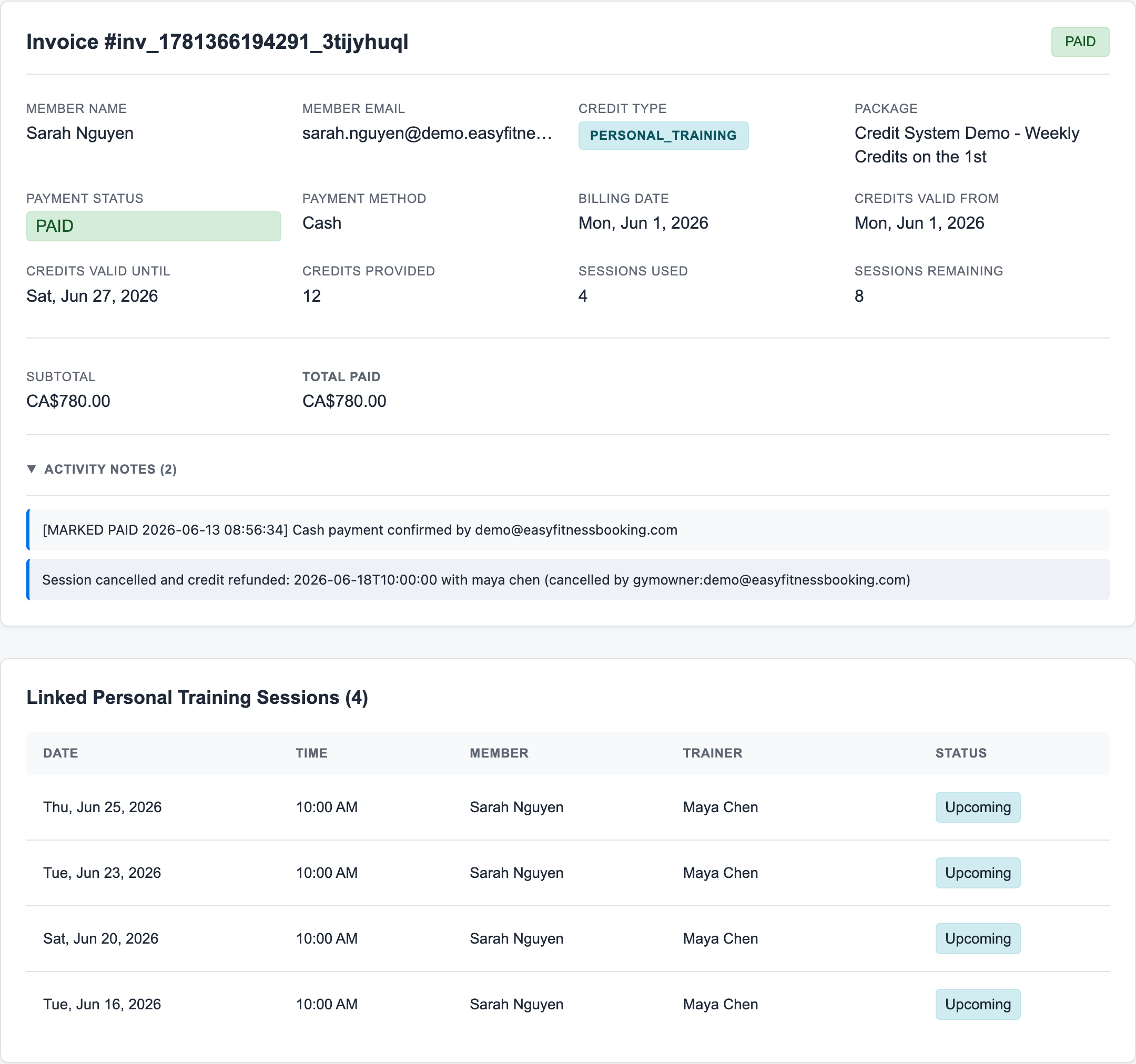
Everything that happened with those credits is documented. In this example, Sarah's June invoice shows the payment status, credit totals, the cash-payment note, the cancelled session note, and the PT sessions linked to the payment.
When Sarah calls asking "what happened to my sessions?" you can answer from this one page instead of comparing the calendar, invoice list, and credit balance manually.
Your Daily Routine
Morning Check (5 minutes)
- Open invoice dashboard
- Filter by "Failed"
- Note any that need follow-up
- Check yesterday's charges went through
Week-End Review (15 minutes)
- Look at total revenue for the week
- Check pending invoices for next week
- Follow up on any lingering failed payments
- Note any unusual activity
Month-End Reconciliation
- Export all invoices for the month
- Match totals against bank deposits
- Review refunds
- Send to your accountant
Invoice Actions
Update a Pending Invoice
Pending invoices can be adjusted before they are collected. Staff can change the one-off billing date, update whether the invoice is cash or card, and edit line items on pending custom invoices.
If a pending card invoice has a billing date of today or earlier, it is eligible for the overnight billing run. If a cash invoice is overdue and staff change it to card, the next overnight billing run will try the card. For the full rule, see Understand When Card Invoices Are Billed.
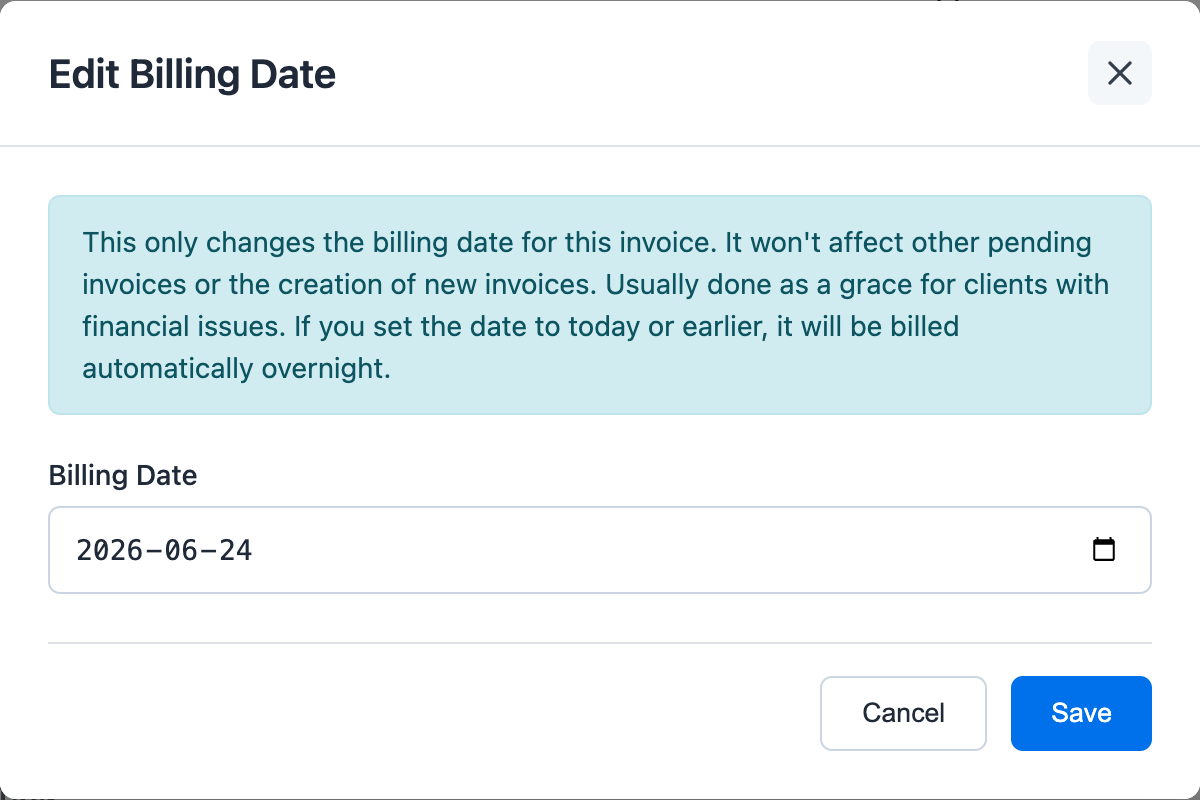
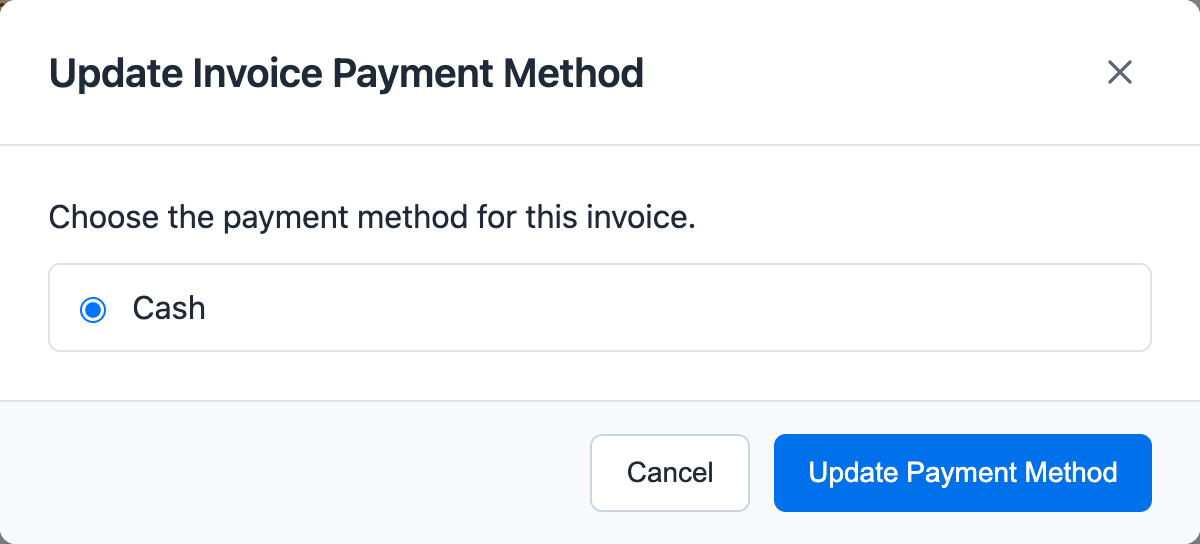
Refund a Paid Invoice
Use Refund when money has already been collected and needs to be returned. The refund modal is explicit that invoice refunds return money only; they do not revoke credits or cancel future invoices.
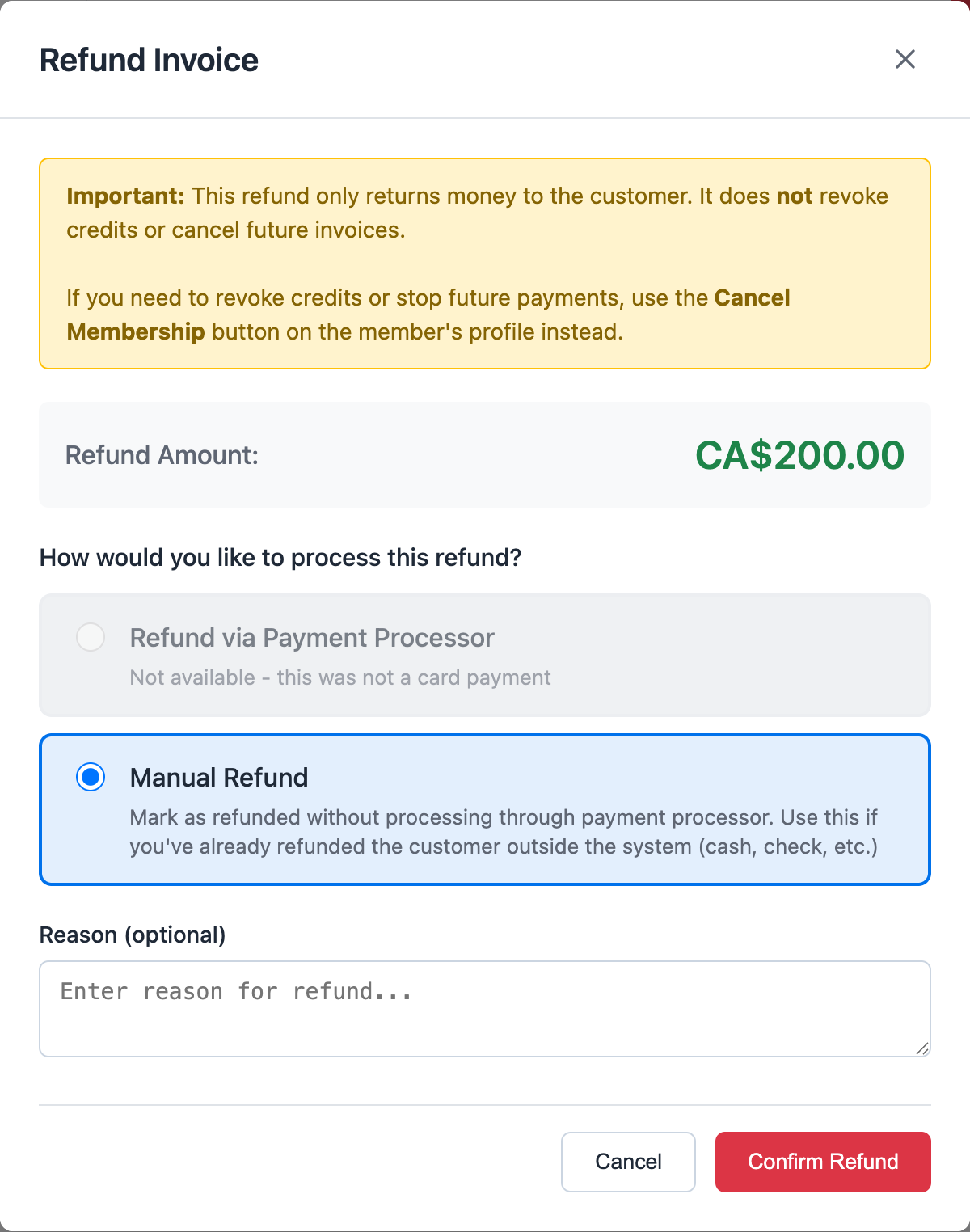
Common Questions
"Can I change the billing date or payment method on an invoice?"
Yes. You can update the billing date and payment method on a pending invoice. The amount is determined by the membership plan and can't be edited directly on the invoice.
"A member says they were charged twice."
Pull up their invoices. You'll see every charge with dates and amounts. Usually it's:
- Two different months (they forgot last month's charge)
- A membership charge plus a separate custom invoice
- Or, rarely, an actual duplicate that needs refunding
The data shows what actually happened.
Related Topics
- Cash Payments — When members pay outside of card
- Custom Invoices — Create invoices for merchandise and one-offs
- Understand When Card Invoices Are Billed — Immediate charges, scheduled invoices, and overdue cash-to-card changes
- Review Payment Issues — Failed, overdue, refunded, and cancelled invoices
- Invoice Audit Trails — The complete activity log
- Smart Refund Handling — How refunds work
Ready to streamline your gym?
Start managing bookings, personal training, and memberships in minutes.
Start Your Free Trial →No credit card required