Manual Credit Bucket Adjustments
The automated credit system should handle the normal cases: bookings, cancellations, refunds, pauses, resumes, invoice cleanup, and expiration rules.
But gyms still need judgment.
A member might have a real emergency. A trainer might still deserve to be paid. A staff member might need to correct a mistake. A long-time client might deserve a one-time make-up credit even though the standard rule says the credit was forfeited.
Easy Fitness Booking is designed for that reality. The software should track the rules automatically, but it should not block you from getting the exact outcome you want.
The Common Exception
Here is the situation:
- A client cancels inside 24 hours.
- Your policy says that is a late cancel.
- The trainer blocked the time and should still be paid.
- You also believe the client deserves a make-up session because it was a genuine emergency.
In that case, do not use the refund override on the booked session.
If you refund the session during cancellation, the system treats that as a refunded cancellation. The member gets the original credit back, and the session is removed from trainer payroll.
If you want both things to be true:
- trainer still gets paid
- member gets a goodwill make-up credit
use this workflow instead.
The Right Workflow
- Open the booked session on the calendar.
- Cancel the session without selecting Refund PT credit (within 24 hours).
- The session is marked as a late cancel.
- The trainer remains eligible to be paid for the committed time.
- Open the member's profile.
- Go to the member's Membership tab.
- Open the credit bucket section on the relevant membership.
- Click Edit on the bucket where you want the make-up credit to live.
- Click Adjust Credits.
- Enter
+1. - Enter a clear reason.
- Click Save Changes.
That creates a new available credit without rewriting the late-cancel history.
Where To Find The Bucket
Credit buckets live under the member's membership details. Staff can expand the bucket section to see the active, pending, and expired buckets tied to that membership.
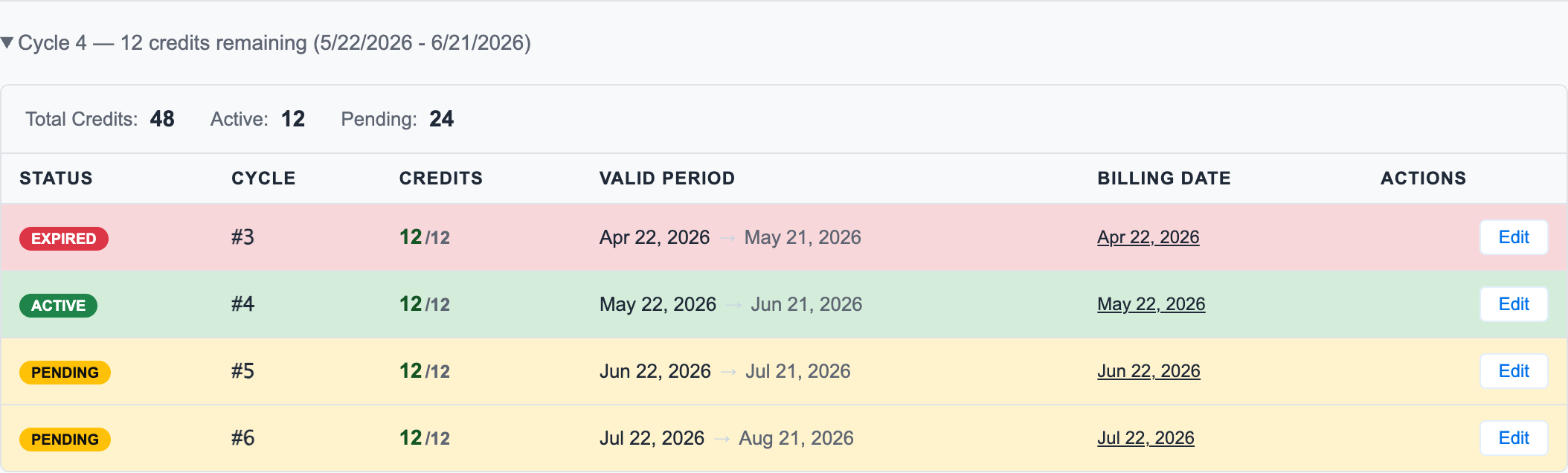
Choose the bucket based on when the member should be allowed to use the make-up credit.
For weekly memberships, that usually means:
- the current active week, if they are rebooking right away
- next week's bucket, if the exception should apply next week
- a specific future bucket, if you promised the make-up session for a known week
The bucket matters because it controls when the credit can be used, which invoice it is tied to, and how the account history explains the adjustment later.
How To Adjust The Bucket
When you click Edit, the bucket modal shows the source invoice, valid dates, current credits, and the adjustment controls.
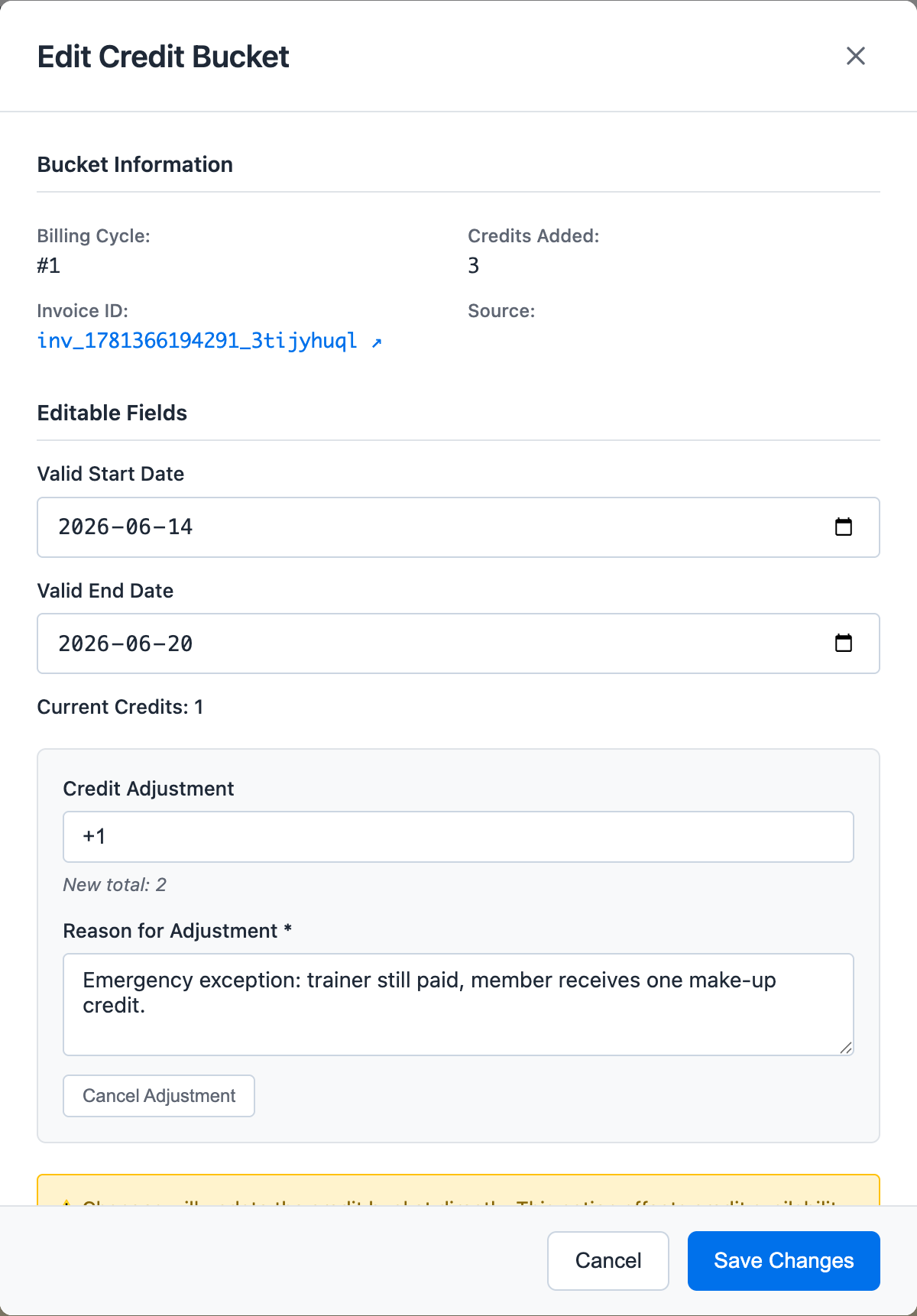
Use Credit Adjustment as a delta:
+1adds one credit-1removes one credit+2adds two credits-2removes two credits
Do not recalculate the final bucket total by hand. If the bucket currently has 1 credit and you want it to have 2, enter +1. The system calculates the new total.
The reason field is required when credits change. Write it like an audit note, not a private reminder:
Emergency exception: trainer still paid, member receives one make-up credit.
That wording makes the account understandable later.
What The System Records
When you save the adjustment, Easy Fitness Booking updates the credit bucket and the linked invoice record.
The adjustment is recorded with:
- the bucket that changed
- the amount added or removed
- the previous and new credit value
- the reason you entered
- the staff user who made the change
- the timestamp
That means the manual exception still stays inside the audit trail. The account does not become a mystery balance just because staff used judgment.
Why This Is Better Than Automating Every Exception
Some rules should be automatic.
For example, if a member cancels with enough notice, the credit should go back to the exact bucket it came from. Staff should not have to think about that.
But emergency exceptions are different. They depend on context:
- Was the trainer already at the gym?
- Was this a true emergency or a convenience cancellation?
- Is this a one-time goodwill decision?
- Should the make-up credit expire this week, next week, or later?
- Should payroll still count the session?
Those are business decisions. Automating them too aggressively would create the wrong outcome for some gyms.
Manual bucket adjustments keep the rule system strict while still letting owners make the final call.
When To Use Manual Adjustments
Use a manual bucket adjustment when you need a specific result that is intentionally outside the normal workflow:
| Scenario | Better Action |
|---|---|
| Emergency late cancel, trainer should still be paid, member deserves a make-up credit | Cancel with no refund, then add +1 to the chosen bucket |
| Staff booked the wrong time and needs to correct the account | Adjust the affected bucket with a clear correction note |
| Member was promised a one-time make-up credit | Add the credit to the bucket where it should be used |
| A credit was added by mistake | Subtract the exact amount with a correction note |
| A valid date range needs to change for a special case | Edit the bucket start or end date and explain why |
Do not use manual adjustments to hide normal policy outcomes. If the system already has a correct automatic workflow, use that workflow first.
The Rule Of Thumb
Use automated actions when the rule is clear.
Use manual bucket adjustments when the business decision is specific.
That is the balance Easy Fitness Booking is trying to preserve: consistent rules for the normal cases, and enough control for the exceptions that real gyms always run into.
Related Topics
- Session Handling - The 24-hour rule, late cancels, and trainer pay
- Credit Tracking - How every credit stays tied to its source
- Smart Refund Handling - How automatic returns go back to the right bucket
- Invoice Audit Trails - How account changes are documented
Ready to streamline your gym?
Start managing bookings, personal training, and memberships in minutes.
Start Your Free Trial →No credit card required