Cancel a Membership
Use cancellation when the member is ending the membership, not taking a temporary break. If they may return, consider a pause first.
1. Open the Member's Membership Tab
Go to Users, open the member, then select Membership.
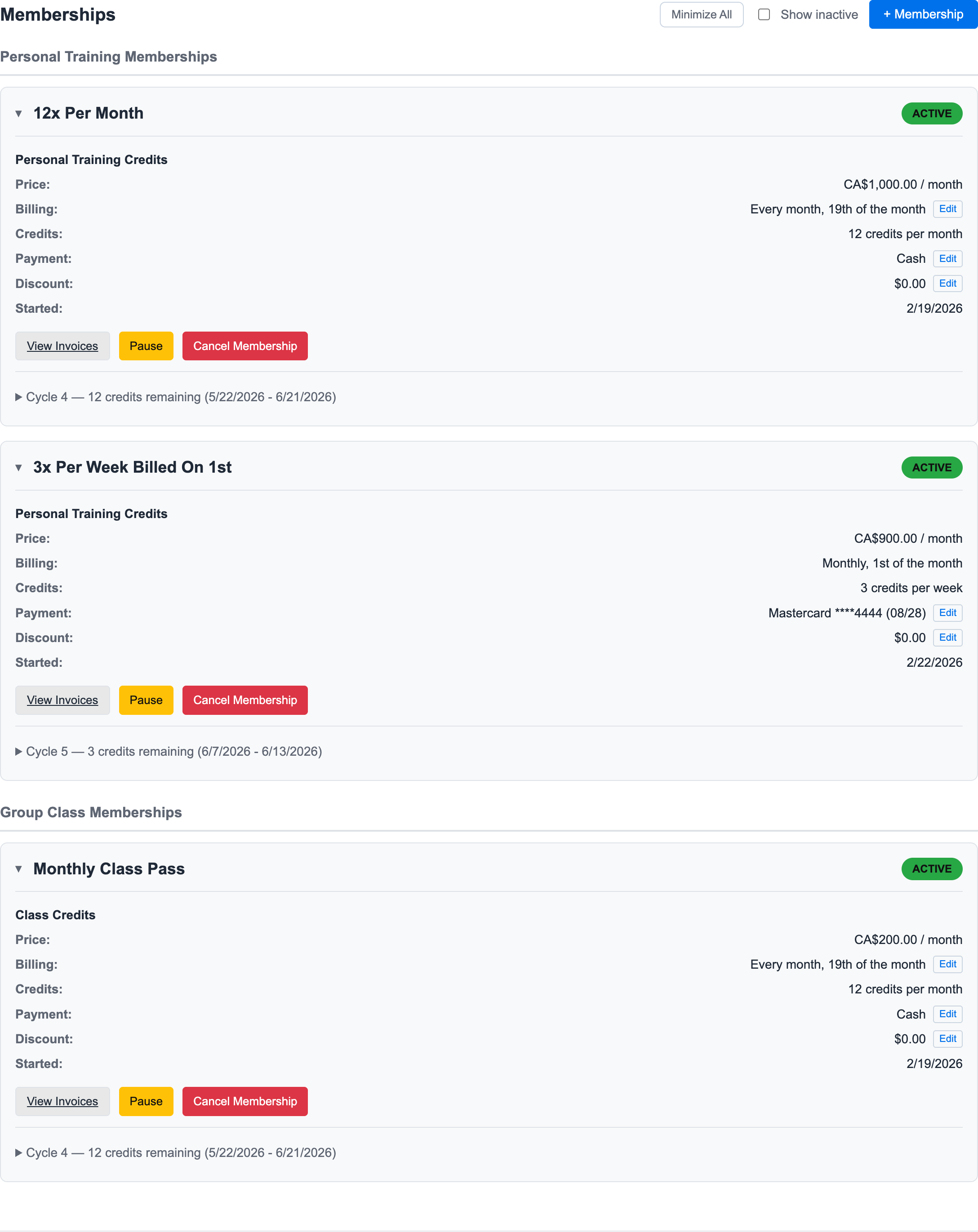
2. Find the Membership
Expand the membership that should end. Check that you are working on the correct PT or class membership.
3. Click Cancel Membership
Click Cancel Membership on the active membership.
4. Choose the Cancellation Handling
Pick the option that matches the conversation with the member.
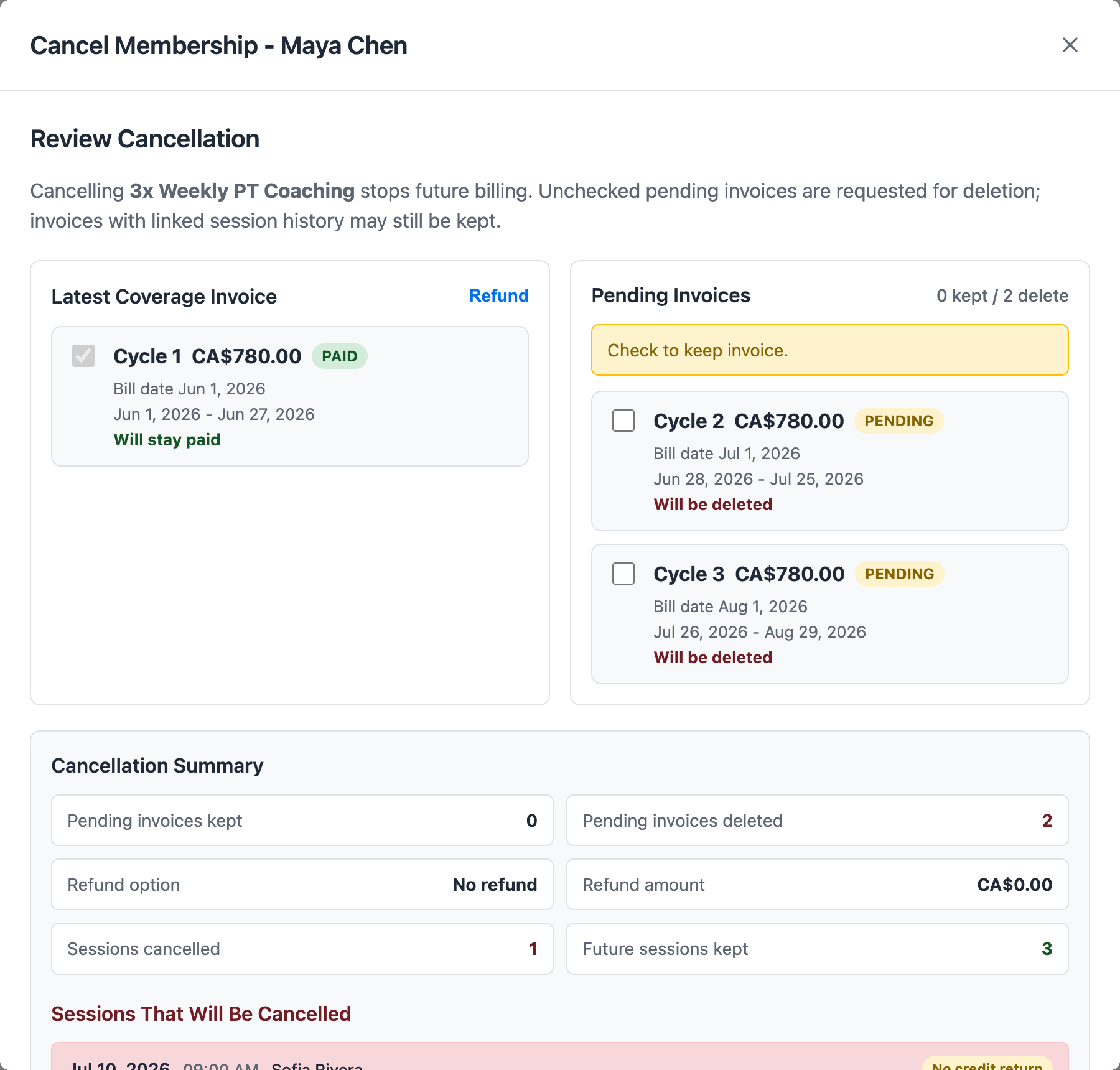
Common decisions include:
- Cancel immediately
- Honor the current paid period
- Preserve already booked sessions
- Apply a refund policy when the situation calls for one
The exact options depend on the membership and billing state.
For fixed-weekly memberships, review the pending invoices and effective coverage dates carefully. The preview is where staff can see whether future invoices will be deleted, whether any booked sessions stay active, and whether a boundary weekly credit bucket needs to be adjusted to match the cancellation date.
5. Review the Result
After cancellation, check:
- Membership status
- Remaining or removed future invoices
- Cancelled sessions
- Returned or forfeited credits
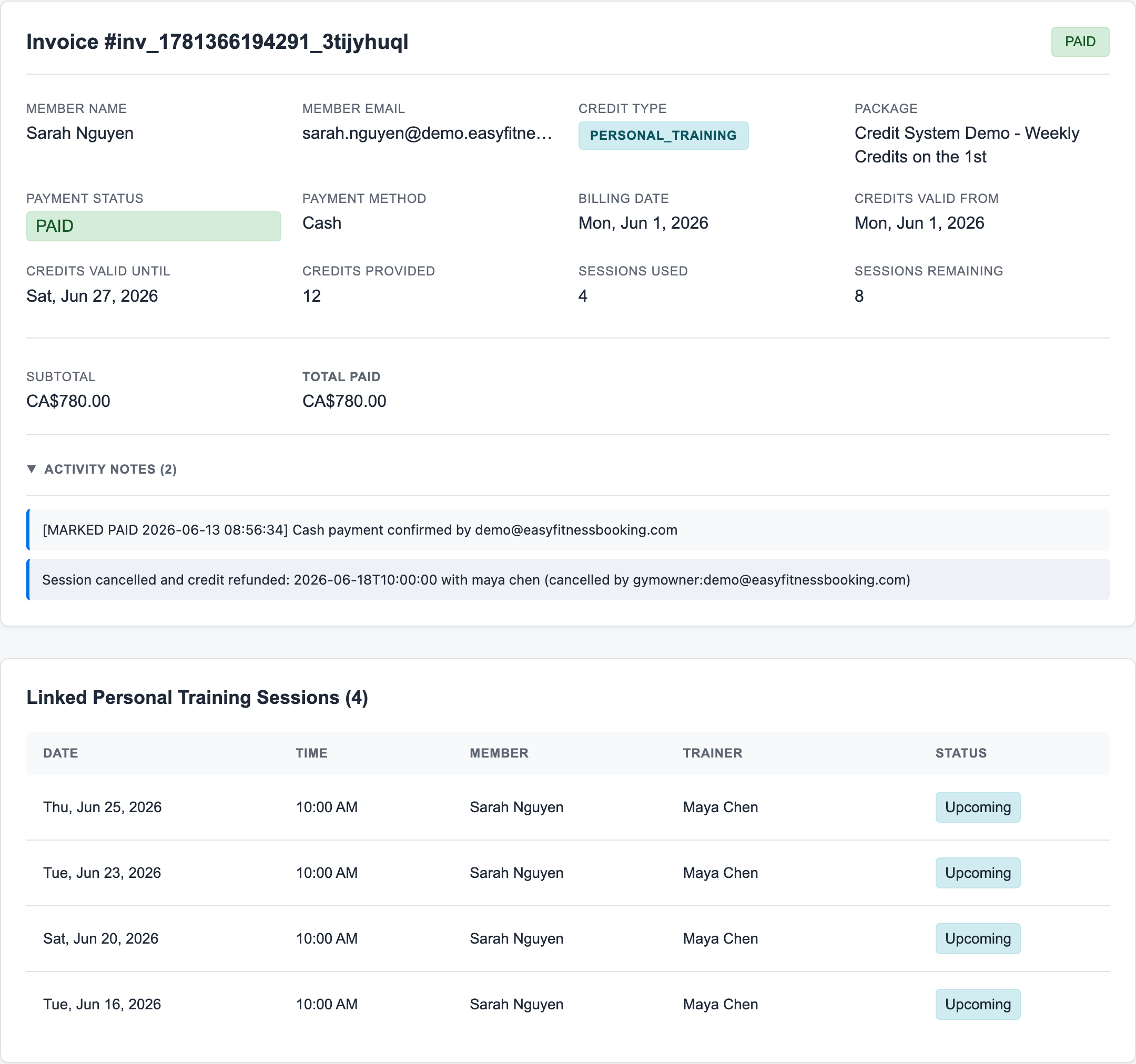
- Invoice activity notes and linked sessions
Related guides:
Ready to streamline your gym?
Start managing bookings, personal training, and memberships in minutes.
Start Your Free Trial →No credit card required