Use the Member Profile
The member profile is the main workspace for staff. It combines account details, memberships, activity, documents, and admin settings.
1. Open a Member
Go to Users, search for the member, then open their account.
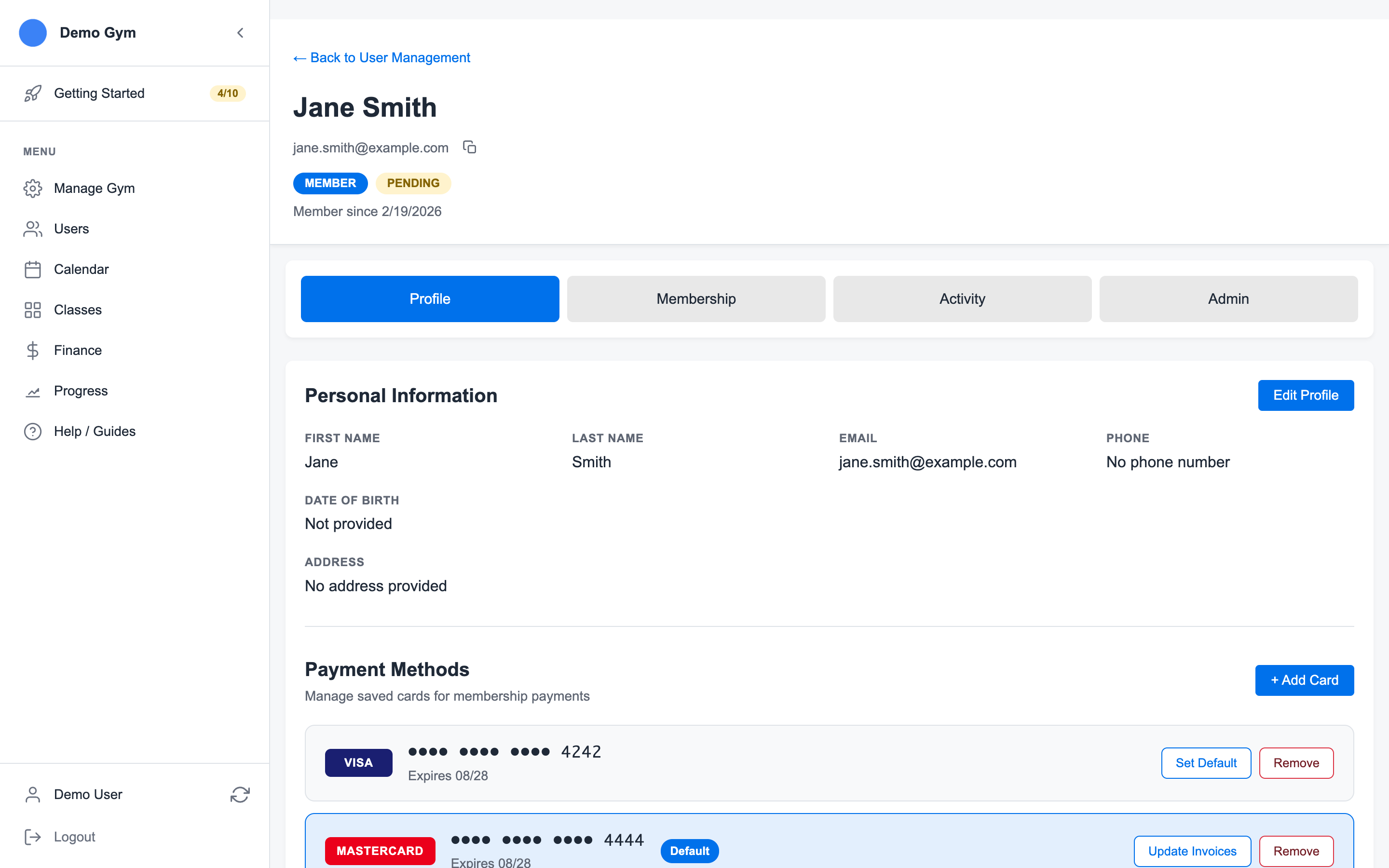
If you are testing setup, create a pending member from Users first. You can assign memberships and book sessions before sending a real invitation.
2. Use the Profile Tab
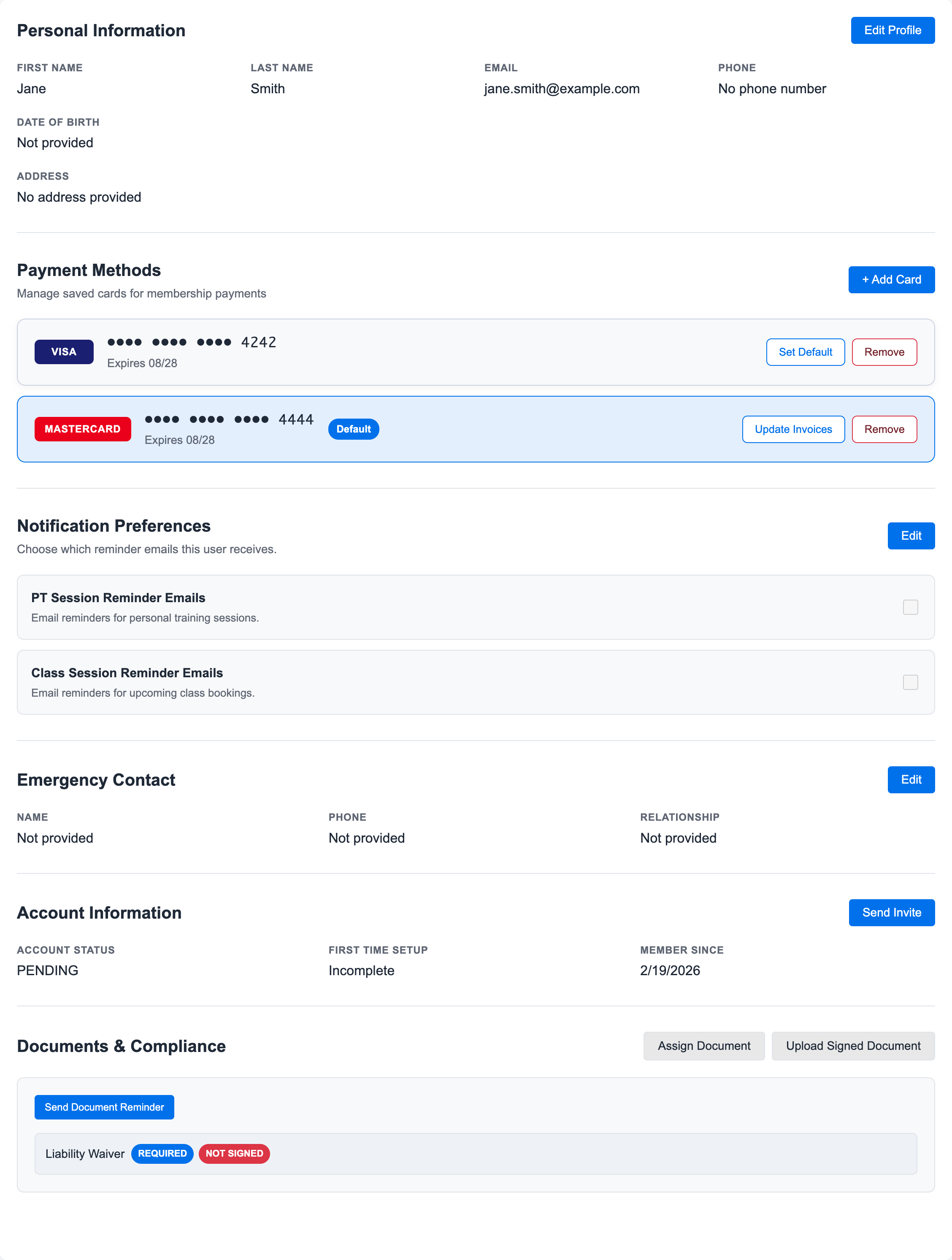
Use Profile for contact details, payment methods, and document compliance.
3. Use the Membership Tab
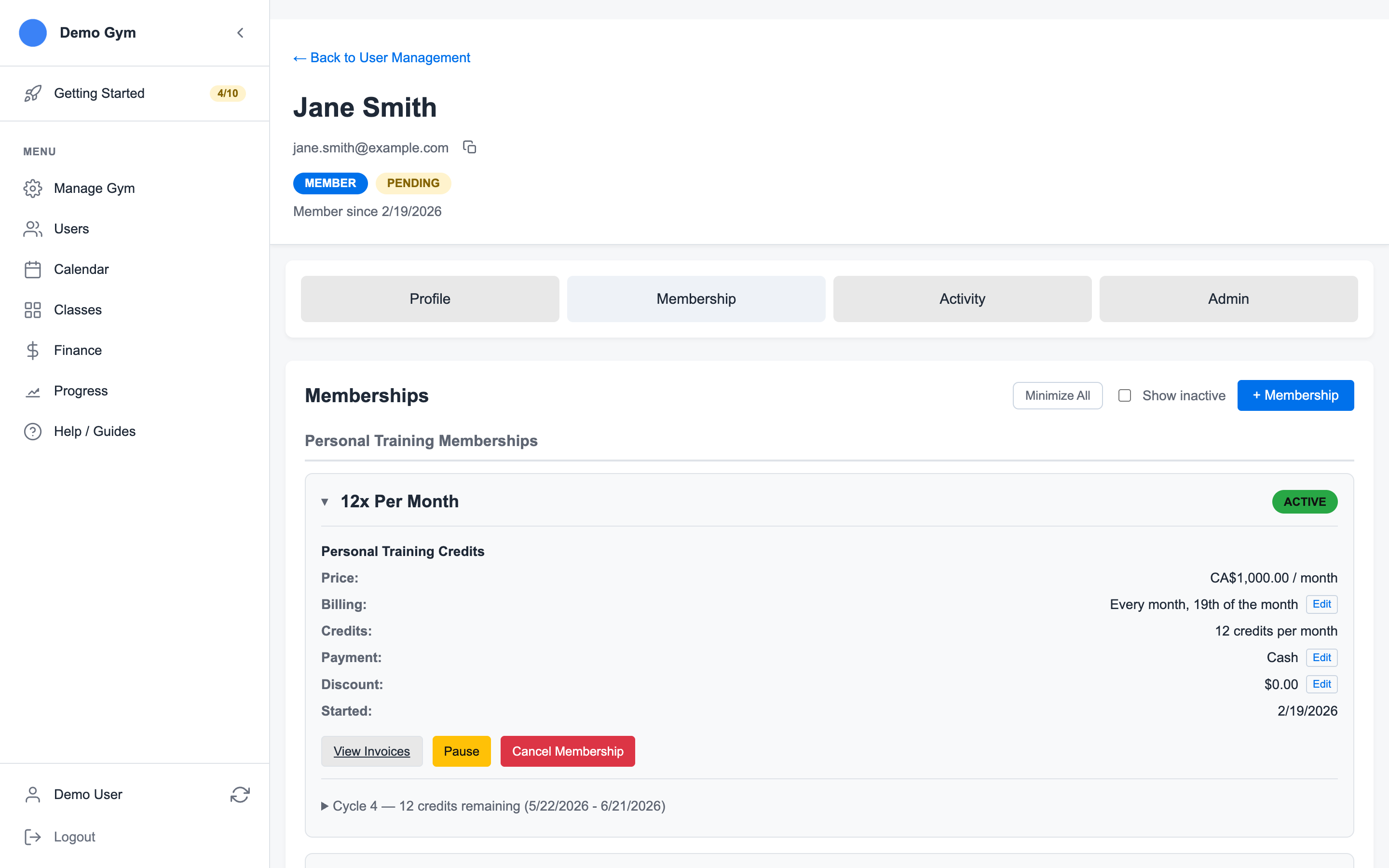
Use Membership for active memberships, credits, billing, pauses, cancellations, and invoices.
4. Use the Activity Tab
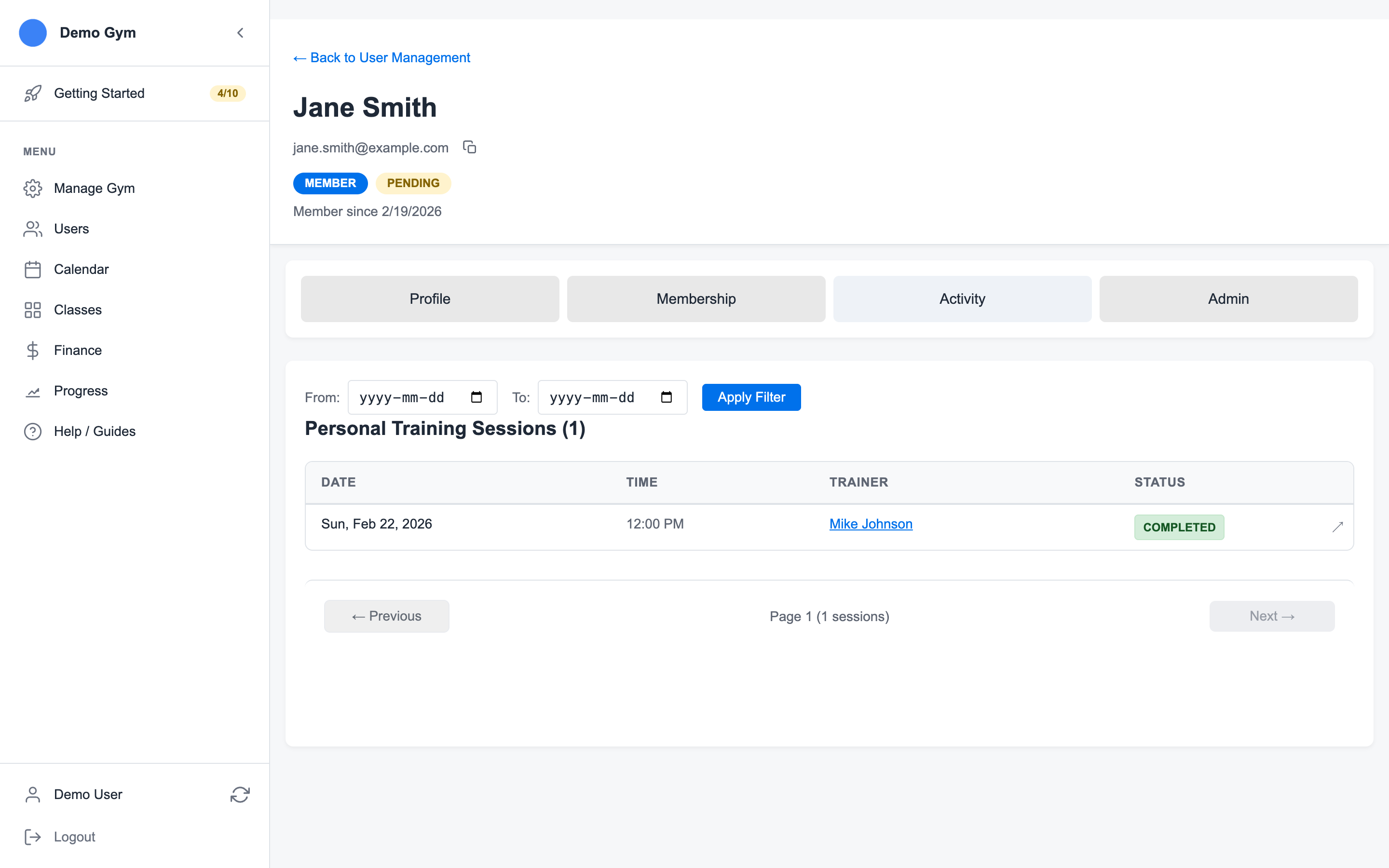
Use Activity for personal training sessions, class history, statuses, and session notes.
5. Use Admin Controls Carefully
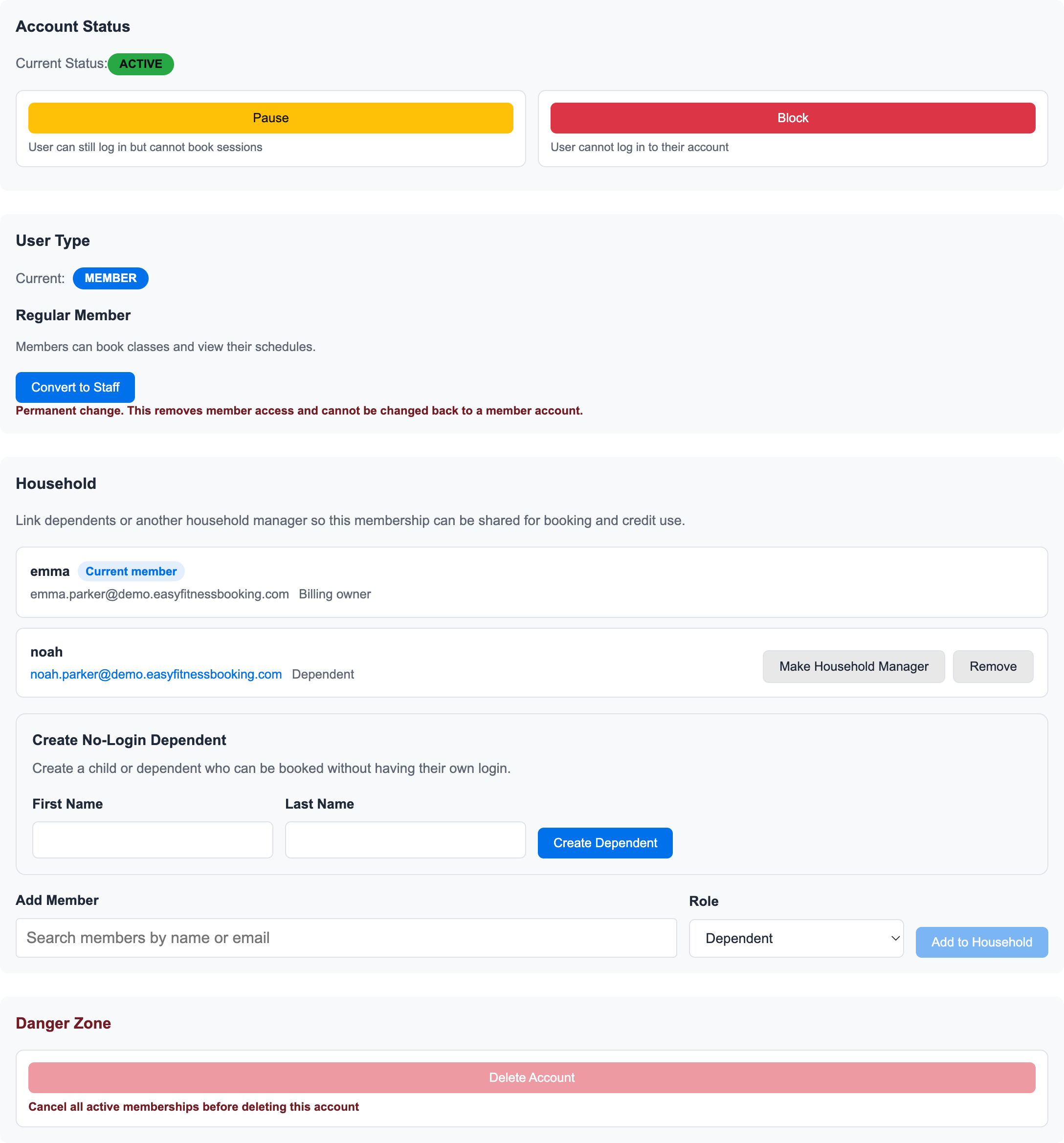
Use Admin for account-level settings and internal controls. These actions affect access and account state, so confirm the member before saving changes.
The Admin tab is where staff can change account status, manage roles, link household members, and review account-level danger actions. Account status is separate from membership status: pausing an account controls login and booking access, while pausing a membership changes credits, sessions, and billing.
For common next steps, see:
Ready to streamline your gym?
Start managing bookings, personal training, and memberships in minutes.
Start Your Free Trial →No credit card required