Track Member Progress
Use Progress when staff need a structured record of measurements, exercise records, benchmark tests, or coaching notes that should be tracked over time.
1. Open Progress
Go to Progress from the main app navigation.
The page starts with member search and the gym template catalog. The catalog controls which progress templates are available at the gym level.
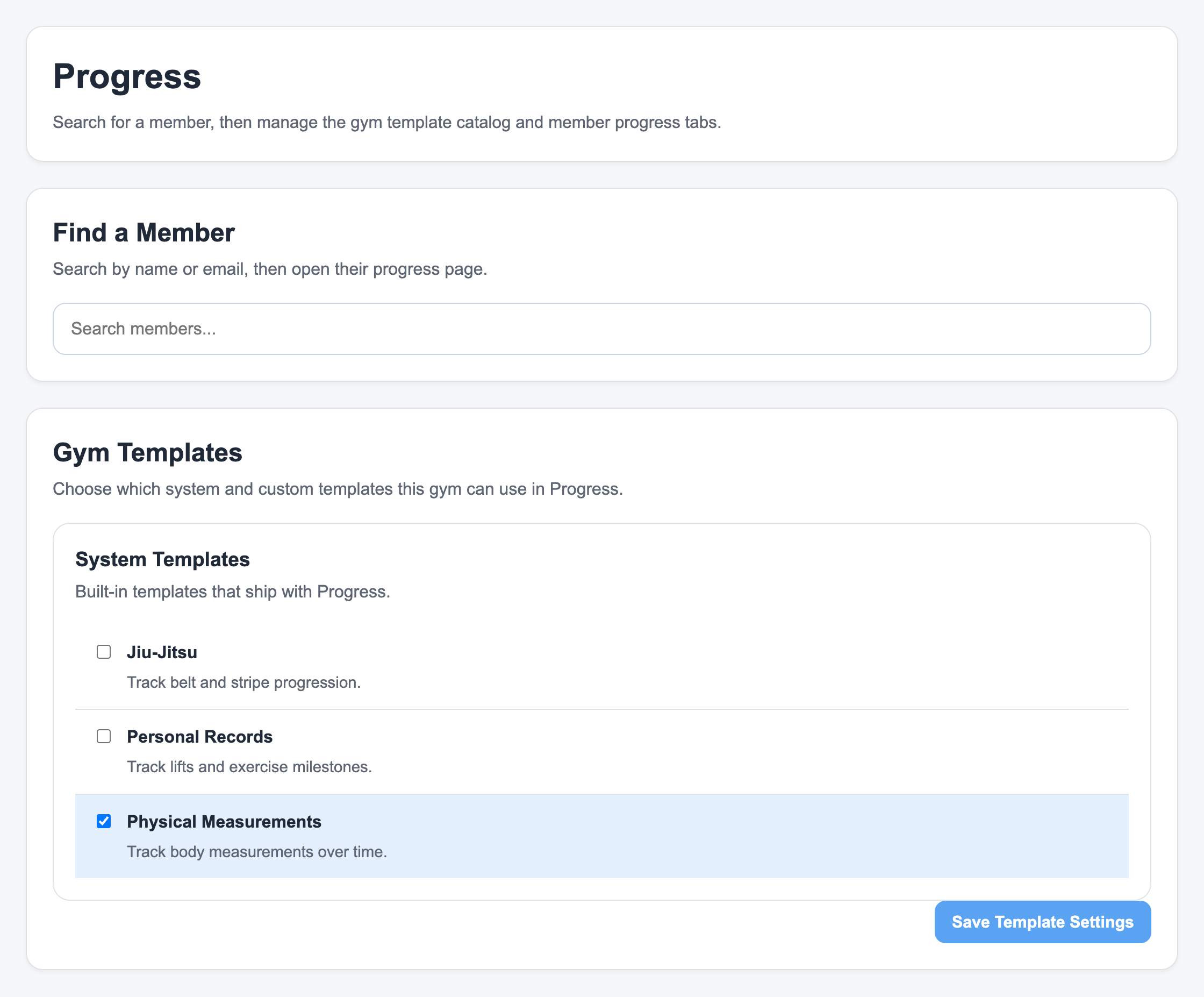
2. Search for a Member
Search by name or email, then open the member's progress page.
3. Add Templates to the Member
If the member does not have any progress tabs yet, add one of the enabled gym templates.
Use templates for the specific things you want to track for that member, such as:
- Body measurements
- Strength tests
- Conditioning benchmarks
- Exercise records
- Coaching check-ins
4. Add a Progress Entry
Open the relevant progress tab, enter the date and fields, then click Add Entry.
The entry appears in the history table for that template. When a template supports graphing, the chart updates from the same entries.
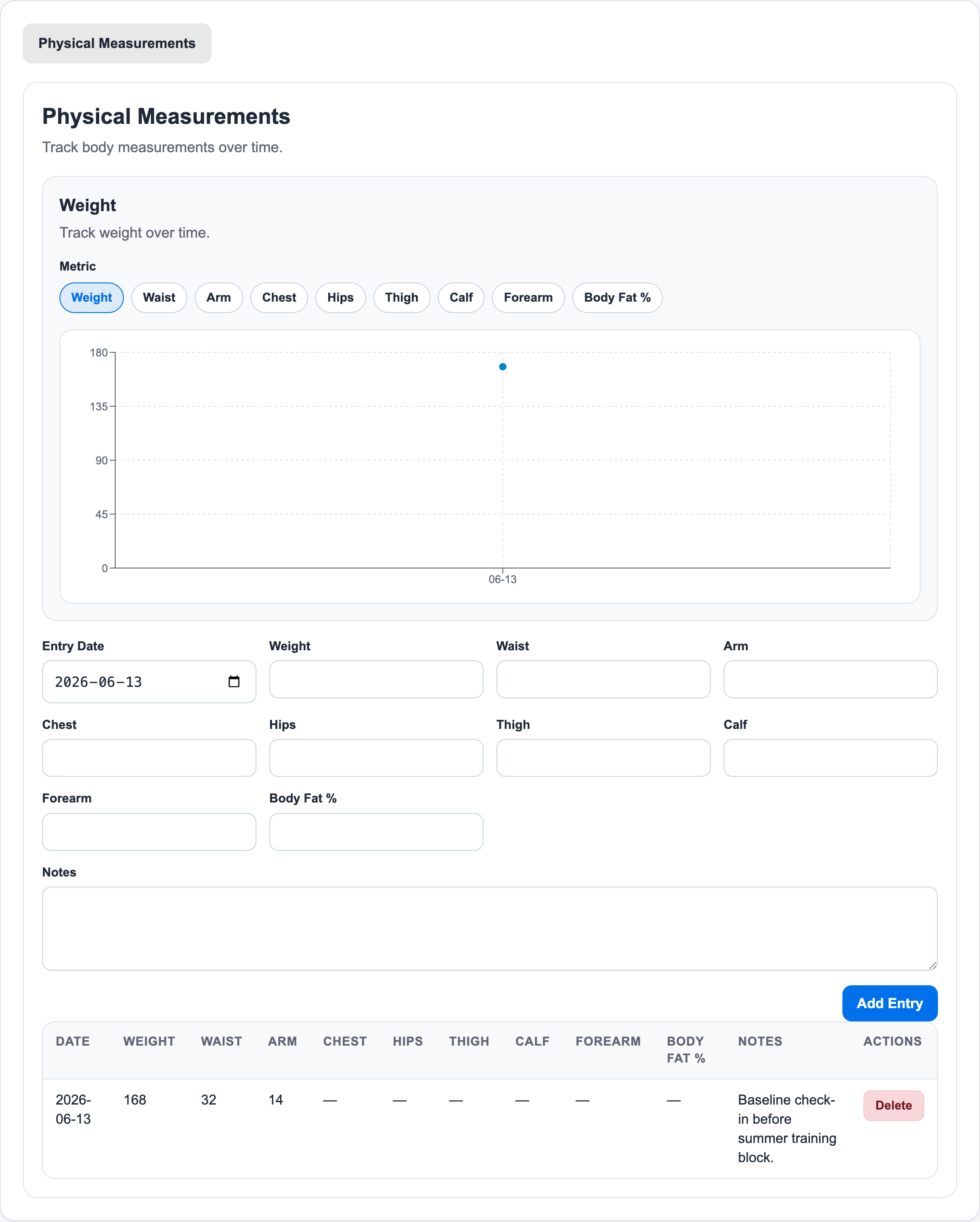
5. Review History Before Coaching Conversations
Use the history table and chart before progress reviews, goal-setting conversations, or program adjustments.
Progress is intentionally separate from memberships, invoices, credits, and payroll. It records coaching context without changing billing or booking records.
Related guides:
Ready to streamline your gym?
Start managing bookings, personal training, and memberships in minutes.
Start Your Free Trial →No credit card required