Publish the Public Class Calendar
Use the public class calendar when you want prospects and members to see upcoming classes before they log in. It is useful for sharing your schedule from your website, social posts, email, or front-desk follow-ups.
1. Create Public Class Types
Go to Classes -> Class Types.
Open the class type and make sure it is allowed to appear on the public calendar. A scheduled class only appears publicly when the calendar is enabled and the class type is public.
For the full class setup workflow, see Set Up Group Classes.
2. Create Scheduled Sessions
Public visitors see real scheduled class sessions, not only the weekly template.
Sessions can be created in two ways:
- Automatically from the weekly template based on Advance Booking & Creation.
- Manually with Apply Template when you want sessions created right away.
This keeps the public calendar honest: if a class appears publicly, it is an actual session with a date, time, capacity, instructor, and booking state.
3. Open Public Classes Calendar Settings
Go to Manage Gym -> Settings -> Public Classes Calendar.
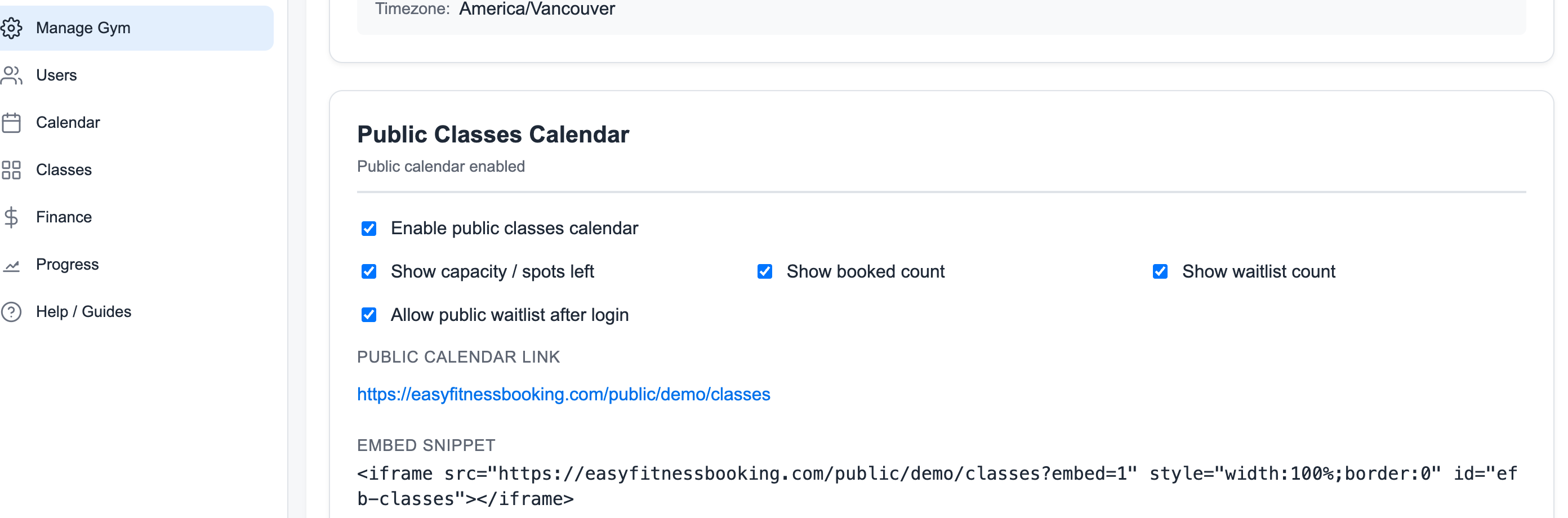
Turn the public calendar on, then choose what visitors can see:
- Capacity or spots left
- Booked count
- Waitlist count
- Public waitlist after login
4. Share the Public Calendar Link
The public page shows your upcoming class schedule without exposing internal staff tools.
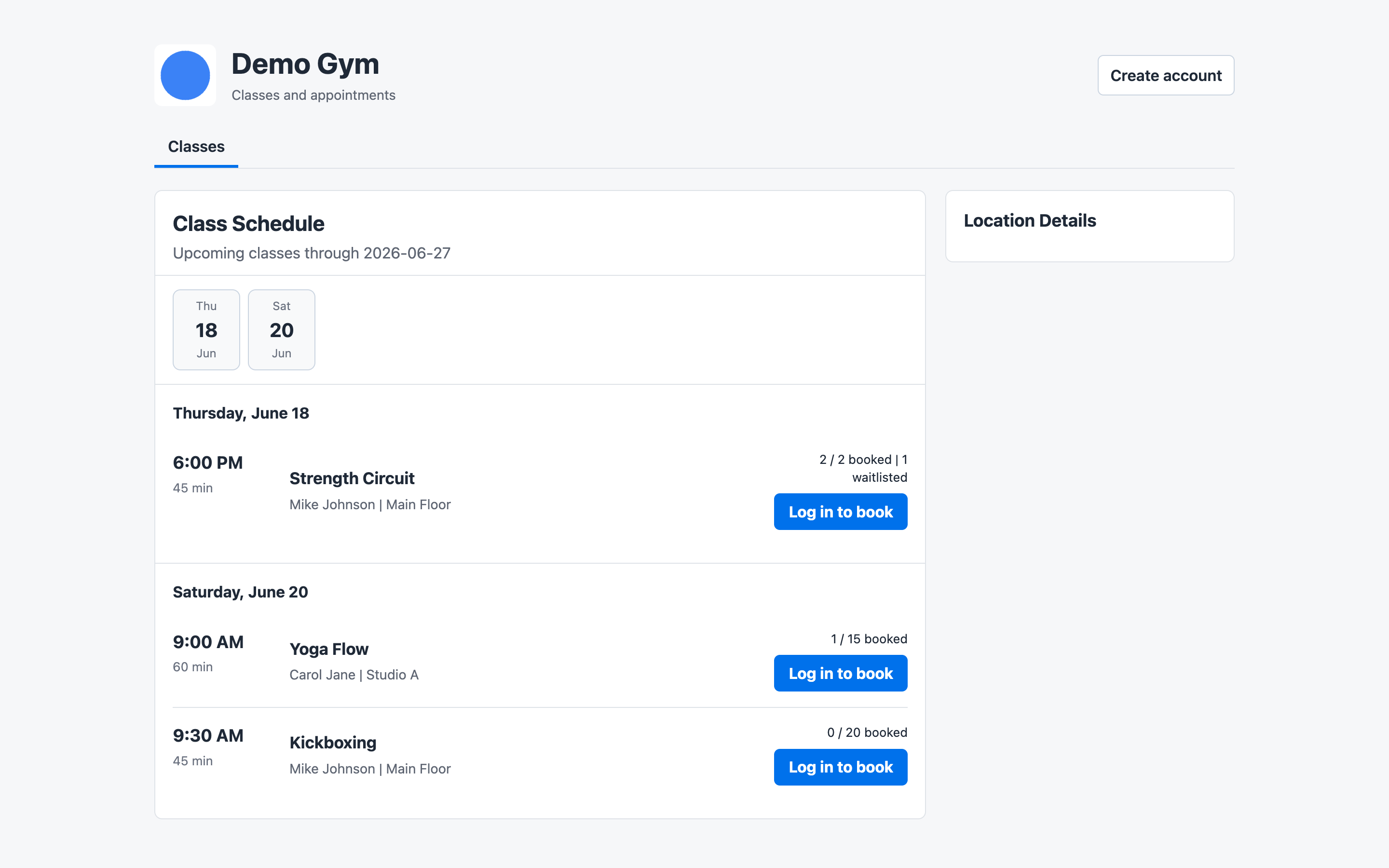
Visitors can see class names, times, instructors, locations, and booking availability. If they want to book, they are prompted to log in or create an account.
5. Keep Availability Accurate
Public availability comes from the same class sessions staff manage in the app. When staff enroll members, remove members, cancel classes, or move waitlisted members, the public calendar reflects that state.
Before sharing the link broadly, check:
- The class type is public.
- The scheduled session exists inside the advance booking window.
- Capacity and waitlist display settings match how much urgency you want to show.
- The class is open for enrollment when members should be able to book.
Related guides:
Ready to streamline your gym?
Start managing bookings, personal training, and memberships in minutes.
Start Your Free Trial →No credit card required