Schedule a Class Session
Use the class calendar to create group class sessions and manage upcoming class times.
1. Open the Class Calendar
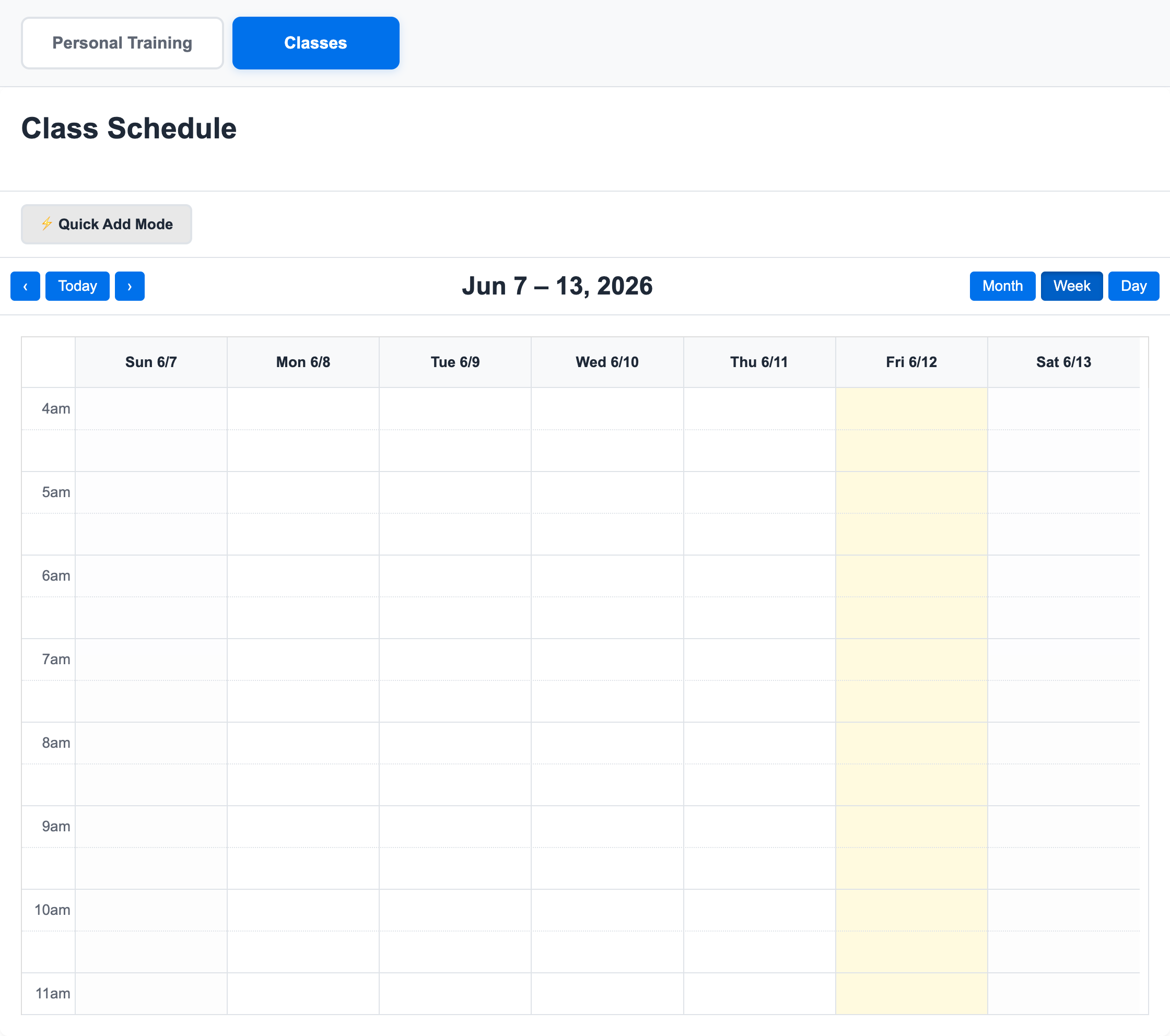
Go to Calendar, then select Classes.
2. Turn on Quick Add
Click Quick Add Mode.
Choose:
- Class type
- Instructor
- Duration
- Whether the session should publish immediately
3. Click the Calendar Time
Click the time where the class should happen. In Quick Add mode, the calendar creates the class session using the selected class type and instructor.
If Quick Add is off, clicking a time opens the full scheduling modal. Use this when you want to review the start time, end time, class type, instructor, and enrollment visibility before creating the session.
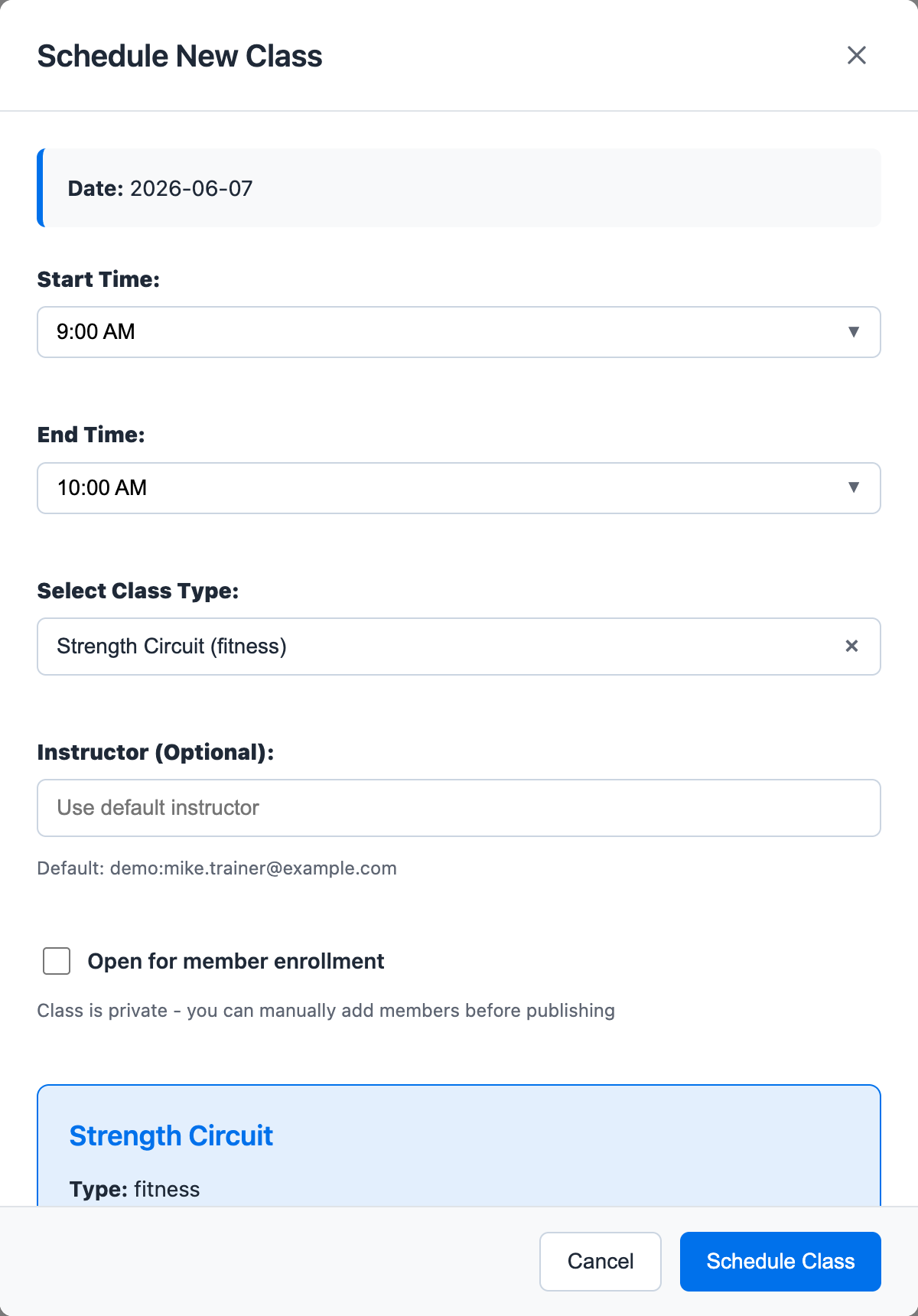
4. Review the Session
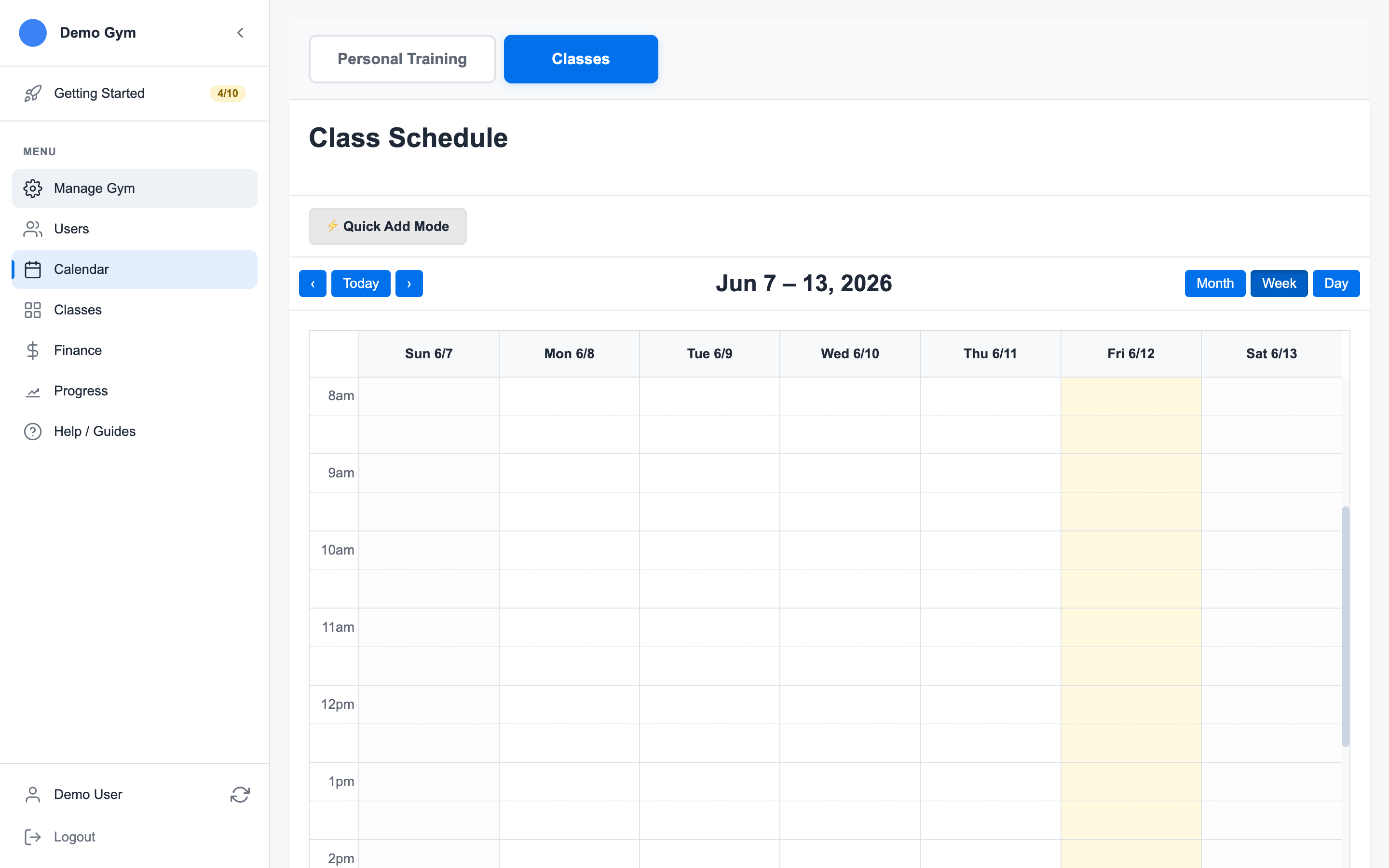
Click the class session to review details, attendance, and roster actions.
5. Add Members To The Roster
Open the class session and use the attendance or roster controls to add members. When a member is enrolled, the system uses an eligible class credit and tracks the class in their activity history.
Check:
- Class capacity
- Member eligibility
- Credit availability
- Waitlist status, if the class is full
6. Keep Templates Current
If the same schedule repeats every week, update the class schedule or templates instead of creating each session one by one.
For deeper class behavior, see Group Classes.
Ready to streamline your gym?
Start managing bookings, personal training, and memberships in minutes.
Start Your Free Trial →No credit card required