Review Payment Issues
Use Finance -> Payment Issues when you want a focused list of invoices that need attention or explanation.
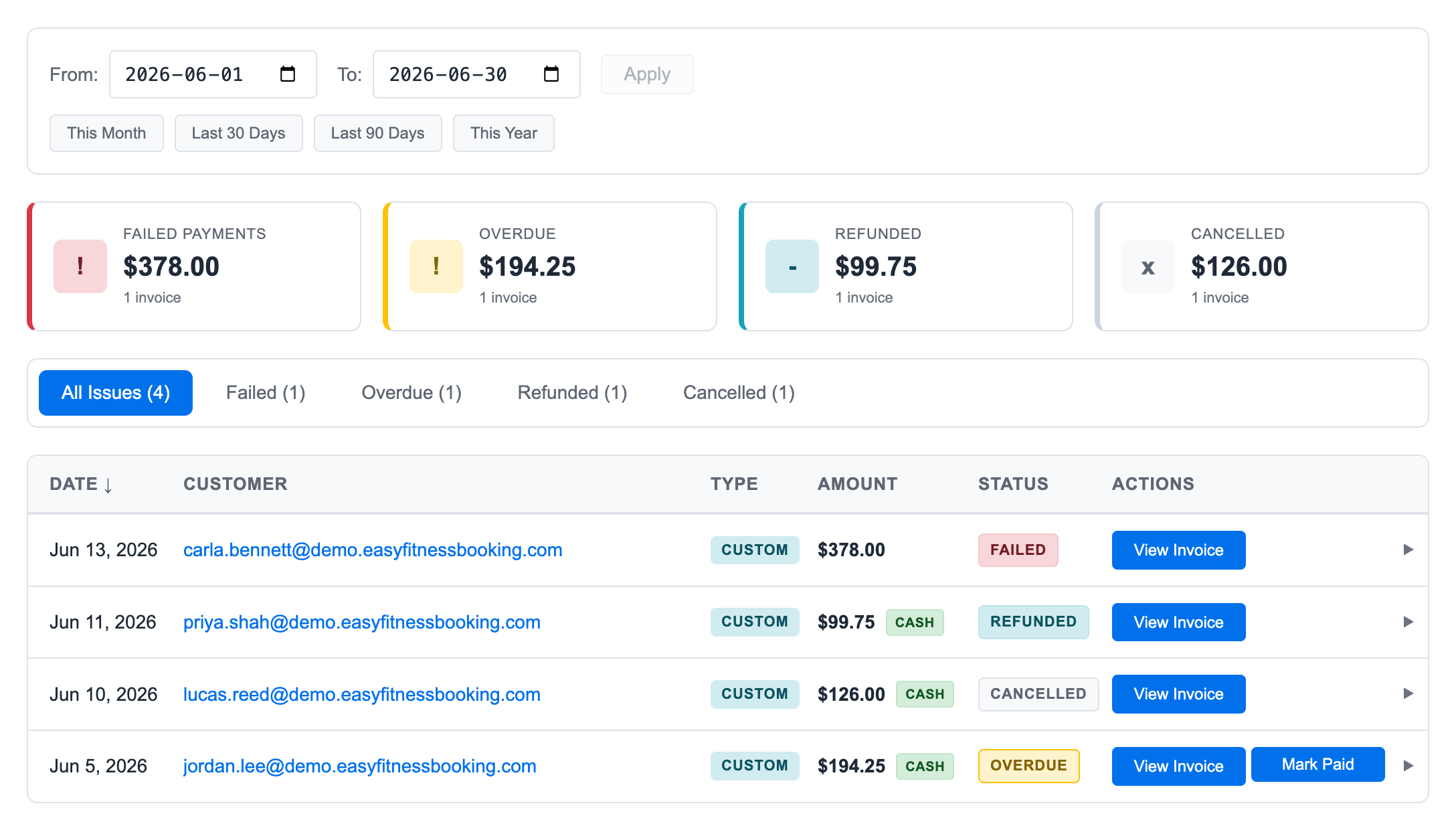
1. Pick the Date Range
Use the date fields or quick presets:
- This month
- Last 30 days
- Last 90 days
- This year
The issue list is based on invoice billing dates. If you are doing month-end reconciliation, set the exact month before reviewing the totals.
2. Review the Summary Cards
The top cards split invoices into:
- Failed payments: Card charges that did not complete.
- Overdue: Pending invoices with a billing date at least one full day in the past.
- Refunded: Invoices where money was returned.
- Cancelled: Invoices voided before collection or cancelled as part of a membership workflow.
This keeps follow-up work separate from regular paid and pending invoice review.
3. Filter the Table
Use the issue tabs to focus on one type of problem. Staff can sort by date, amount, or issue type.
Open the invoice when you need the full audit trail, linked sessions, refund notes, or payment method details.
4. Mark Cash Invoices Paid
If an overdue invoice is a cash invoice and the member pays at the desk, staff can mark it paid from the issue list or from the invoice detail page.
Only cash invoices can be manually marked paid. Card invoices need the payment method updated and charged through the payment provider.
5. Keep Notes Out of Spreadsheets
Payment Issues is designed to replace a manual follow-up sheet. The invoice itself keeps the history:
- Failed payment attempts
- Manual cash payment confirmation
- Refund notes
- Cancellation notes
- Linked credit and session activity
That means the next staff member can open the invoice and see what happened without searching another tool.
Related Topics
Ready to streamline your gym?
Start managing bookings, personal training, and memberships in minutes.
Start Your Free Trial →No credit card required