Update a Member Payment Method
Use this workflow when a member gets a new card, wants a different default card, or needs pending invoices updated before the next billing run.
1. Open the Member Profile
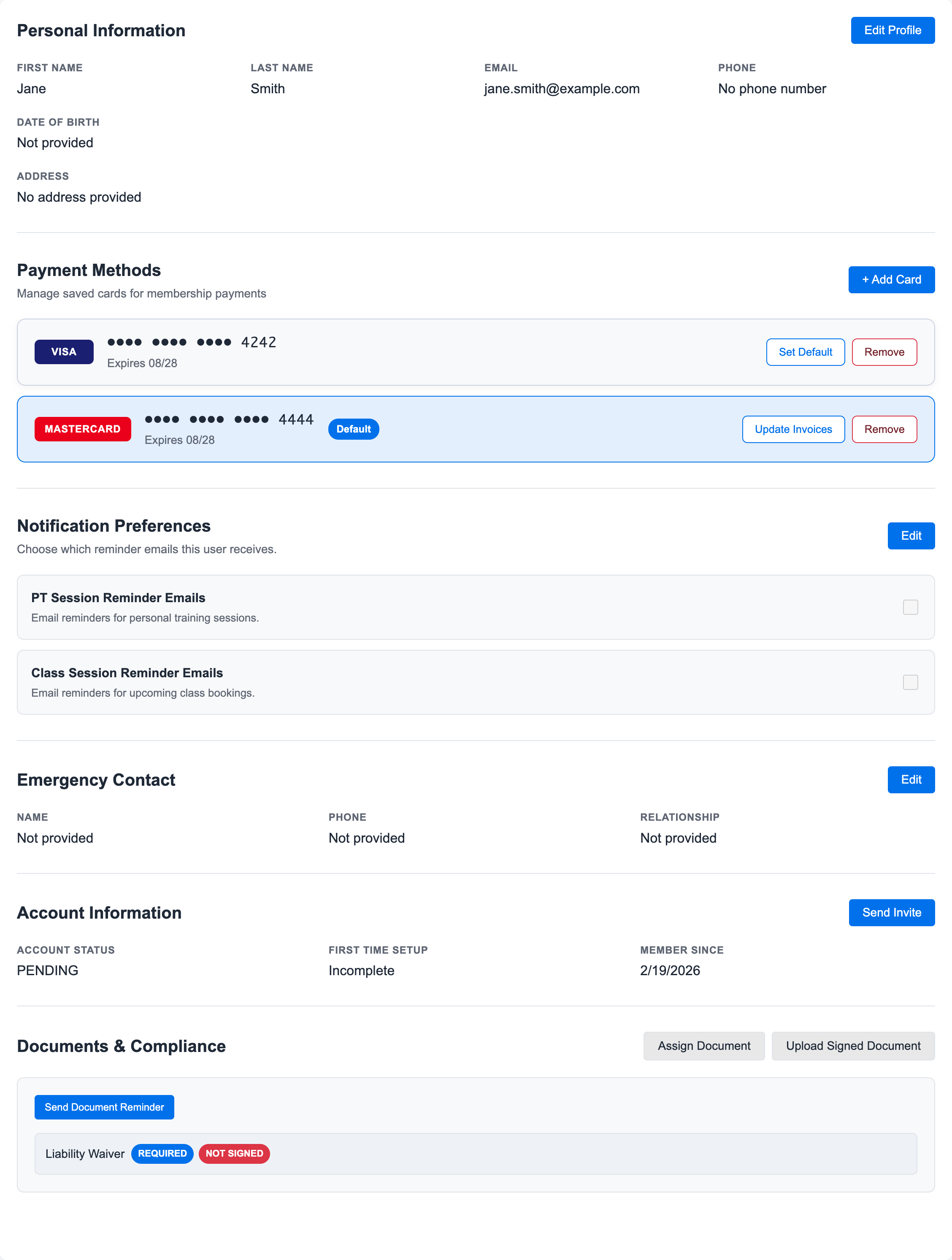
Go to Users, open the member, and select Profile.
2. Add a Card if Needed
Use + Add Card when the member does not already have the card on file.
3. Choose the Default Card
Use Set Default on the card that should be used for future billing.
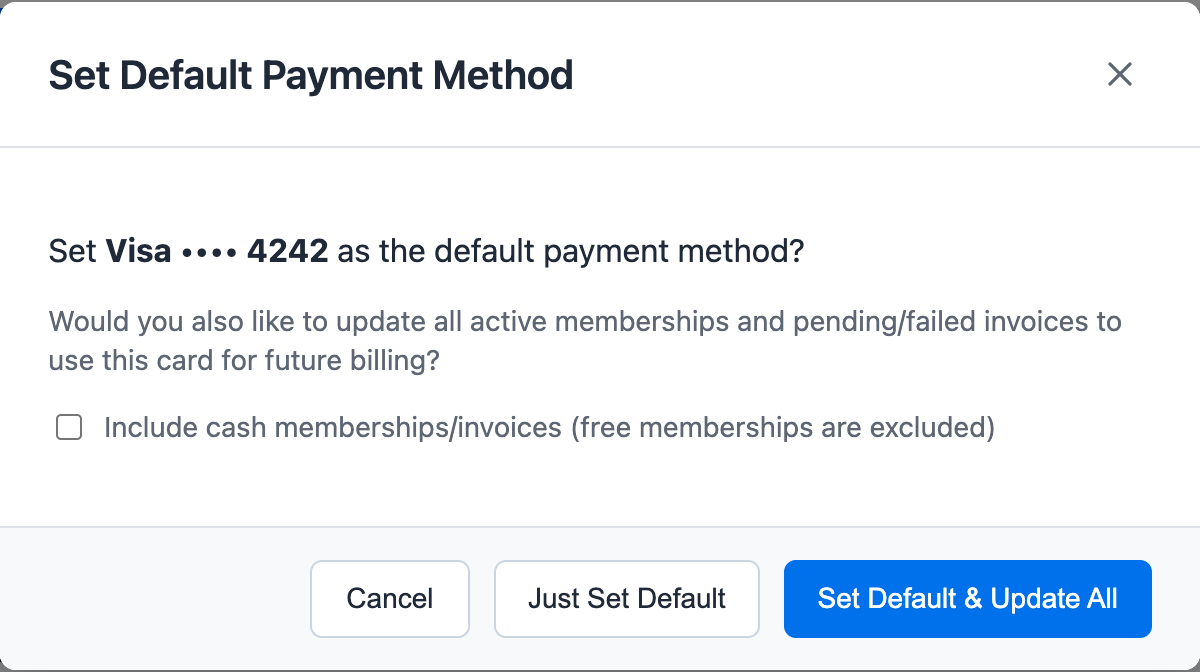
Choose Just Set Default when future new billing should use the card but existing memberships and pending invoices should stay as they are.
Choose Set Default & Update All when the member wants active memberships and pending or failed invoices moved to the new card too. Use Include cash memberships/invoices only when cash memberships should also switch to card billing. Complimentary memberships are excluded.
4. Update Pending Invoices
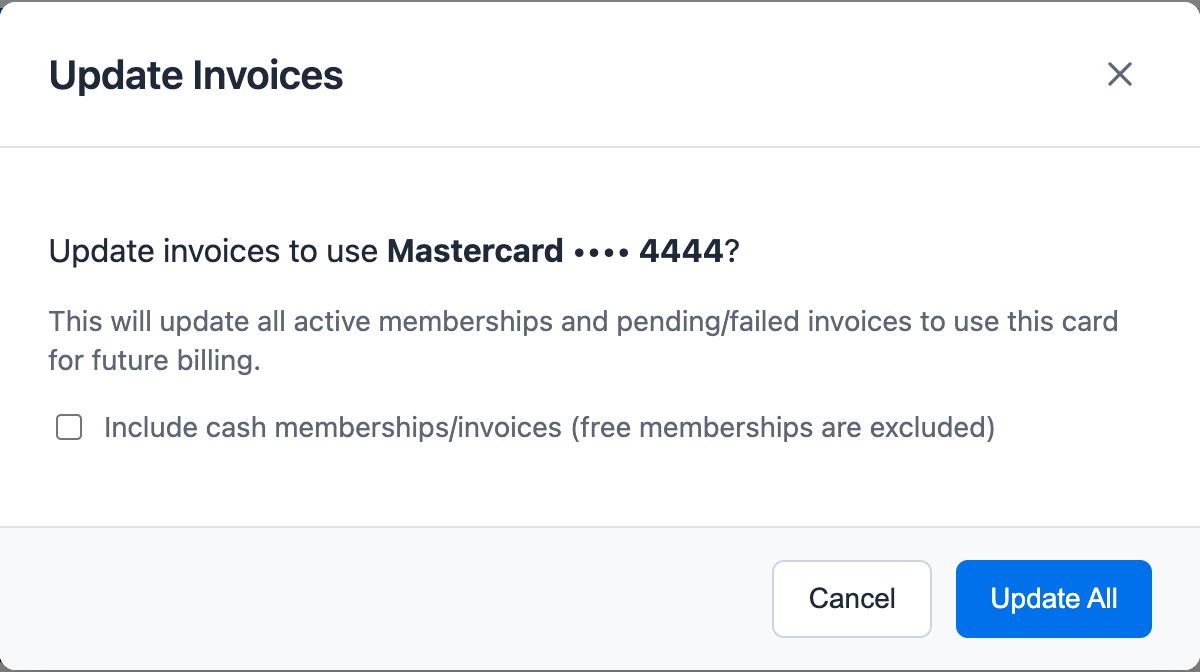
Use Update Invoices when pending invoices should move to the new payment method too.
This matters when a member has an upcoming invoice already created. Changing the default card alone may not update an existing pending invoice.
5. Update One Membership Only
If only one membership should change, open Membership, find the membership card, and use Edit beside Payment.
This keeps the change scoped to that membership. It is useful when a member has multiple memberships, household sharing, or one package paid by cash while another uses a card.
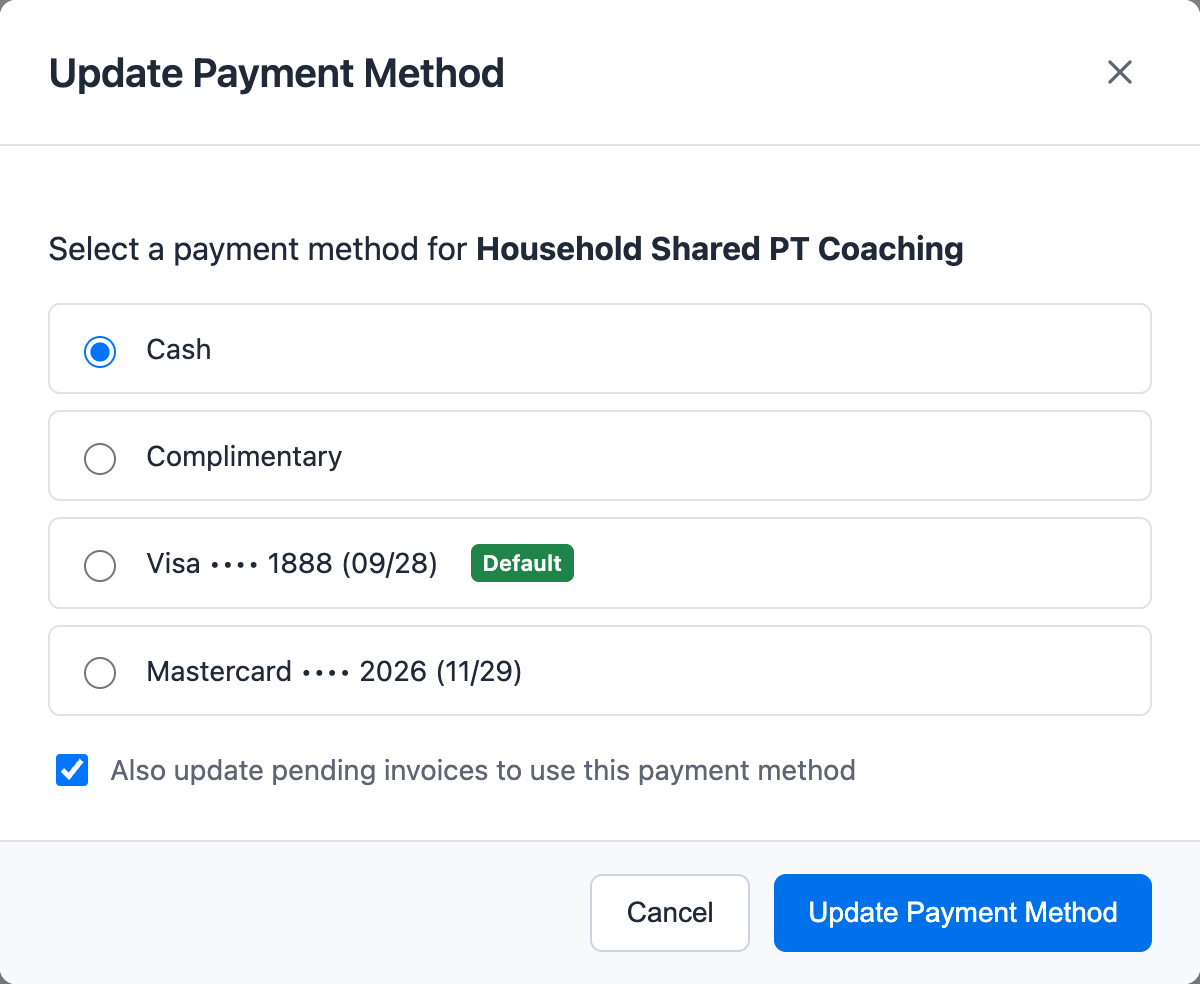
Leave Also update pending invoices selected when existing pending invoices for that membership should move to the new payment method too.
If a pending invoice is already due or overdue and you move it from cash to card, the next overnight billing run will try the card. For the exact timing rules, see Understand When Card Invoices Are Billed.
6. Confirm on the Invoice
Open the pending invoice and confirm the payment method is correct.
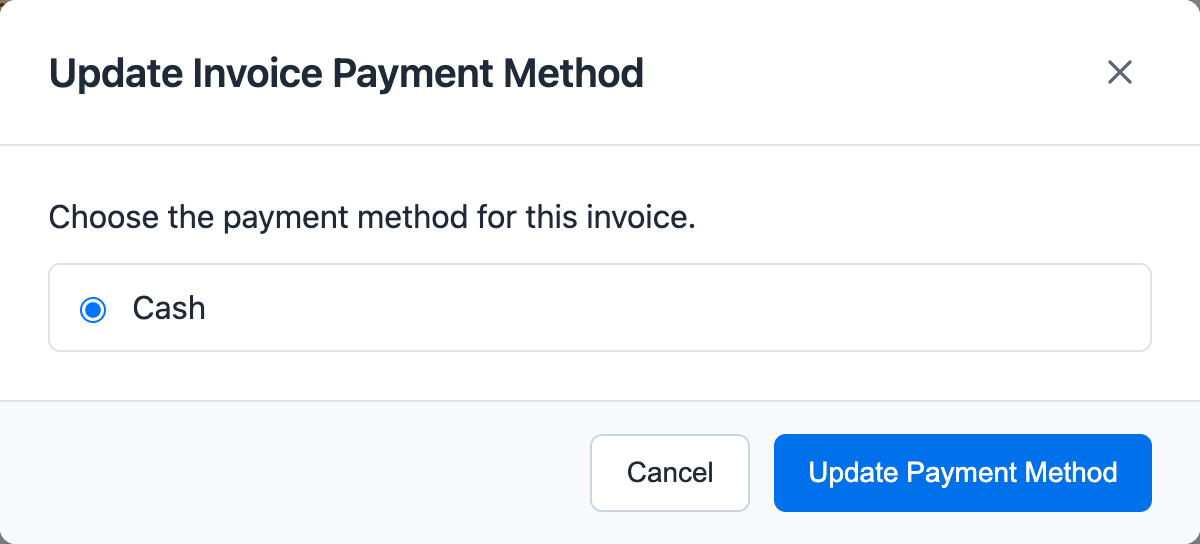
If the invoice itself needs to change, use Edit beside Payment Method on the invoice detail page.
Related guides:
Ready to streamline your gym?
Start managing bookings, personal training, and memberships in minutes.
Start Your Free Trial →No credit card required