Set Up Payment Processing
Connect a payment processor before relying on automatic card billing. You can still test with cash or complimentary memberships before card processing is live.
1. Open Payment Processing
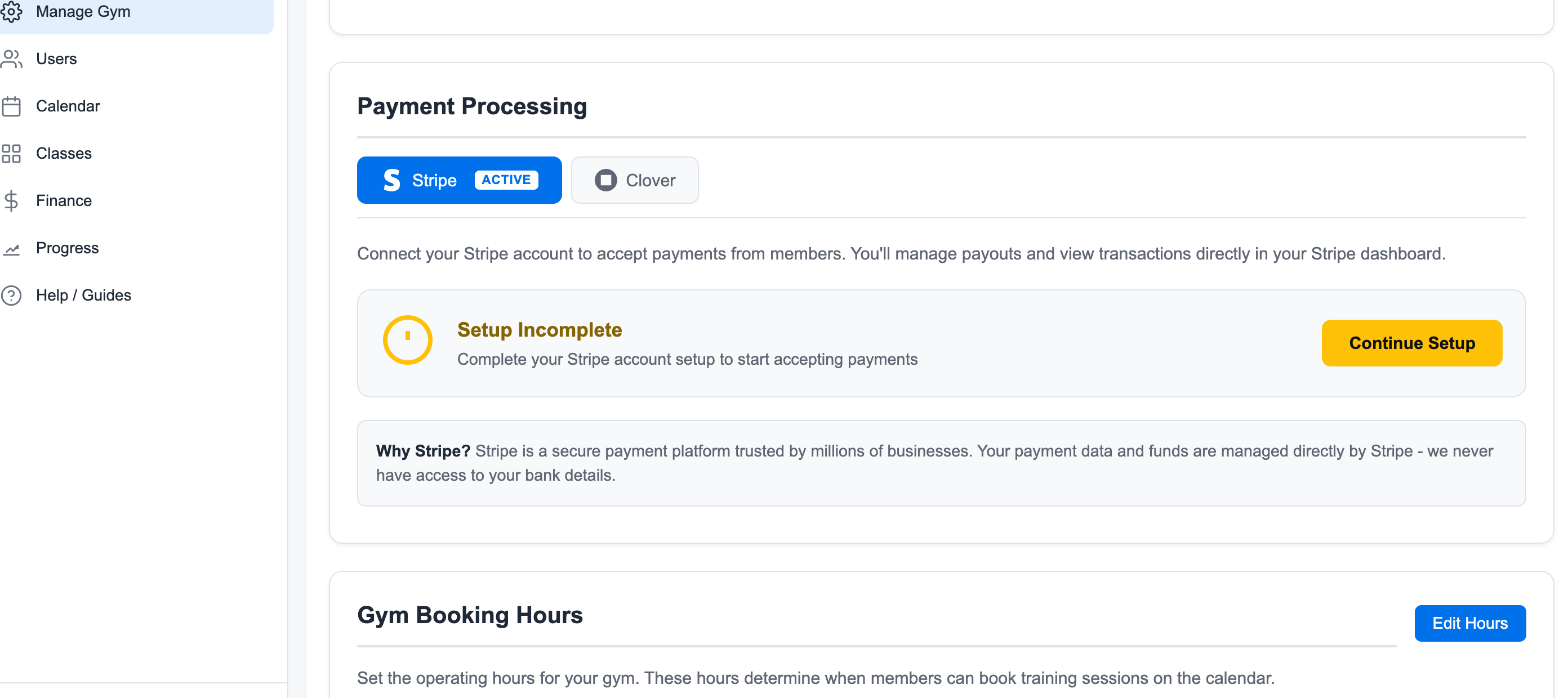
Go to Manage Gym -> Settings, then find Payment Processing.
2. Choose the Provider
Select the provider your gym will use:
- Stripe for standard online card processing
- Clover when the gym already uses Clover for payments
- Square when the gym already uses Square for payments
Only one provider should be active for normal billing.
3. Complete the Provider Setup
Follow the setup action shown for the selected provider. The exact account steps happen with the provider, but Easy Fitness Booking stores which provider should be used for invoices.
4. Test With a Real Workflow
Before inviting members:
- Create a test member
- Add a card to the member profile
- Assign a small test membership or create a custom invoice
- Confirm that the invoice records the correct payment method
5. Know When Cash Still Works
Cash and complimentary workflows can be used for setup, demos, and gyms that do some billing offline. Card processing is required for automatic member card charges.
Related guides:
Ready to streamline your gym?
Start managing bookings, personal training, and memberships in minutes.
Start Your Free Trial →No credit card required