Trainer Payroll
It's payday. Do you know exactly how much you owe each trainer?
Most gym owners have lived this nightmare: counting sessions from the calendar, cross-referencing with no-shows, trying to remember that bonus you promised Sarah, checking if Marcus already got paid for that makeup session.
Easy Fitness Booking tracks all of it automatically. When it's time to pay your trainers, the numbers are already calculated.
What Trainers Get Paid For
Here's what counts toward trainer pay:
| Session Type | Trainer Paid? | Why |
|---|---|---|
| Completed | Yes | They did the work |
| Late Cancel (within 24 hours) | Yes | They blocked the time |
| No-Show | Yes | They showed up |
| Cancelled (more than 24 hours out) | No | Slot could be rebooked |
The logic: if the trainer committed their time and couldn't use it for something else, they get paid. If the member cancelled with enough notice that the trainer could fill the slot, no payment.
See Session Handling for the full breakdown on how sessions get marked.
Your Payroll Dashboard
What You See
Before creating payroll, you can see exactly what's owed to each trainer:
Sarah Johnson - Unpaid Sessions
─────────────────────────────────────
Completed PT Sessions:    24 × $40 = $960
Late Cancellations:        2 × $40 = $80
No-Shows:                  1 × $40 = $40
                         ─────────────────
Total Owed:                        $1,080
No guessing. No spreadsheets. No "wait, did I count that session?"
Filtering the View
You can look at:
- Specific date range — This pay period, last month, custom dates
- One trainer — Just Sarah's sessions
- All trainers — Everyone at once
- By session type — See all late cancellations across the gym
Creating Payroll: Step by Step
Step 1: Pick Your Pay Period
Choose the dates you're paying for:
- January 1-15 (bi-weekly)
- January 1-31 (monthly)
- Custom range
Only sessions within those dates get included.
Step 2: Review the Sessions
For each trainer, verify the numbers look right:
- Does Sarah's count match what she expects?
- Any sessions missing?
- Any unmarked no-shows still showing as "booked"?
If something's off, fix the session status first. Mark that no-show. Correct that error. Then come back to payroll.
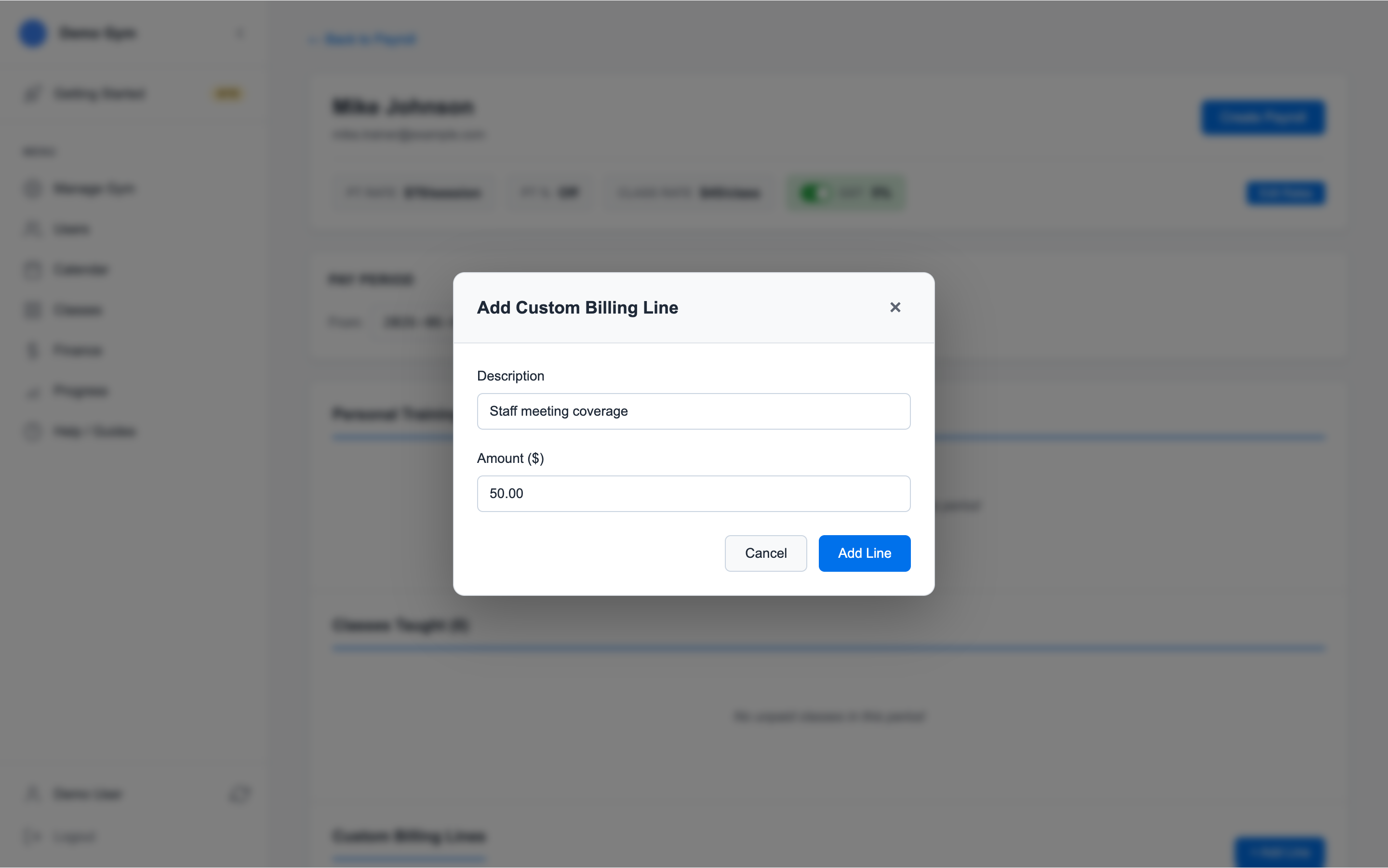
Step 3: Add Custom Items (If Needed)
Beyond sessions, you might owe other things:
Common additions:
- Holiday bonus: +$100
- Certification reimbursement: +$200
- Equipment purchase reimbursement: +$75
Common deductions:
- Uniform cost: -$50
- Advance repayment: -$100
Add whatever applies. Each line gets a description so you remember why later.
Step 4: Create the Payroll Record
Everything look right? Create the payroll.
Here's what gets generated:
Payroll Record #PAY-2025-0042
─────────────────────────────────────
Trainer: Sarah Johnson
Period: January 1-15, 2025

PT Sessions (Completed):  24 × $40 = $960.00
PT Sessions (Late Cancel): 2 × $40 = $80.00
PT Sessions (No-Show):     1 × $40 = $40.00
─────────────────────────────────────
Session Subtotal:                  $1,080.00

Custom Items:
├── Holiday Bonus:                  +$100.00
├── Certification Reimbursement:    +$200.00
└── Uniform Deduction:               -$50.00
─────────────────────────────────────
Total Payroll:                     $1,330.00

Created: Jan 16, 2025 by Manager Tom
Those sessions are now marked as "paid" in the system. They won't show up on the next payroll.
Setting Pay Rates
Each trainer has their rates configured in their profile:
Sarah Johnson - Pay Configuration
─────────────────────────────────────
PT Session Rate: $40.00
Group Class Rate: $60.00
Updating Rates
When you change a trainer's rate:
- Future sessions use the new rate
- Past payrolls keep the old rate (what you actually paid)
- Unpaid sessions use the rate at the time you create payroll
So if Sarah was at $40 and you bump her to $45, her next payroll uses $45. But last month's payroll record still shows $40 because that's what you paid her.
Different Work, Different Rates
Trainers might have different rates for:
- PT sessions vs. group classes
- Peak hours vs. off-peak
- Specialized certifications
Configure whatever makes sense for your gym.
Real Scenarios
Scenario 1: Regular Bi-Weekly Payroll
It's January 15th. Time to pay your trainers for the first half of the month.
You do:
- Open the payroll dashboard
- Set date range: January 1-14
- Review each trainer's sessions
- Sarah has 24 completed, 2 late cancels, 1 no-show. Looks right.
- Marcus has 18 completed, 1 late cancel. He confirms that's correct.
- Add Sarah's certification reimbursement (+$200)
- Create payroll for both
- Transfer the money however you pay them (bank, check, etc.)
Done. Sessions are marked paid. History is preserved.
Scenario 2: Trainer Disputes Their Count
Marcus says "I should have 20 sessions, not 18."
You do:
- Pull up his sessions for the date range
- Show him each one with date, time, and member name
- Find the two he's thinking of—they were in the previous pay period and already paid
- He goes "Oh right, those were December." Issue resolved.
The system tracks every session. No he-said-she-said.
Scenario 3: Bonus for Great Performance
Lisa had the highest client retention rate last quarter. You want to give her a $150 bonus.
You do:
- When creating her payroll, add a custom line item
- Description: "Q4 Retention Bonus"
- Amount: +$150
- It shows up on her payroll record permanently
If she asks about it next year, you can show her exactly when and why.
Scenario 4: Catching a Missing No-Show
While reviewing payroll, you notice Marcus has a session from January 8th still marked as "booked." That was a week ago.
You do:
- Check with Marcus—did they complete or no-show?
- "Oh, that guy never showed up."
- Mark the session as no-show
- It now appears in Marcus's payroll
- Create the payroll with the corrected count
The pre-payroll review catches these things before you underpay your trainers.
Payroll History
Finding Past Records
Every payroll record is preserved:
- Search by trainer
- Search by date
- View full details of any record
- See exactly which sessions were included
What's Kept Forever
Each payroll record preserves:
- Exact sessions (with IDs, so you can trace each one)
- Pay rates at the time
- Custom line items with descriptions
- Who created it and when
- Total amount
Even if rates change later, historical records show what was actually paid.
Reports
Pay Period Summary
See everyone's totals at once:
January 2025 Payroll Summary
─────────────────────────────────────
Sarah Johnson:    $2,660.00
Marcus Chen:      $1,840.00
Lisa Park:        $3,120.00
─────────────────────────────────────
Total Payroll:    $7,620.00
Year-to-Date
Track cumulative earnings per trainer:
Sarah Johnson - 2025 YTD
─────────────────────────────────────
January:     $2,660.00
February:    $2,480.00
March:       $2,920.00
─────────────────────────────────────
YTD Total:   $8,060.00
Session Breakdown Analysis
See patterns across your team:
- Which trainers have the most no-shows? (Might indicate scheduling issues)
- What percentage are late cancels? (Might indicate member commitment problems)
- Who's working the most hours? (Might need more trainers)
Data tells you things before they become problems.
Best Practices
Pick a Schedule and Stick to It
Whether weekly, bi-weekly, or monthly—consistency helps your trainers plan their finances and reduces "when am I getting paid?" questions.
Common schedules:
- Weekly: Process every Monday for the previous week
- Bi-weekly: Process the 1st and 15th for the prior period
- Monthly: Process the 1st for the previous month
Pre-Payroll Checklist
Before creating payroll each period:
- Mark any unmarked sessions — Completed or no-show, not still "booked"
- Verify counts with trainers — Quick sanity check prevents disputes
- Add custom items — Bonuses, reimbursements, deductions
- Double-check the numbers — Catches errors before you pay
After Creating Payroll
- Export or note the totals
- Process actual payment through your bank/payroll service
- Let trainers know they've been paid
- Keep records for tax purposes
Common Questions
"Why doesn't this process the actual bank transfer?"
The system calculates and documents payroll. Actually moving money is handled through your bank, payroll service, or however you pay people.
Why? Because every gym has different setups—different banks, tax situations, payroll services. We handle the hard part (tracking who's owed what), and you use your existing payment method for the easy part (sending money).
"Can I undo a payroll record?"
No—payroll records are permanent for audit purposes. If you made an error:
- Document what went wrong
- Add a correction to the next payroll (positive or negative custom line item)
- Note explains the adjustment
The history stays clean and traceable.
"What about group classes?"
Trainers who lead group classes get tracked the same way. You can configure different pay rates for classes vs. PT sessions, and include everything in one payroll or separate them—your call.
Related Topics
- Session Handling — How late cancels and no-shows work
- Invoice Management — The member billing side of things
Ready to streamline your gym?
Start managing bookings, personal training, and memberships in minutes.
Start Your Free Trial →No credit card required