Connect Google Calendar Sync
Google Calendar sync is available to trainers and instructors from their own account settings. Easy Fitness Booking stays the system of record, and Google Calendar becomes a viewing calendar for the trainer's day.
This is not a member-facing calendar export. It is staff calendar sync for the trainer or instructor who owns the sessions.
Go to Account -> Integrations -> Google Calendar Sync.
1. Connect Google Calendar
Click Connect Google Calendar and approve access with Google.
Easy Fitness Booking uses the Google permission narrowly:
- It creates or manages Easy Fitness Booking calendar events.
- It does not read personal calendar events.
- It does not access unrelated Google services.
2. Use the Trainer Calendar as the Source
The trainer still works from the Easy Fitness Booking calendar. That is where sessions are booked, changed, cancelled, marked no-show, or connected to credits and invoices.
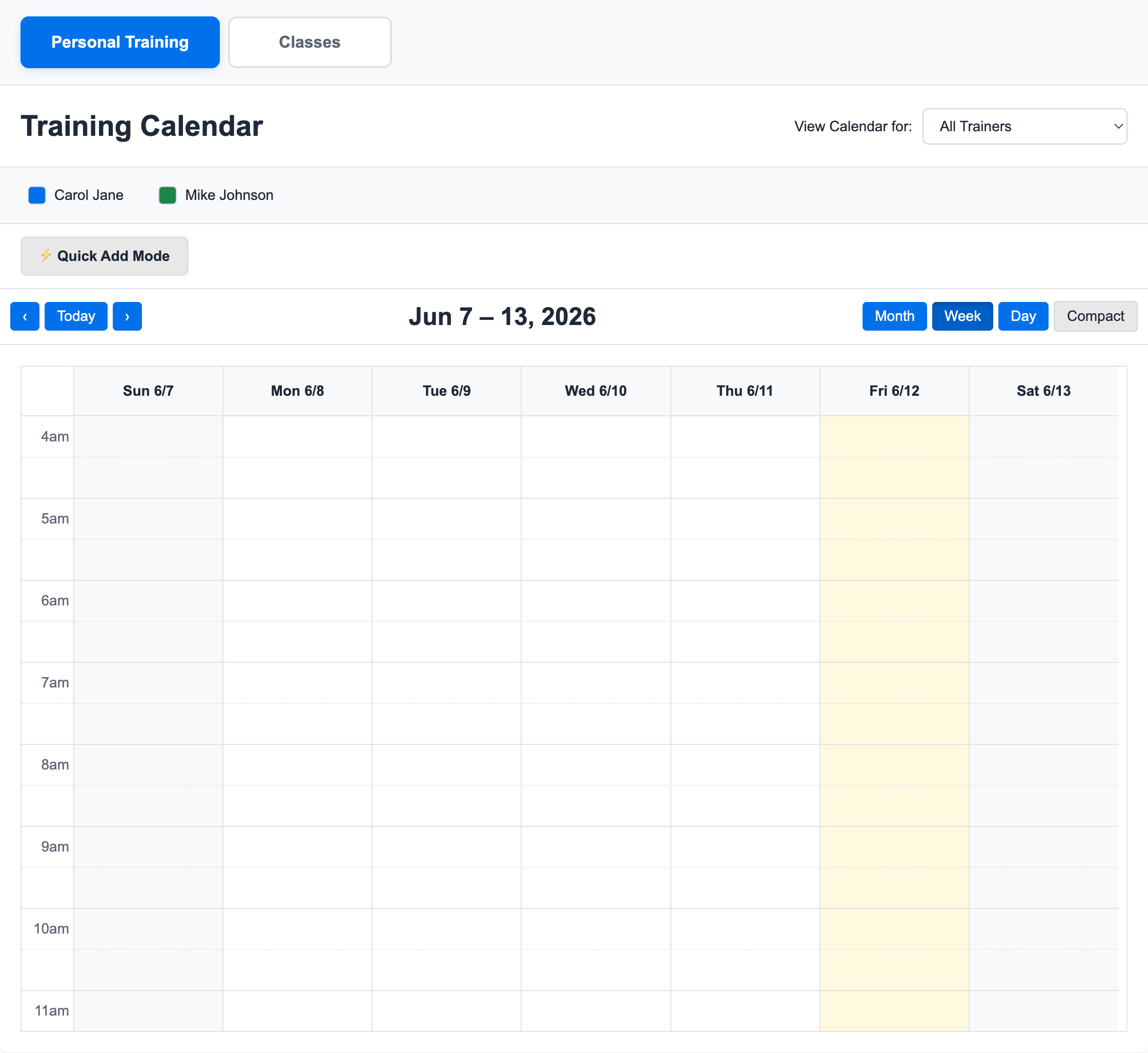
When the Easy Fitness Booking schedule changes, the Google Calendar copy is updated from that source.
3. Use the Dedicated Google Calendar
When connected, the app creates a dedicated Easy Fitness Booking calendar in Google. This keeps gym events separate from the trainer's personal calendar.
Synced events include:
- Available PT slots
- Booked PT sessions with member names
- Classes assigned to the trainer or instructor
- Late cancellations with a late-cancel label
- Cancelled sessions with a cancelled label
- No-shows with a no-show label
- Non-training sessions, when they are scheduled on the trainer calendar
4. Check Sync Status
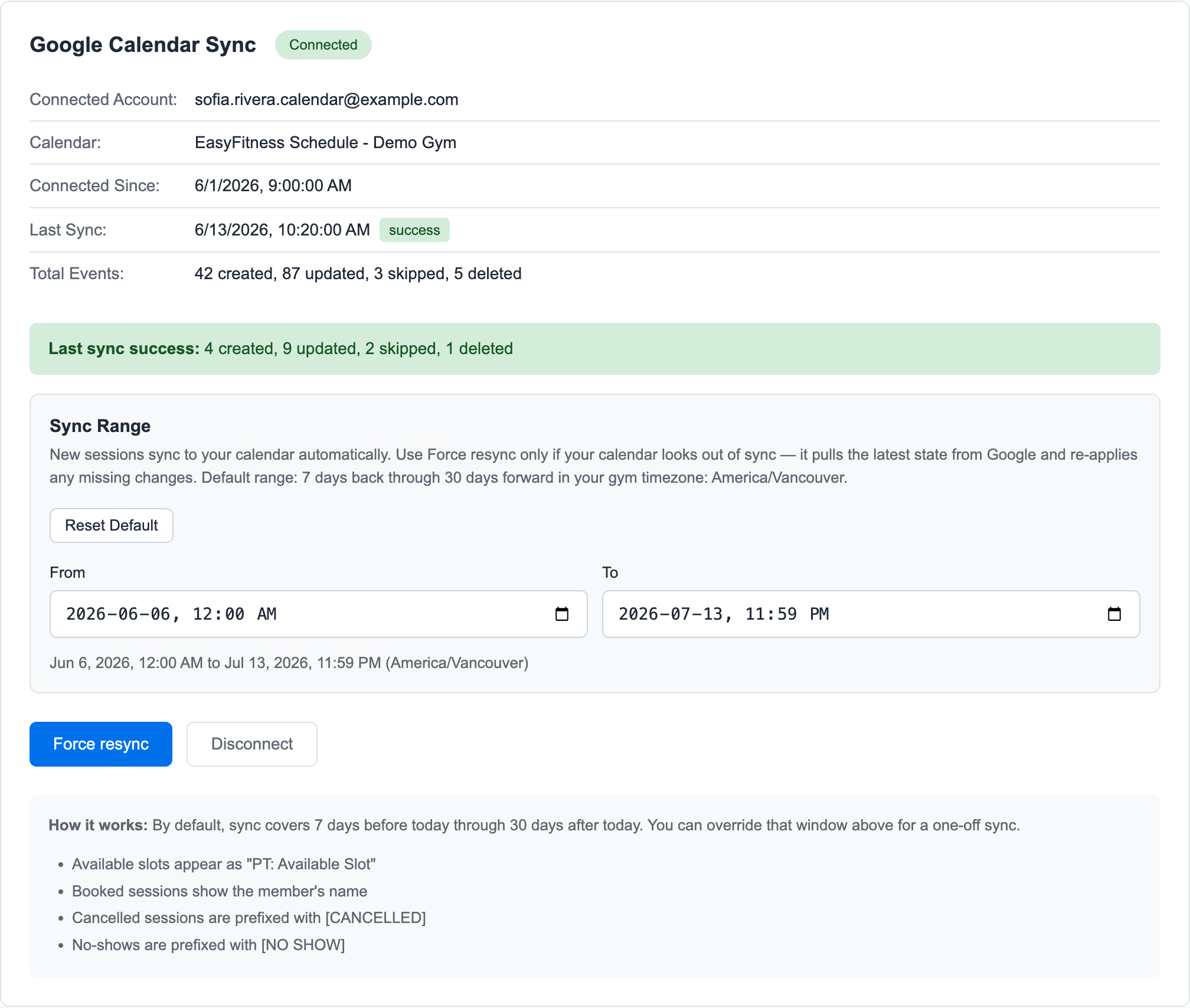
The connected screen shows:
- Connected Google account
- Calendar name
- Connected date
- Last sync time and status
- Total events created, updated, skipped, or deleted
- Last sync error if one occurred
5. Understand the Event Labels
Google Calendar events are named so the trainer can scan the day quickly:
| Easy Fitness Booking item | Google Calendar label |
|---|---|
| Available personal training slot | PT: Available Slot |
| Booked personal training session | PT: Member Name |
| Class session | Class: Class Name |
| Late cancellation | [LATE CANCEL] ... |
| Cancelled session | [CANCELLED] ... |
| No-show | [NO SHOW] ... |
Booked PT events are set to private visibility in Google Calendar. The Easy Fitness Booking account remains the full record for credits, invoices, member history, notes, and cancellation decisions.
6. Force a Resync
New schedule changes sync automatically. Use Force resync when Google Calendar looks out of date.
The default resync range is:
- 7 days back
- 30 days forward
- In the gym timezone
Staff can adjust the from/to date range for a one-off sync, then reset to the default range.
Force resync compares the Easy Fitness Booking schedule with the dedicated Google Calendar and applies the missing creates, updates, or deletes. It is a recovery button, not a daily workflow.
7. Disconnect
Disconnecting removes the Google connection and deletes the dedicated Easy Fitness Booking calendar that was created for the trainer.
Reconnect later if the trainer wants sync again. A new dedicated calendar will be created.
Related Topics
Ready to streamline your gym?
Start managing bookings, personal training, and memberships in minutes.
Start Your Free Trial →No credit card required