Document Management
Easy Fitness Booking's document management system handles waivers, agreements, and other required documents digitally.
Overview
The document system allows gyms to:
- Create custom document templates
- Require document completion during signup
- Track signed documents
- Store documents securely
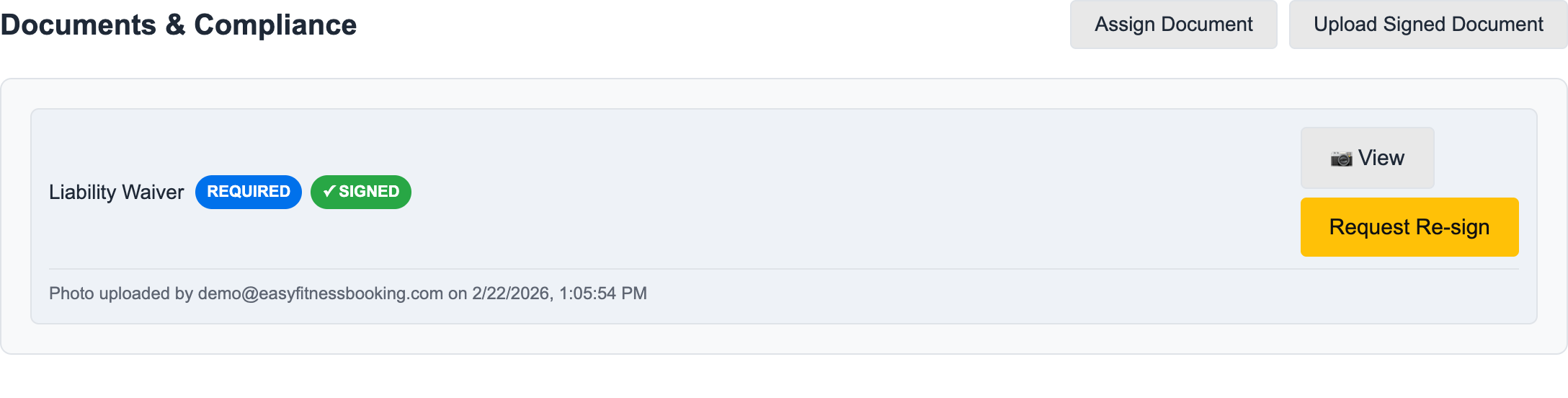
On the member record, staff can see whether required documents are signed and request a new signature without leaving the profile.
Document Types
Common Documents
| Document Type | Purpose |
|---|---|
| Liability Waiver | Legal protection for the gym |
| Membership Agreement | Terms of membership |
| Health Questionnaire | Pre-participation health screening |
| Emergency Contact | Contact information for emergencies |
| Photo Release | Permission for marketing photos |
Custom Documents
Create documents specific to your gym's needs.
Creating Documents
Document Setup
- Navigate to Manage Gym -> Documents
- Click Add New Document
- Enter the document name, type, and description
- Configure whether it is required or hidden
- Upload the source PDF when the document needs file storage
- Save and activate
Document Options
When creating documents, configure:
- Required vs Optional - Must members complete this?
- Hidden assignment - Should it only appear when staff assign it to a specific member?
- File upload - Does the form need a stored PDF?
For the step-by-step setup workflow, see Upload a Document or Waiver.
Managing Documents
Viewing Completion Status
See which members have completed required documents:
- Navigate to Documents dashboard
- View completion statistics
- Filter by document or status
- Send reminders to incomplete
Member Document View
View a specific member's document status:
- Go to the member's profile
- Scroll to Documents & Compliance
- See required, completed, and assigned documents
- Assign hidden documents when a form only applies to that member
- Upload signed copies or request a new signature
Staff can also upload a signed copy when the member completed paperwork outside the portal.
For the member-level workflow, see Manage Member Documents.
First-Time Setup Integration
Requiring Documents at Signup
Documents can be part of the member onboarding flow:
- Member creates account
- System presents required documents
- Member reviews and signs
- Documents are stored
- Member gains full access
Configuring the Flow
Gym owners can:
- Choose which documents are required
- Set the order documents appear
- Require all documents before access
Signature Collection
Digital Signatures
Members can sign documents electronically:
- Draw signature with mouse/touch
- Type name as signature
- Date automatically recorded
Legal Compliance
Digital signatures include:
- Timestamp
- IP address
- User identification
- Document version
Storage and Access
Secure Storage
All documents are:
- Encrypted at rest
- Backed up regularly
- Access-controlled
Downloading Documents
Authorized users can:
- View signed documents
- Download PDF copies
- Print for records
Best Practices
- Review annually - Keep documents current with laws
- Use clear language - Ensure members understand what they're signing
- Test the flow - Complete signup yourself to check experience
- Keep records - Maintain copies of all document versions
Troubleshooting
Member can't complete documents
- Check browser compatibility
- Ensure documents are active
- Verify member has correct access
Document not showing
- Confirm document is required for this member type
- Check if document was already completed
Need help? Contact support.
Ready to streamline your gym?
Start managing bookings, personal training, and memberships in minutes.
Start Your Free Trial →No credit card required